Settings
Platforms and apps
Three smaller settings screens: Platforms tailors Plandalf's instructions to your tools, Authorized Apps lists apps you've connected to your Plandalf account, and Advanced holds your test domains.
Platforms
Under Settings → Platforms, pick the tools you use. Plandalf then shows install steps and snippets for those tools in deadline timers, checkouts and anywhere else it gives you code.
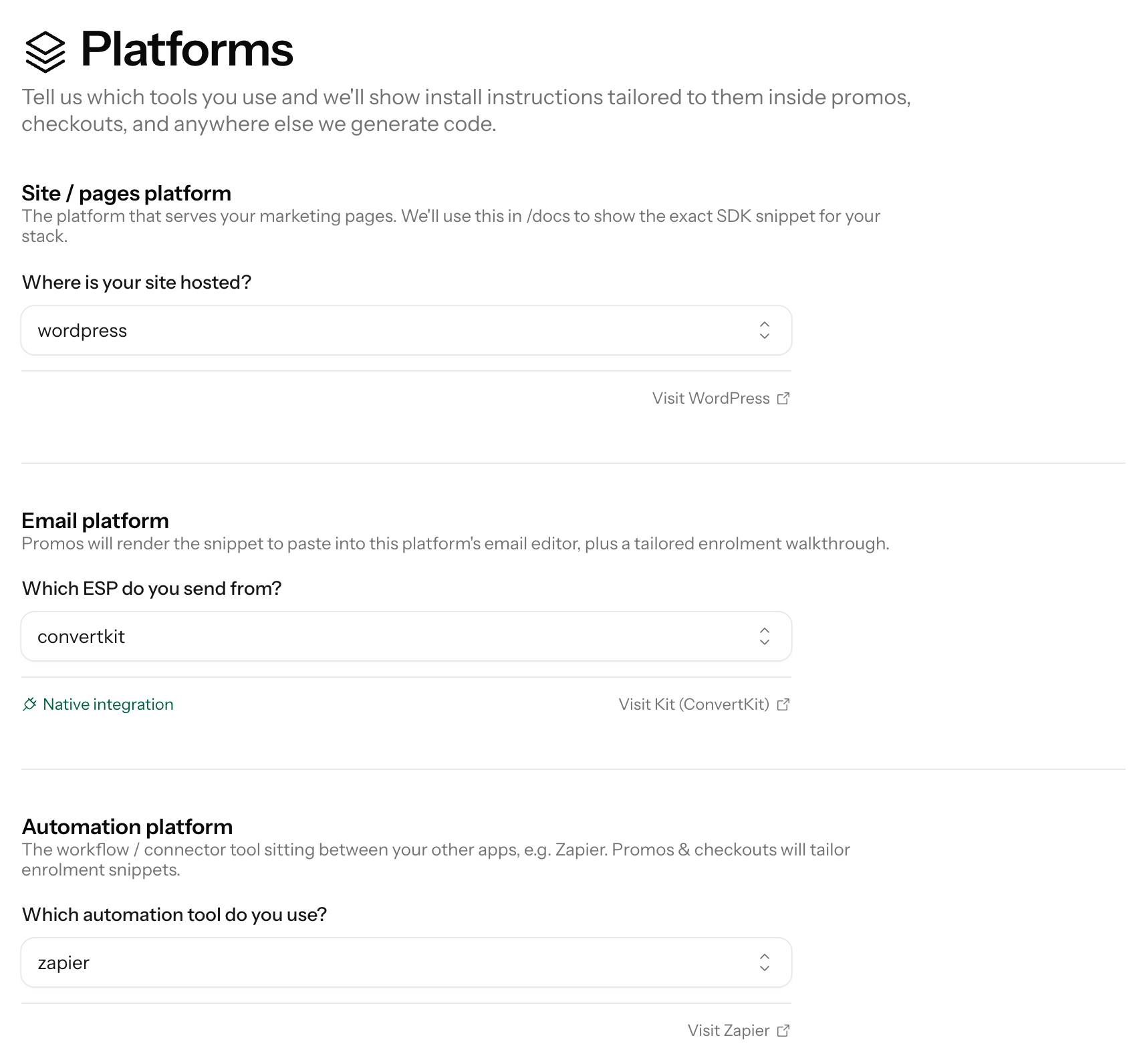
| Setting | Question | Used for |
|---|---|---|
| Site / pages platform | Where is your site hosted? | The script and button steps for your site builder. |
| Email platform | Which ESP do you send from? | The snippet deadline timers give you for that email editor, and how to enrol subscribers. |
| Automation platform | Which automation tool do you use? | Enrolment steps for tools like Zapier. |
Choices marked Native have a built-in Plandalf integration; see Automations. Changes save as soon as you pick. Choose Not set to clear one.
Authorized Apps
Some apps connect to Plandalf by asking you to sign in and approve them, rather than with an API key. Examples are the MemberPress plugin and AI assistants using the MCP server. Settings → Authorized Apps lists the ones you've approved.
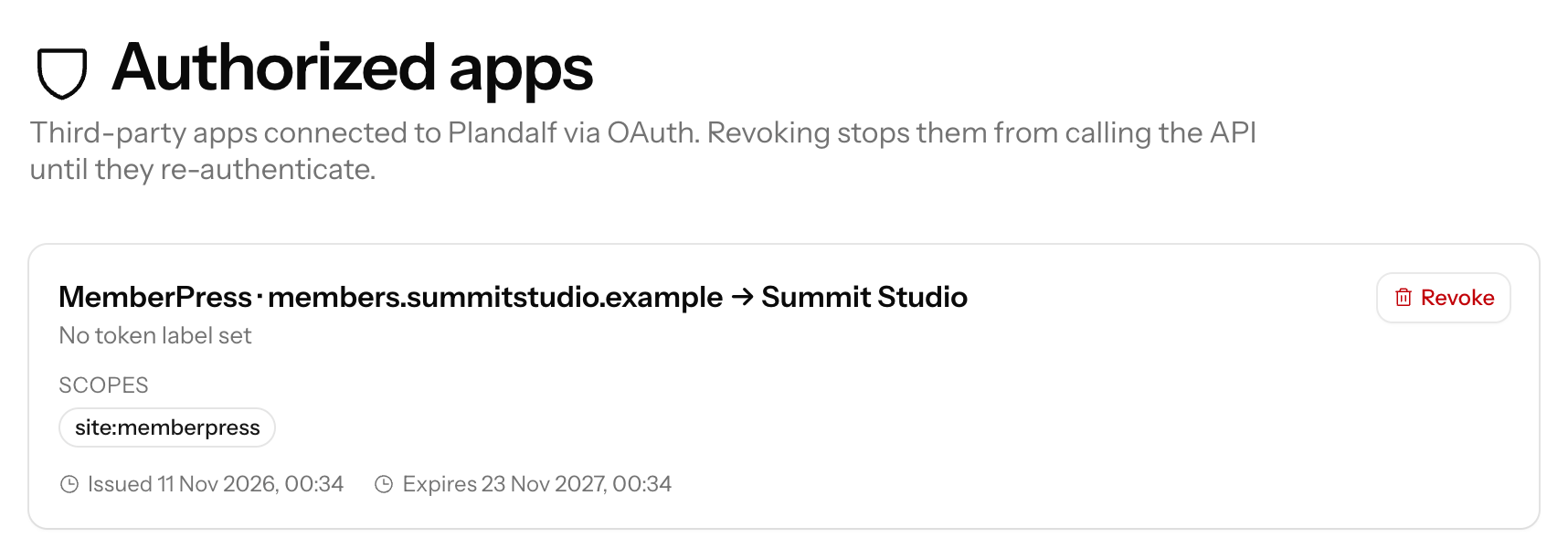
Each shows the app and site it's connected to, what it's allowed to do (Scopes), and when its access was issued and expires. Click Revoke to cut it off. It stops working straight away and has to be approved again before it can use Plandalf.
The list shows apps approved with your login. A teammate who approved an app sees it in their own list.
Advanced: test domains
Settings → Advanced holds your test domains: sites such as localhost or a staging site where checkouts run in test mode with Stripe test cards. Setting them up is covered in Test mode.