Customers and sales
Invoices
Every checkout makes an invoice, so Invoices is the full record of what people bought and paid. You can also write an invoice yourself, send a link to pay it, and bring invoices in from Stripe.
The invoice list
Plandalf starts a draft invoice when a buyer reaches the payment step of a checkout, and marks it paid when they pay. The list opens on paid invoices, newest first. Under each customer, a tag shows where they came from: a deadline timer, an affiliate, UTM tags, or direct.
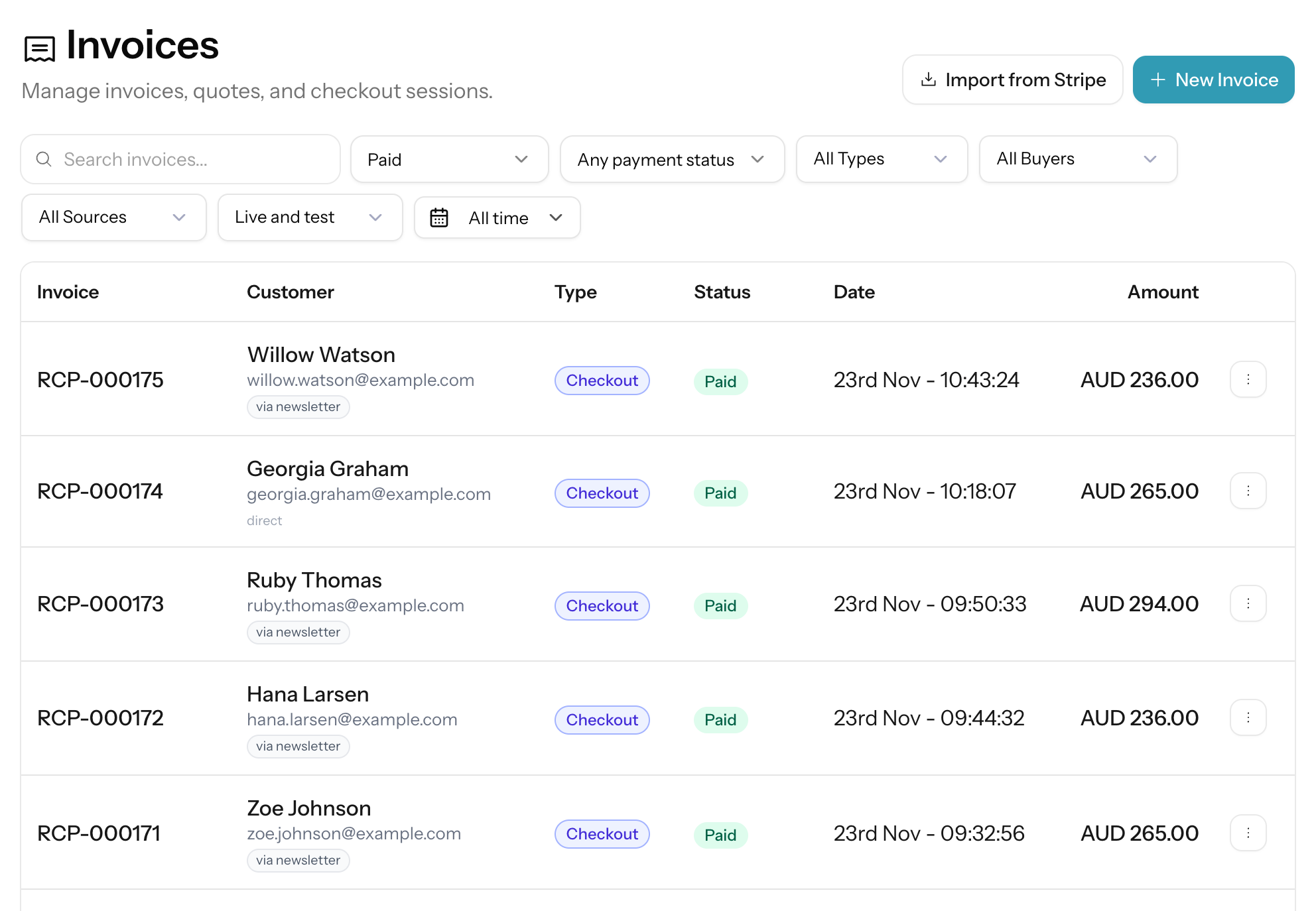
An upsell bought after checkout is part of the same invoice. Its own charge shows under Related invoices on the main one.
Filters
| Filter | Options |
|---|---|
| Search | Invoice number or ID, or the customer's name or email. It also finds emails typed into a checkout that wasn't paid. |
| Status | Draft, Open, Paid, Void, Uncollectible. Pick several, or clear them all to see every invoice. |
| Payment status | Pending, Processing, Succeeded, Failed, Partially Refunded, Refunded. |
| Type | Checkout (from a checkout), Invoice (made by hand), Quote, Credit Note. |
| Buyer | Linked to a customer, Captured (no payment) for an email with no customer yet, or Anonymous. |
| Source | Deadline timer, Affiliate, UTM, Direct. |
| Mode | Live and test, Live only or Test only. Test only lists purchases made in test mode. |
| Date | When the invoice was created. |
To see checkouts that reached payment but weren't paid, set the status to Draft.
An invoice
Click an invoice number to open it. The top shows its type, status and payment status, and when it was created, finalized and paid.
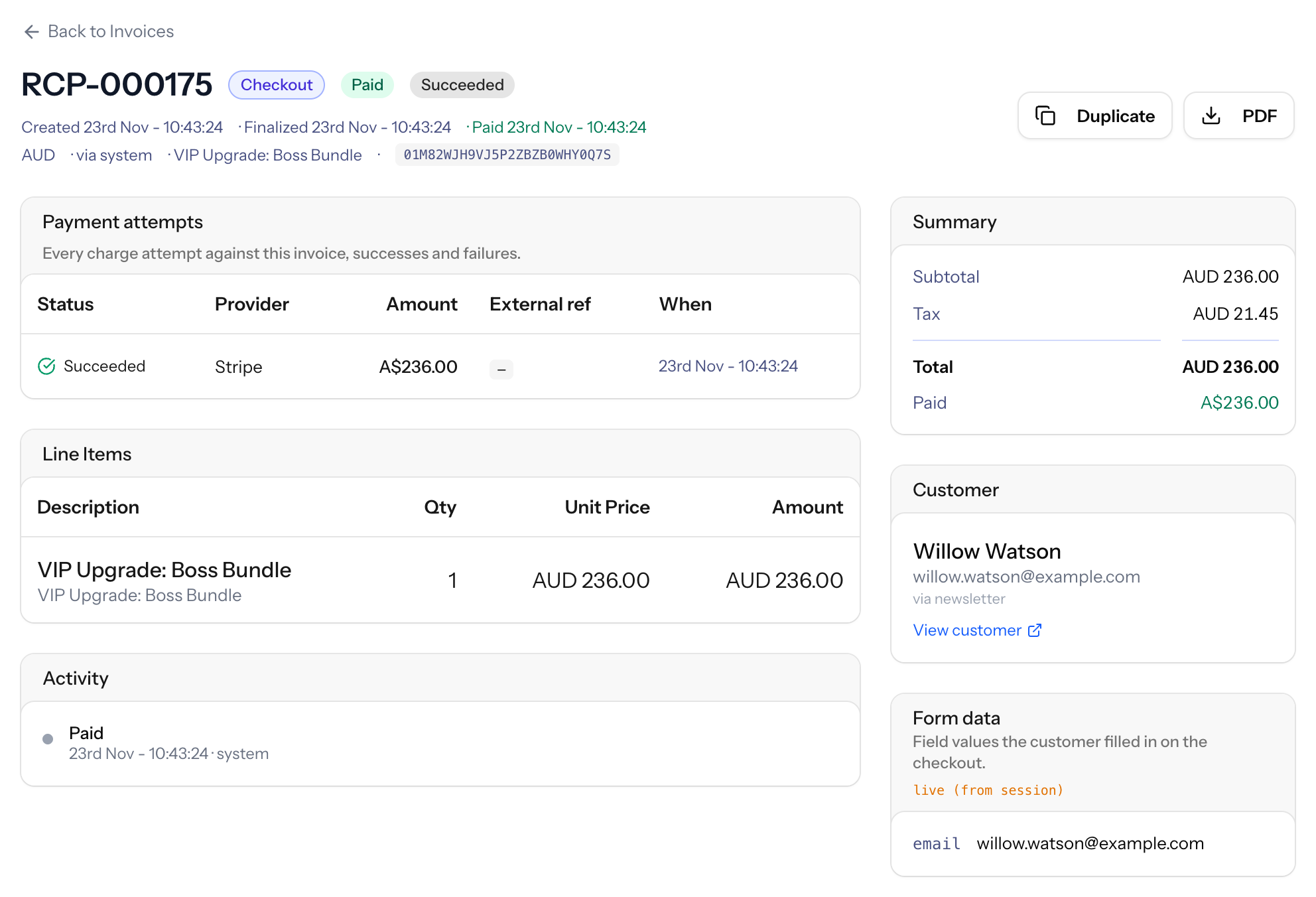
| Part | What it shows |
|---|---|
| Payment attempts | Every charge against the invoice, failed ones included, with the provider and when. |
| Line Items | Each product, quantity and price. |
| Activity | What happened to the invoice and who did it. |
| Summary | Subtotal, discount, tax, total, what's paid, what's still due and anything refunded. |
| Customer | Who bought, with View customer. |
| Form data | The fields the buyer filled in on the checkout. |
PDF downloads the invoice. Duplicate copies it into a new draft.
Create an invoice
Use this for a sale outside a checkout, such as a custom package or a client you bill directly.
Start a draft
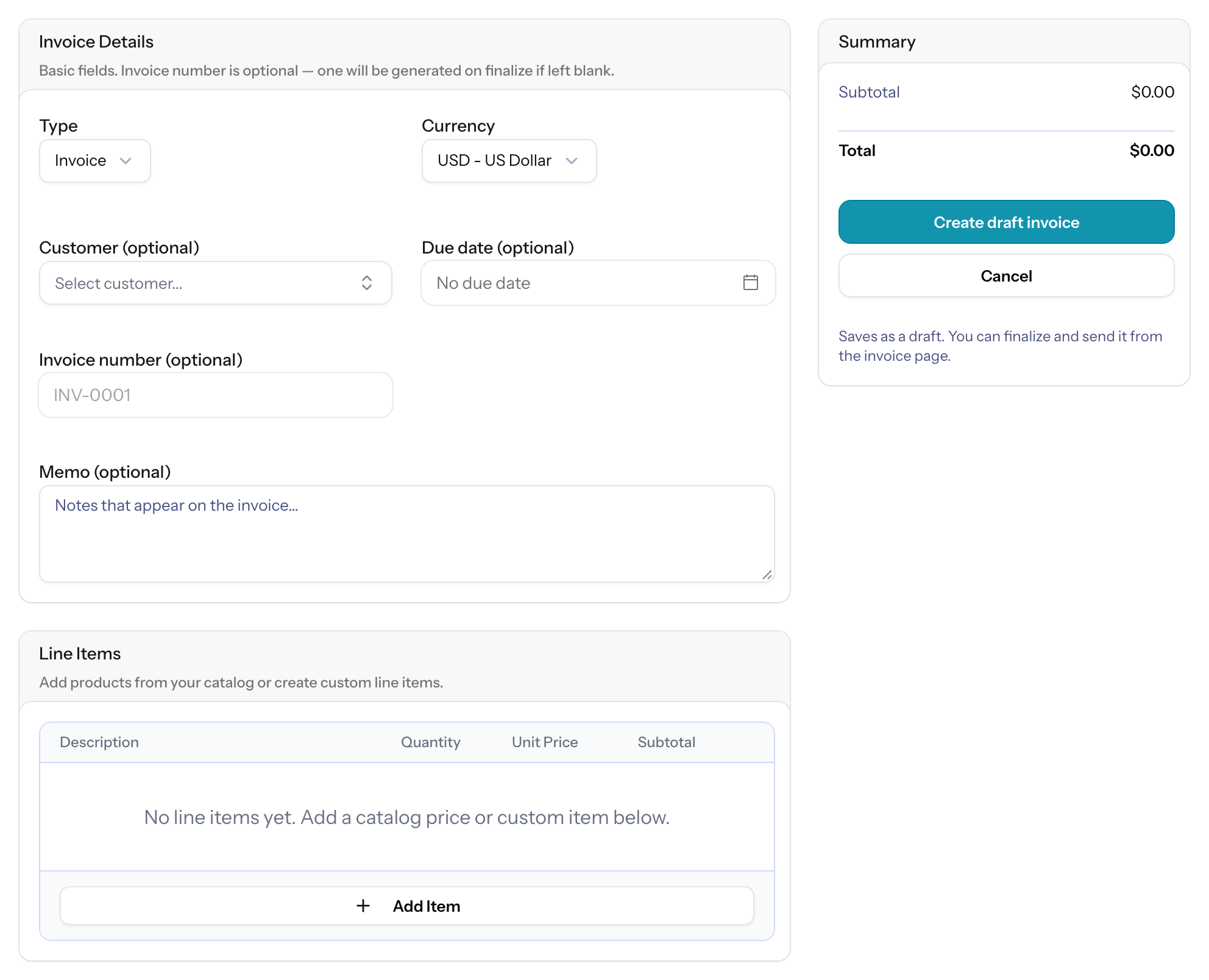
In Invoices, click New Invoice. Choose the type and currency, pick a customer or add a new one, and set a due date and memo if you need them. Leave Invoice number blank and Plandalf numbers it when you finalize.
Add what you're selling
Under Line Items, click Add Item and choose a price from your products or type a custom item. Add a discount code or a manual tax rate if you need one.
Save it
Click Create draft invoice. You can Edit a draft as often as you like.
Finalize it
Click Finalize. The invoice gets its number and becomes Open, ready to be paid. It can't be edited after this, so use Duplicate if you need a changed copy.
Get an invoice paid
An open invoice has three ways to get paid:
| Get Payment Link | Choose one of your checkouts for the design, click Generate Link and send the link to your customer. They pay it like any checkout. |
| Collect Payment | Opens the same payment page for you, for example to take a card over the phone. |
| Mark as Paid | Records a payment you received another way, such as a bank transfer. Nothing is charged. |
To cancel an invoice that hasn't been paid, click Void. This can't be undone.
Refunds
Refund a payment in your Stripe dashboard. Plandalf picks up the refund from Stripe and records it on the invoice: the payment status changes to Refunded or Partially Refunded, the summary shows the amount, and the customer's Refunded total goes up. The invoice stays Paid, because the sale happened.
Each refund also sends the invoice.refunded webhook and can start a sequence with the Invoice Refunded trigger. See Webhook events and Triggers and events.
Import invoices from Stripe
Bring invoices you created in Stripe into Plandalf to see them with the rest of your sales.
Choose the account
Click Import from Stripe, pick your Stripe account and, if you like, a status.
Fetch and pick
Click Fetch Invoices, tick the ones you want and click Import Selected. Load More fetches older invoices.
Plandalf matches each one to a customer and adds the customer if they're new. Importing an invoice again updates it rather than making a copy.
Leave invoices out of your results
Choose Mark as test from the ⋮ menu on an invoice to leave it out of Results and Insights. Invoices created before a checkout's go-live date are marked as test for you, so pre-launch purchases don't count.