Settings
Notifications and customer invoices
Plandalf sends two kinds of email: alerts to you and your team, and receipts and invoices to your customers. Settings → Notifications decides who gets the alerts. Settings → Customer invoices sets how customer emails look.
Notifications
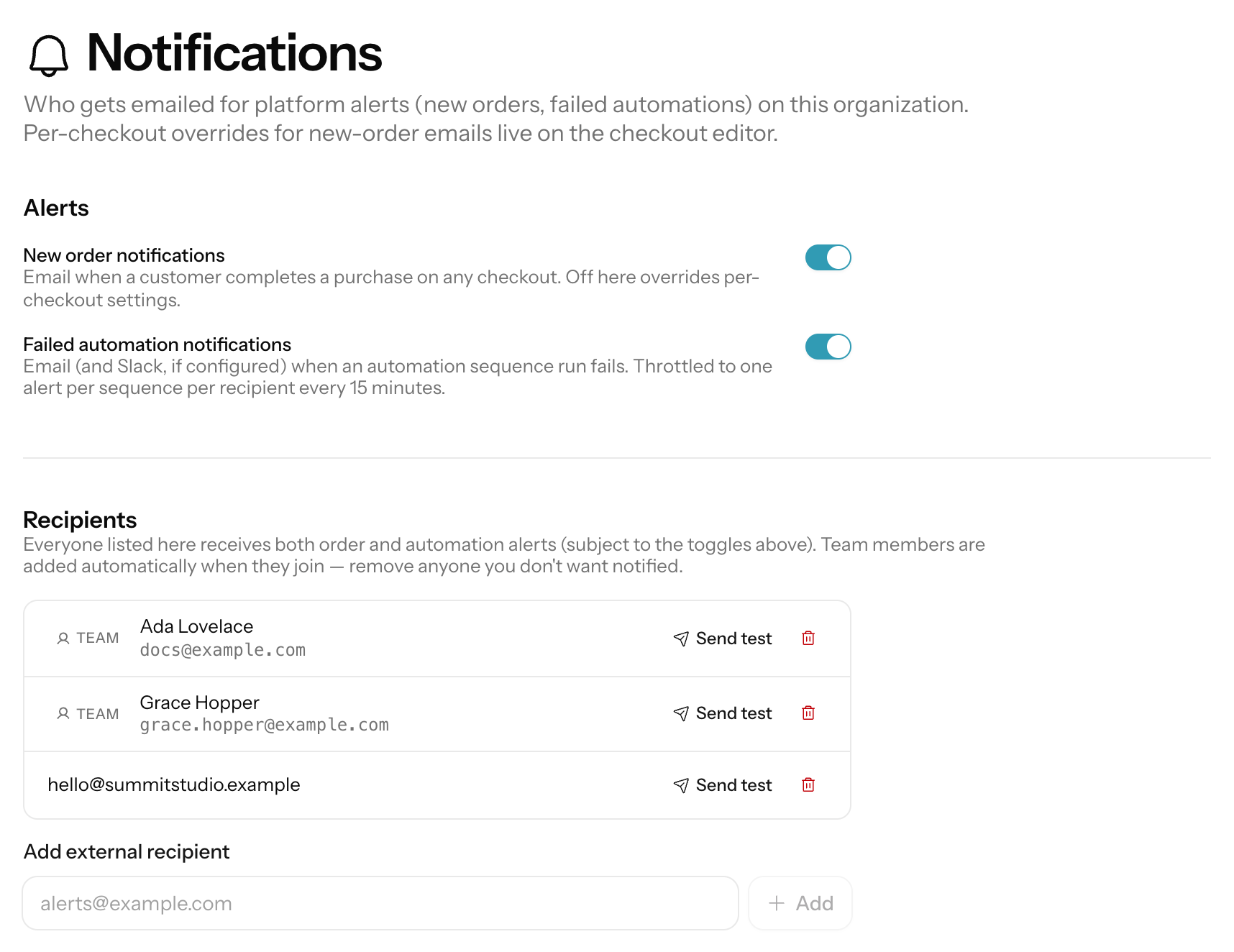
| Alert | Sent when |
|---|---|
| New order notifications | A customer completes a purchase on any checkout. |
| Failed automation notifications | An automation sequence fails. It also goes to Slack if you've connected it. Each recipient gets at most one alert per sequence every 15 minutes. |
Turning New order notifications off here stops new-order emails for every checkout, whatever each checkout's own setting says. Each checkout can send its order emails to different people; see Checkout settings.
Recipients
Everyone under Recipients gets both alerts, if they're on. Team members are added when they join, marked Team. To add someone outside your team, such as a shared inbox, type their email under Add external recipient and click Add. Click Send test to check an address works, and the bin to remove one. Then click Save.
If the list is empty, nobody gets alerts.
Customer invoices
These settings style the receipt and invoice emails your customers get, and the receipt page they open from them.
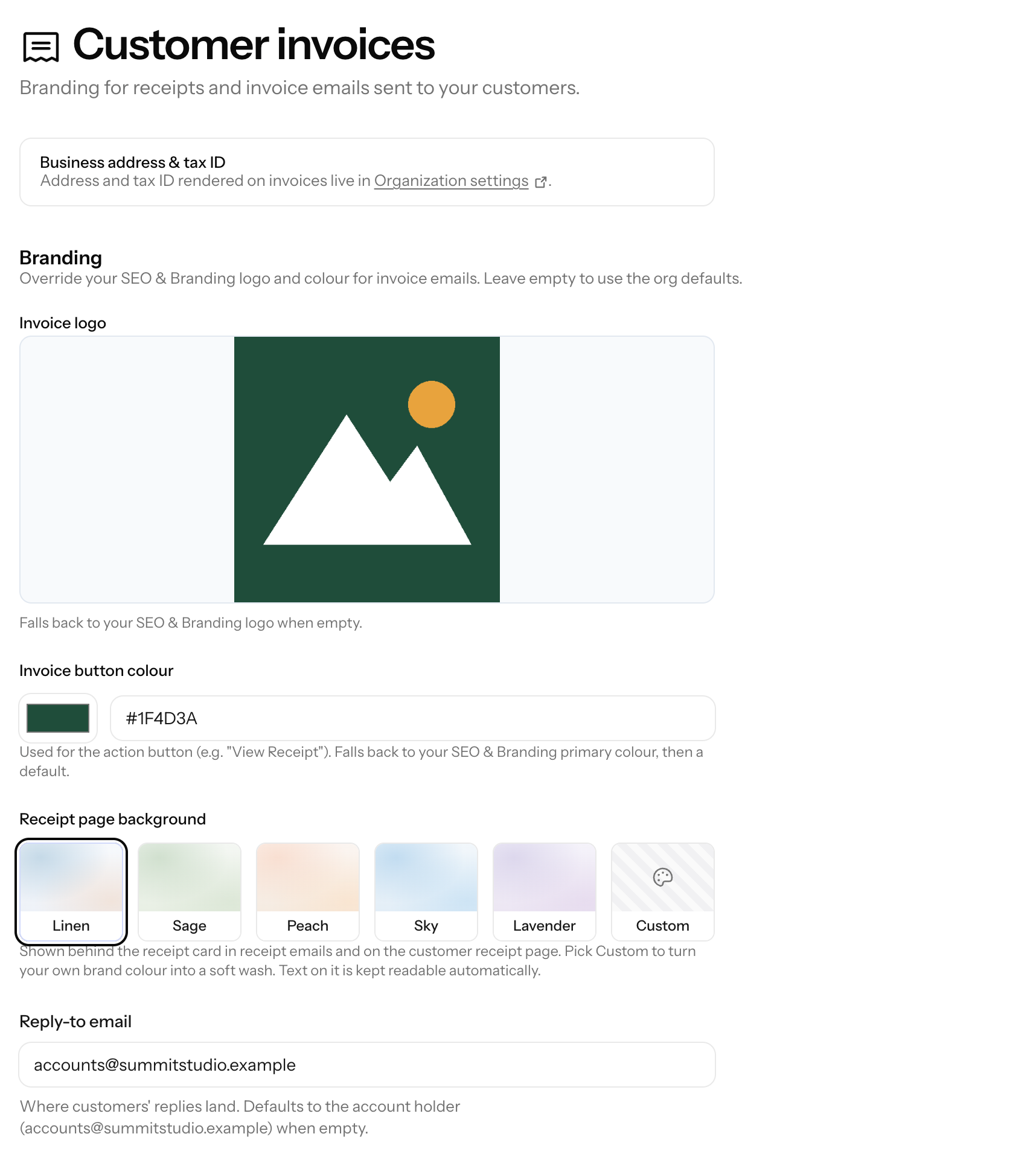
| Setting | What it does |
|---|---|
| Invoice logo | The logo at the top of the email. Empty uses your SEO & Branding logo, then your organization name. About 512×128 works well. |
| Invoice button colour | The colour of the button in the email, such as View Receipt. Empty uses your brand colour. |
| Receipt page background | The colour behind the receipt, in emails and on the receipt page: Linen, Sage, Peach, Sky, Lavender, or Custom to turn your own colour into a soft wash. Plandalf keeps the text on it readable. |
| Reply-to email | Where replies go when a customer answers a receipt or invoice. Empty uses the account holder's email. |
Preview shows roughly how the header and button will look. Click Save changes, then Send test email to see a real one in your inbox.
The business address and tax ID printed on invoices come from Organization.