Customers and sales
Results
Results adds up your sales. Overview shows revenue, refunds and how checkouts convert. Payouts and Commissions turn your Stripe payouts and partner payments into figures your accountant can use.
Overview
Results counts every paid invoice in the range: checkout sales, subscription renewals and invoices you made by hand. An upsell counts as part of the sale it followed. Amounts are in your billing currency, shown next to the title.
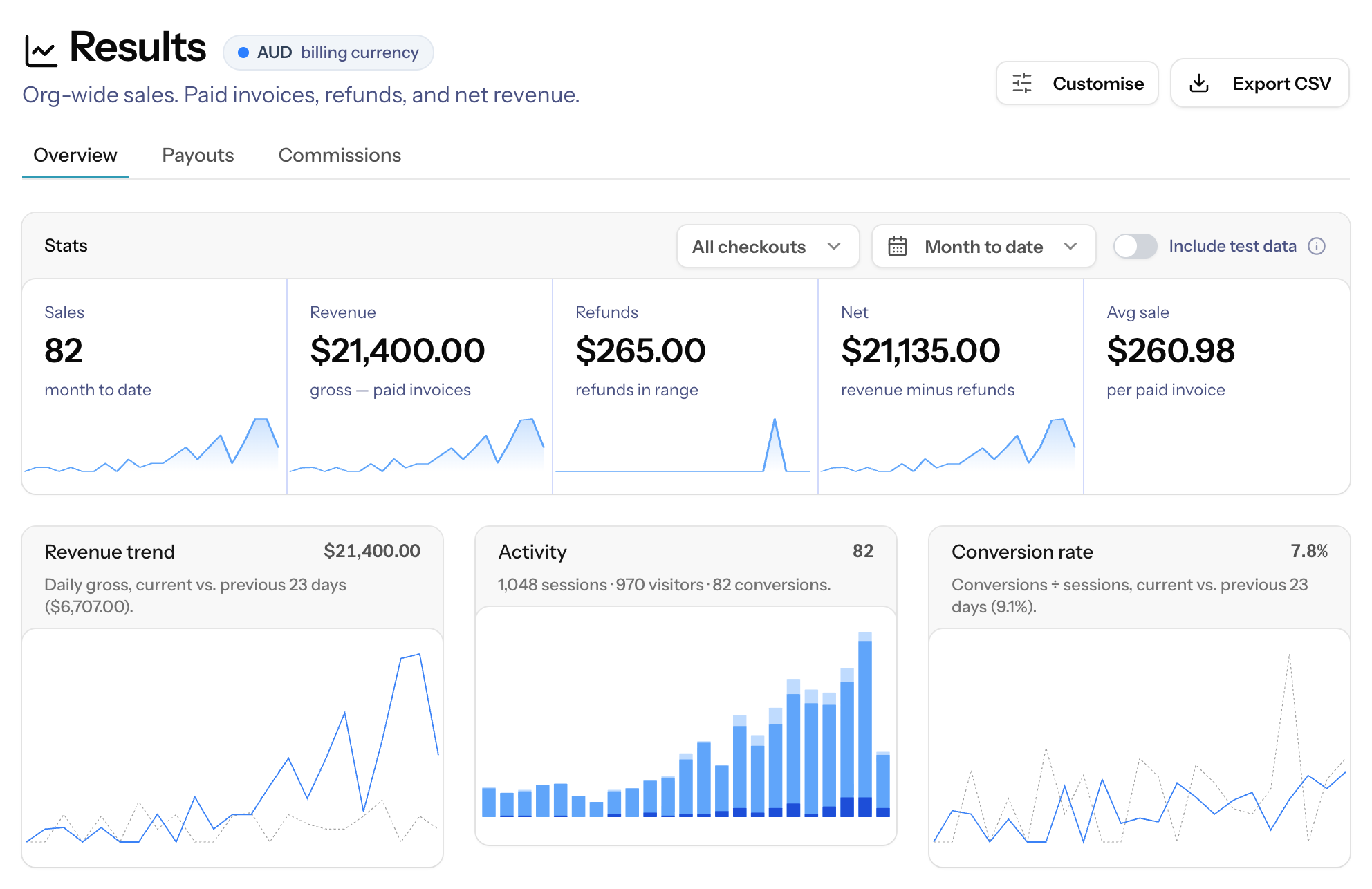
| Figure | Means |
|---|---|
| Sales | How many paid invoices. |
| Revenue | The total of those paid invoices, before refunds. |
| Refunds | Money refunded in the range. |
| Net | Revenue minus refunds. |
| Avg sale | Revenue divided by sales. |
Below the figures, Revenue trend and Conversion rate compare the range with the one before it, and Activity shows sessions, visitors and conversions by day. Top products lists your best sellers, Daily breakdown gives each day's numbers and Recent conversions lists the latest paid invoices.
Narrow it down
- Pick one checkout from All checkouts.
- The date menu offers today, the last 7, 30 or 90 days, the last year, month to date or a custom range.
- Turn on Include test data to add back anything marked as test: purchases from before a checkout's go-live date, and customers or invoices you marked yourself.
Customise
Click Customise to hide the charts or add more cards: Stripe fees (hover for processing, currency conversion and tax), Net after fees, Refund rate and Effective fee rate. Your choice is saved in this browser.
Export sales
Click Export CSV, choose the dates and a checkout, and tick any extra columns: Order breakdown (subtotal, discount and tax), Stripe fees (fee and net payout) and Stripe fee detail (processing, currency conversion and GST). The file has one row per paid line item and a negative refund row for each refund.
Payouts
The Payouts tab lists your Stripe payouts and splits each one into taxable sales, GST-free sales and GST, the way an Australian business reports them. Pick a quarter, a financial year or a custom range. For an Australian organization the year runs July to June.
- The GST summary shows the GST you collected, taxable and GST-free sales, and Stripe fees with the GST you can claim on them.
- Each payout shows the net amount that reached your bank, its taxable, GST-free and GST amounts, Stripe fees and how many sales it held.
- GST comes from each sale's invoice: Australian customers carry 10% GST and overseas customers are GST-free exports.
A payout can include payments that didn't come from a Plandalf checkout. Plandalf can't tell their GST, so tag each one Taxable or GST-free. The number on the Payouts tab, and the Tag now note on Overview, show how many are left.
Plandalf fetches payouts from Stripe, which takes a few seconds, and keeps them for ten minutes. Click Refresh for the latest. Export CSV downloads the period for your accounting software.
Stripe keeps its fee when you refund a payment, so a payout with many refunds can show large fees against a small net amount.
Commissions
If you run an affiliate program, the Commissions tab shows what partners earned and what you paid them in the period, with a row per partner.
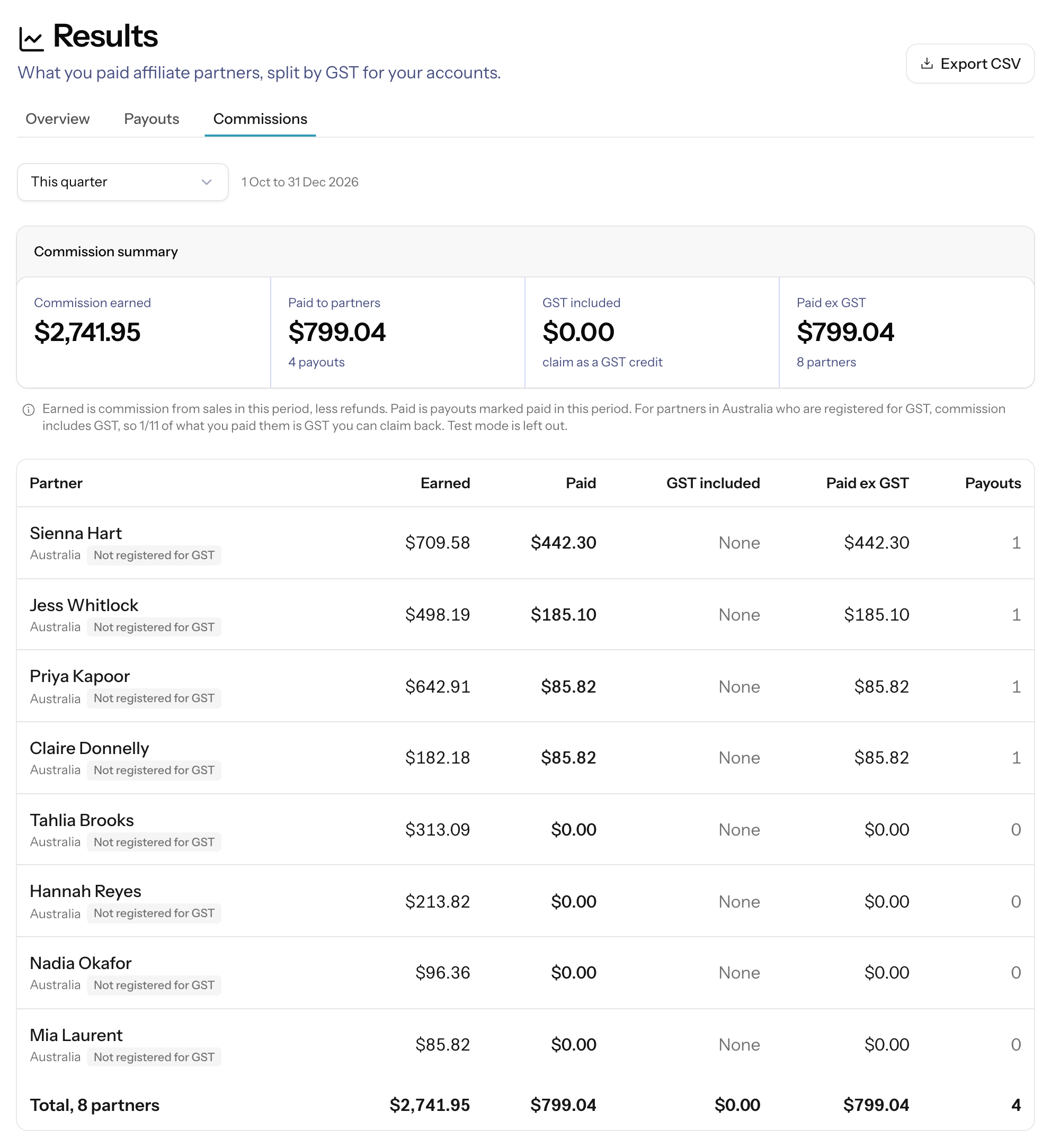
- The Commission earned figure is commission from sales in the period, less refunds.
- The Paid to partners figure is payouts marked paid in the period.
- For an Australian organization, GST included and Paid ex GST split out the GST in payments to partners in Australia who are registered for GST. That GST is one eleventh of what you paid them, and you can claim it back.
Test mode is left out of this report, and Export CSV downloads it. To pay partners, see Commissions and payouts.