Automations
 Kit
Connect Kit so a sequence can tag buyers, start a Kit email sequence for them and keep their custom fields up to date, then untag them on refund. Kit events, such as a new subscriber or a tag being added, can start a Plandalf sequence too. Kit was called ConvertKit until 2024.
Get a Kit API key
Open Developer settings
In Kit, open Settings → Developer.
Add a key
Under V4 Keys, click Add a new key and name it "Plandalf". Copy the key. Don't use the legacy V3 key on the same page.
Connect Kit
Open Kit in the Marketplace
In Plandalf, open Automations → Marketplace and click Connect on Kit.
Paste the key
Keep or change the Integration name, paste the key into API Key and click Connect. Plandalf checks the key with Kit straight away.
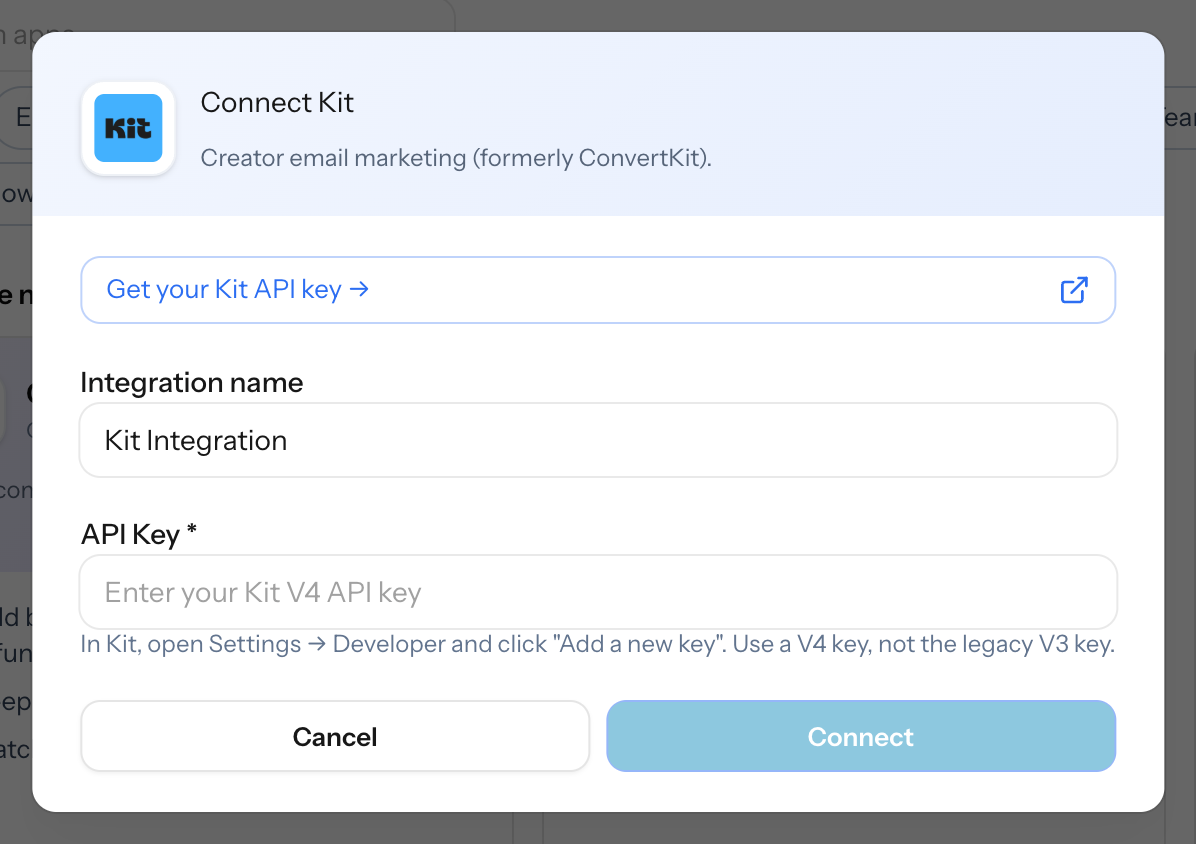
Kit asks for one V4 API key.
You'll find the connection under My apps. You can connect more than one Kit account; each step asks which one to use.
Steps you can add
Every step takes the subscriber's Email Address, usually {{trigger.customer_email}}. Steps that add something create the subscriber first if Kit doesn't have them. Steps that only change a subscriber are skipped, not failed, when the email isn't in Kit.
| Step | What it does | Other fields |
|---|---|---|
| Find or Create Subscriber | Finds a subscriber by email or creates one. | First Name, Custom Fields |
| Tag Subscriber | Adds one or more tags. Type a name to create a new tag; typed names can use variables. | Tags (required), First Name |
| Remove Tag from Subscriber | Removes a tag, for example on refund. | Tag (required) |
| Add Subscriber to Form | Subscribes them to a form or landing page. Kit then runs any automation that starts from that form. | Form (required), First Name, Referrer URL |
| Add Subscriber to Sequence | Starts a Kit email sequence. The sequence must be active in Kit. | Sequence (required), First Name |
| Update Subscriber Fields | Updates custom fields on an existing subscriber. | Custom Fields (required), First Name |
Custom Fields are pairs of a Kit field key and a value, such as last_name and {{trigger.customer_last_name}}. Use the key Kit shows under Subscribers → Custom fields. Blank values are skipped, so an empty variable doesn't clear a value in Kit.
Referrer URL records a page as the signup source. Kit reads UTM parameters from it.
Kit only accepts purchase records from apps that sign in with Kit's OAuth. Plandalf uses an API key, so record what someone bought with a tag or a custom field.
Start a sequence from Kit
Choose Kit as the trigger app:
| Trigger | Starts a sequence when |
|---|---|
| Subscriber Created | A new subscriber is added to your Kit account. |
| Tag Added to Subscriber | A tag is added. Pick a Tag, or leave it blank for any tag. |
| Subscriber Joined Form | Someone subscribes through a form or landing page. Pick a Form, or leave it blank for any. |
| Subscriber Unsubscribed | A subscriber unsubscribes from your Kit emails. |
There's nothing to set up in Kit. When you save the trigger, Plandalf adds a webhook to your Kit account and the trigger shows Connected to Kit. Plandalf checks Kit's signature on every delivery and skips repeats. Deleting the trigger removes the webhook.
A common use: Subscriber Joined Form, then Enroll in Promo, to start a deadline timer for everyone who joins a Kit form.
Example: tag buyers and start onboarding
Set the trigger
Create a sequence with Plandalf → Checkout Completed, pick your checkout under Offer, and pick a recent checkout on 3. Test.
Tag the buyer
Add Kit → Tag Subscriber. Set Email Address to
{{trigger.customer_email}}, add a tag such as "Customer", and set First Name to{{trigger.customer_first_name}}.Start the Kit sequence
Add Kit → Add Subscriber to Sequence with the same email and your onboarding sequence.
Test and turn it on
Testing changes real data in Kit, so test with your own email. Then turn the sequence on.
To untag refunded buyers, add the Remove access on refund template and pick the same tag.
Common errors
| What you see | What to do |
|---|---|
| Authentication failed when connecting | Paste a V4 key from Settings → Developer, not the V3 key. |
| "Email is empty" | Map Email Address to {{trigger.customer_email}} and check the trigger sample has an email. |
| "Kit rejected the sequence" | The Kit sequence is a draft or paused. Make it active in Kit, then rerun the step. |
| "Kit didn't accept the webhook" | Kit's reason shows underneath, often an expired key. Fix it and click Try again. |
| A rate limit error | Kit allows 120 requests a minute per key. Plandalf retries twice; if it still fails, rerun the step later. |