Automations
 Slack
Connect your Slack workspace so your team sees each sale, renewal, upsell or refund in a channel. You can turn on ready-made notifications, post your own message from any sequence, and have failed automations reported in Slack as well as by email.
Connect Slack
There's no API key. You approve Plandalf in a Slack window. If your workspace restricts apps, a Slack admin may need to approve it.
Open Slack in the Marketplace
In Plandalf, open Automations → Marketplace and click Connect on Slack.
Add to Slack
Keep or change the Integration name and click Add to Slack. A Slack window opens. If nothing opens, allow pop-ups for Plandalf and try again.
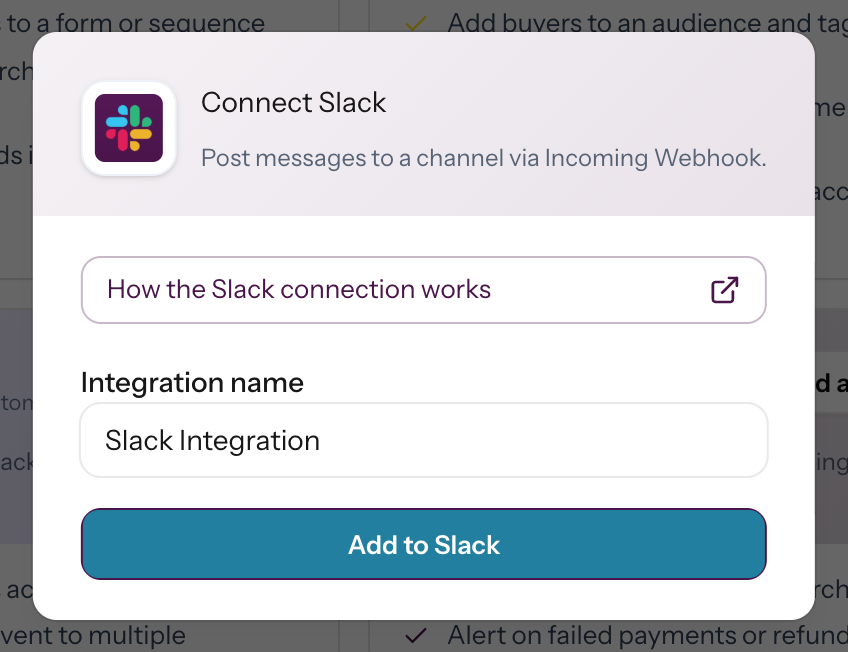
Slack needs no key. You approve Plandalf in a Slack window. Allow
Check the workspace in the top-right corner of the Slack window and click Allow. The window closes and Plandalf shows Slack connected.
Plandalf asks to see your public and private channel names and to post messages, including to public channels it hasn't joined. It can't read your messages. To post to a private channel, add the Plandalf app to that channel in Slack first; it then shows in the channel list.
Turn on Slack notifications
The quickest setup. Plandalf runs each notification as its own small sequence, so they don't clutter My Sequences.
Open the recipe
Go to Automations → Templates and click Set up (or Manage) on Slack notifications. Check the workspace it's posting to.
Switch on events
Turn on the events you want, then open each one, pick a Channel, edit the Message if you like, and click Save.
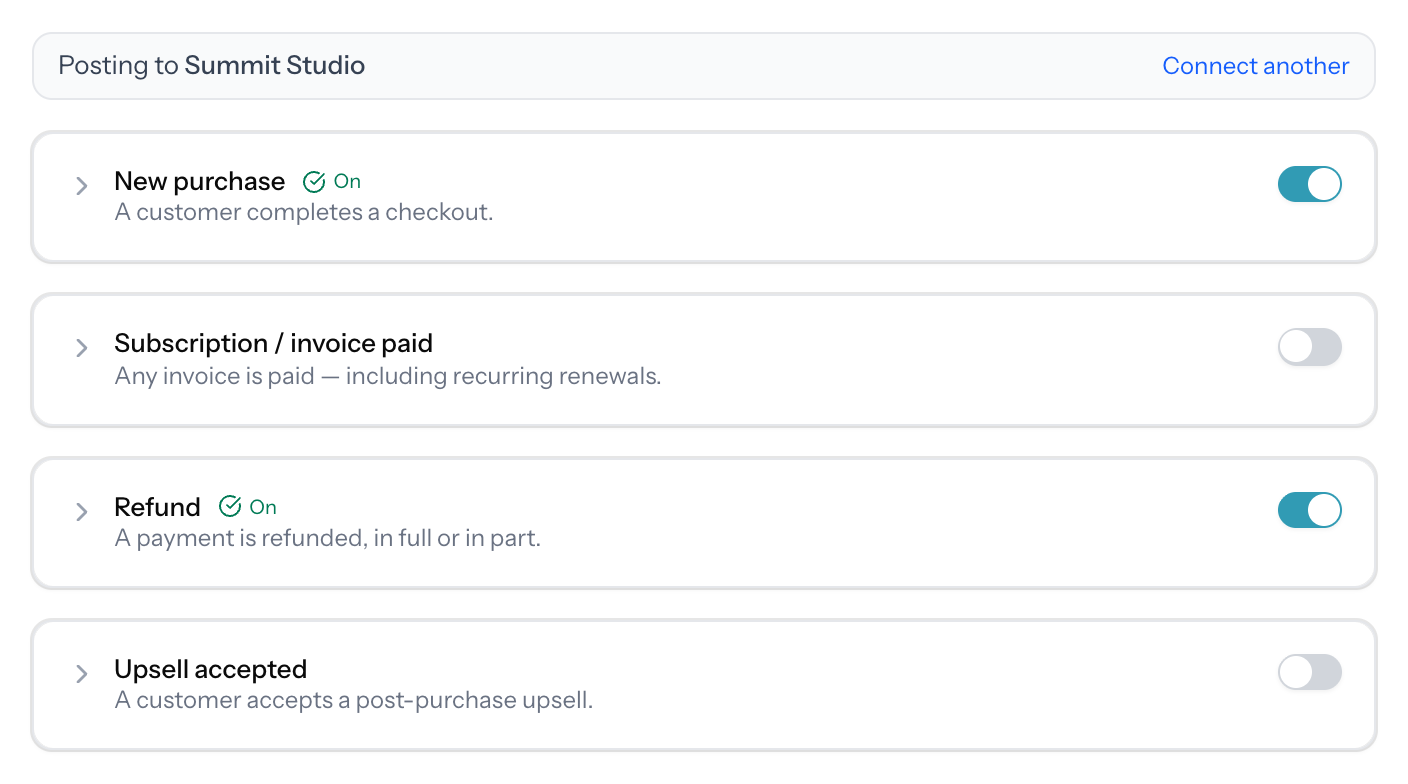
| Event | Posts when |
|---|---|
| New purchase | A customer completes a checkout. |
| Subscription / invoice paid | Any invoice is paid, including renewals. |
| Refund | A payment is refunded, in full or in part. |
| Upsell accepted | A customer accepts a post-purchase upsell. |
Switching an event off deletes its notification.
Send Slack Message
Add this step to any sequence to post your own message.
| Field | What to enter |
|---|---|
| Channel (required) | A channel in your workspace. |
| Message (required) | The text. It starts with a purchase summary you can change. Slack formatting works: *bold*, _italic_, `code` and emoji such as :tada:. |
:tada: {{trigger.customer_first_name}} just bought {{trigger.line_items_summary}} for {{trigger.total_amount}} {{trigger.currency}}After Invoice Refunded, use {{trigger.refund_amount_formatted}} for the amount refunded. If Slack refuses a message, the step still finishes and its output shows status: failed with Slack's error code, such as not_in_channel.
Get failed automations in Slack
Open the connection
Go to Automations → My apps and edit your Slack connection.
Turn on alerts
Turn on Post automation failures to Slack, pick a Failure alert channel and click Save Changes.
Alerts go out only while Failed automation notifications is on under Settings → Notifications, and at most once every 15 minutes per sequence.
Common errors
| What you see | What to do |
|---|---|
| The Slack window says Plandalf needs approval | Your workspace restricts apps. Ask a Slack admin to approve it, then connect again. |
| A private channel is missing | Add the Plandalf app to the channel in Slack, then reopen the channel list. |
not_in_channel or channel_not_found | The channel is private without the app, or was deleted. Add the app or pick another channel. |
invalid_auth or token_revoked | Plandalf was removed from your workspace. Click Test Connection on the connection in My apps; if it fails, connect Slack again. |