Checkouts
How checkouts work
A checkout is the page your buyers pay on. This page explains what goes into one and where you change each part, so the rest of this section makes sense.
Parts of a checkout
| Products and prices | Each checkout sells one or more items from your product catalogue, each with one or more prices. See Products and prices. |
| Pages | A checkout can be one page or several: a sales page, a payment page, an upsell, a thank-you page. Buyers move from one to the next. |
| Blocks | Each page is built from blocks: headings, text, product options, order bumps, the order summary, the payment form and buttons. |
| A theme | Colours, fonts, spacing and corner radius shared by every page. |
| How it opens | A centred box, a side panel, a bottom sheet or a full overlay on your site, a checkout shown inline in your page, or a hosted page with its own link. |
Each checkout gets a slug, such as vip-upgrade-popup-emSOso3TAKy. Your site's buttons and your hosted link use it to find the checkout.
The Checkouts list
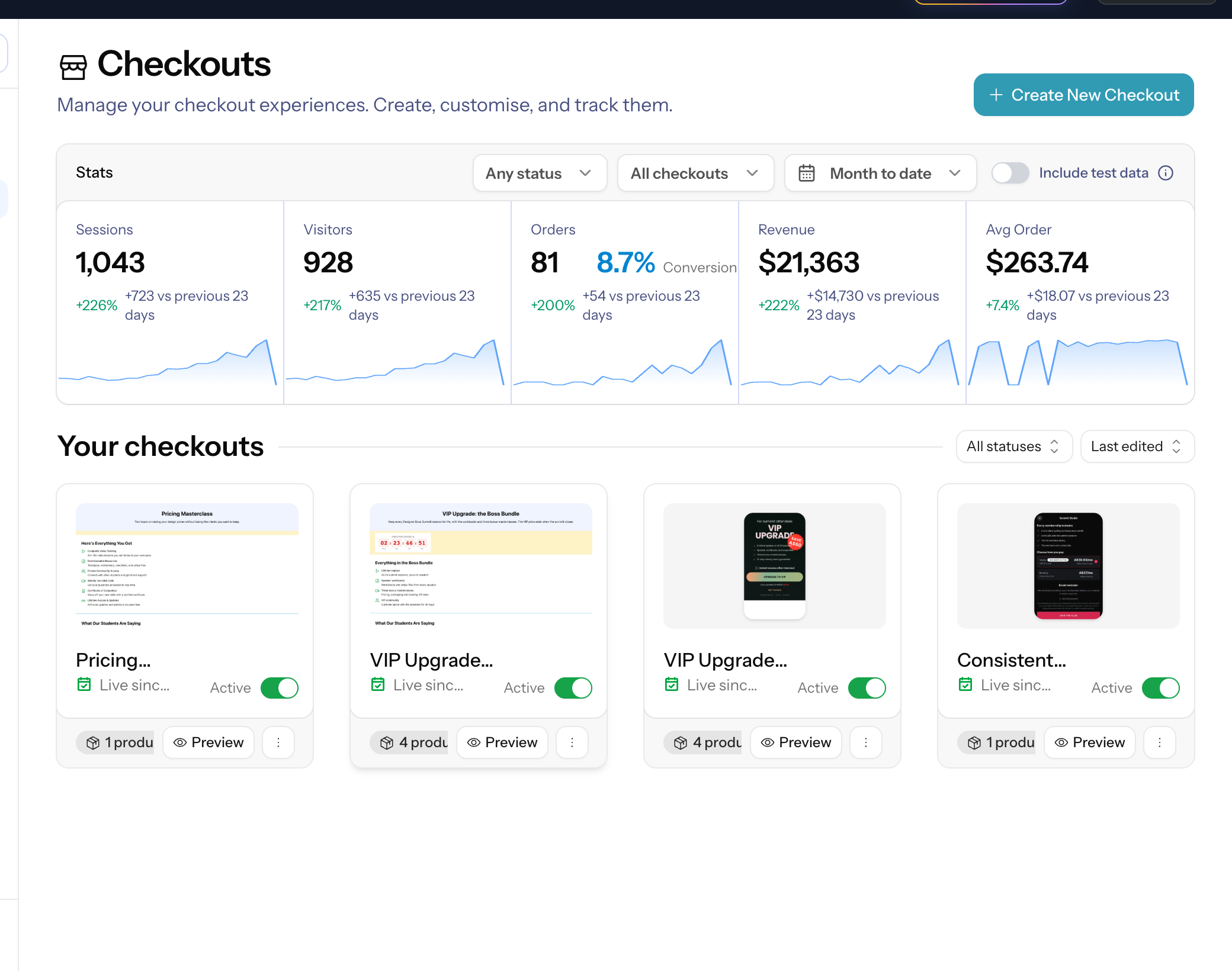
Checkouts in the sidebar shows sales stats for the month and a card for every checkout. Each card has a switch to make it Active or put it back to Draft, its product count, a Preview button, and a menu with View live, Copy checkout link, Duplicate and Delete.
The editor
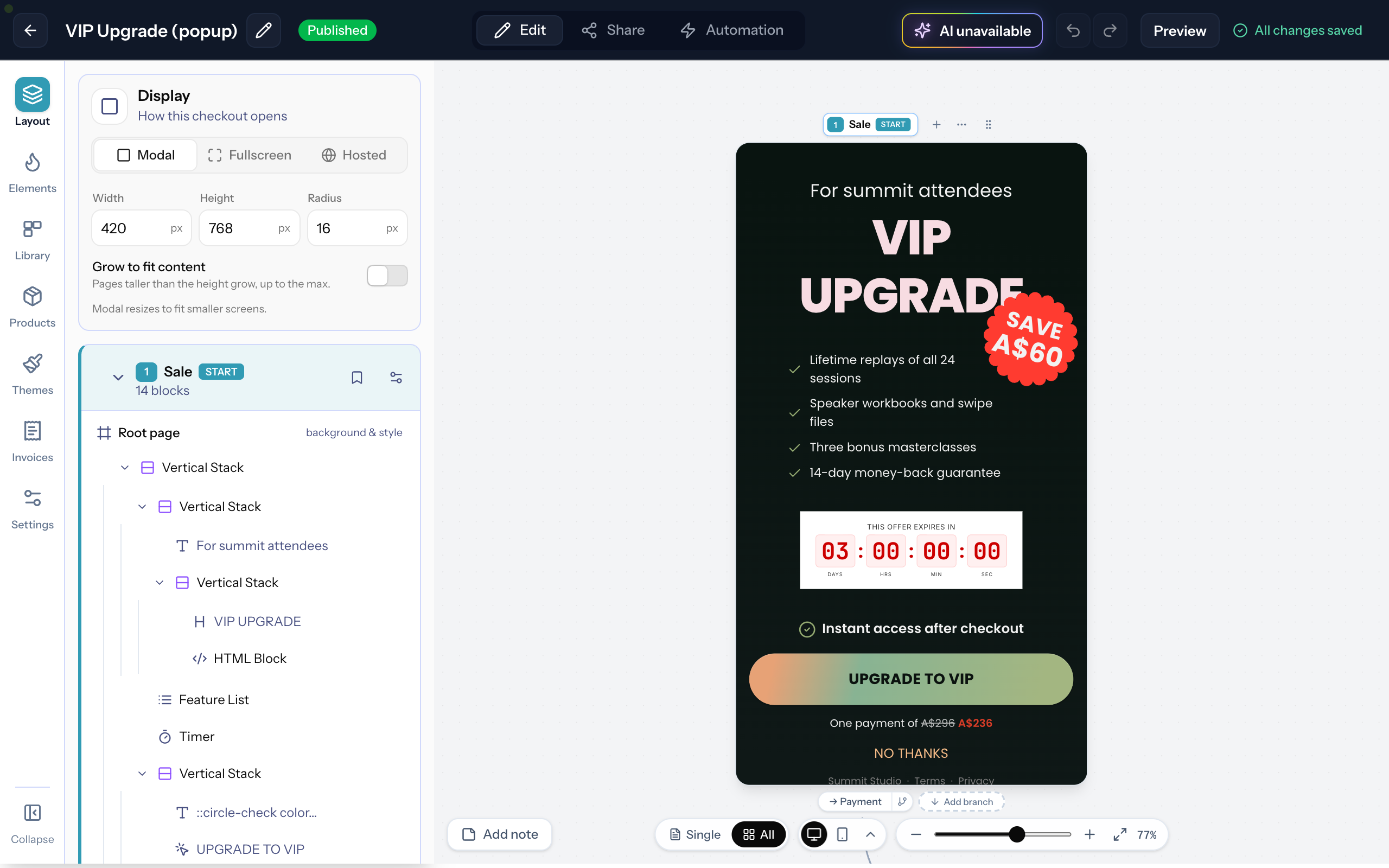
Click a checkout to open its editor. The bar at the top switches between three views, with a Preview button beside them.
| View | What you do there |
|---|---|
| Edit | Build the pages: add blocks, attach products, set the theme and the checkout's settings. See Design your checkout. |
| Share | Get the snippets for your site or your hosted link, the test link, and where buyers go after paying. See Links and Buy buttons. |
| Automations | Link sequences that run when someone buys, such as a receipt email. See After the sale. |
| Preview | See the checkout as a buyer does, on desktop or a phone, without charging anyone. |
The editor saves as you work. All changes saved in the top right tells you it's done.
Draft and published
A checkout is Draft or Published. Draft doesn't hide anything: a draft checkout's link and buttons work, and real cards are charged. Publishing marks the date from which sales count as real revenue in your results. While you're still trying a checkout out, use its test link.
Publish from the Share view (Publish this checkout), from the switch on the checkout's card, or from Settings → Status in the editor.
In this section
- OverviewA checkout is the page buyers pay on. It holds your products and prices, the pages buyers step through, and how it opens on your site.
- CreateStart a checkout from a template or a blank layout, then duplicate, preview or delete checkouts from the Checkouts list.
- DesignBuild your checkout's pages in the editor with blocks, layers and a theme, and check how it looks on a phone.
- Products and pricesAdd products and prices to a checkout, set the default price, and see how checkout items relate to your product catalogue.
- PricingCharge once or on a subscription, add a free trial, split a price into a payment plan, let buyers choose the amount, and sell in more than one currency.
- Order bumpsOffer an extra product with a tick box on the payment page, paid in the same payment as the main purchase.
- UpsellsOffer a one-click upsell after the purchase, charged to the card the buyer just used, and build checkouts with several pages.
- CouponsCreate coupon codes in Settings, set expiry, usage limits, a minimum order and the products they cover, and let buyers enter them at checkout.
- Save offersShow subscribers a better deal before they cancel, using a checkout you open from your own cancel button.
- Buy buttonsPut a button on your site that opens your checkout in a centred box, a side panel, a bottom sheet or a full overlay, or show the checkout inline.
- LinksShare your checkout's hosted link anywhere, send a test link, and add details to the link such as the buyer's email or a currency.
- Returning customersWhat a buyer sees when they come back to a checkout, and how to recognise customers you've already signed in on your site.
- SettingsRename a checkout, change its status and theme, set when it goes live, choose when the mobile layout starts, and delete it.
- After the saleWhat buyers see after they pay, how to send them to your own page, how receipts are sent, and what Plandalf records and triggers.