Deadline timers
Create a deadline timer
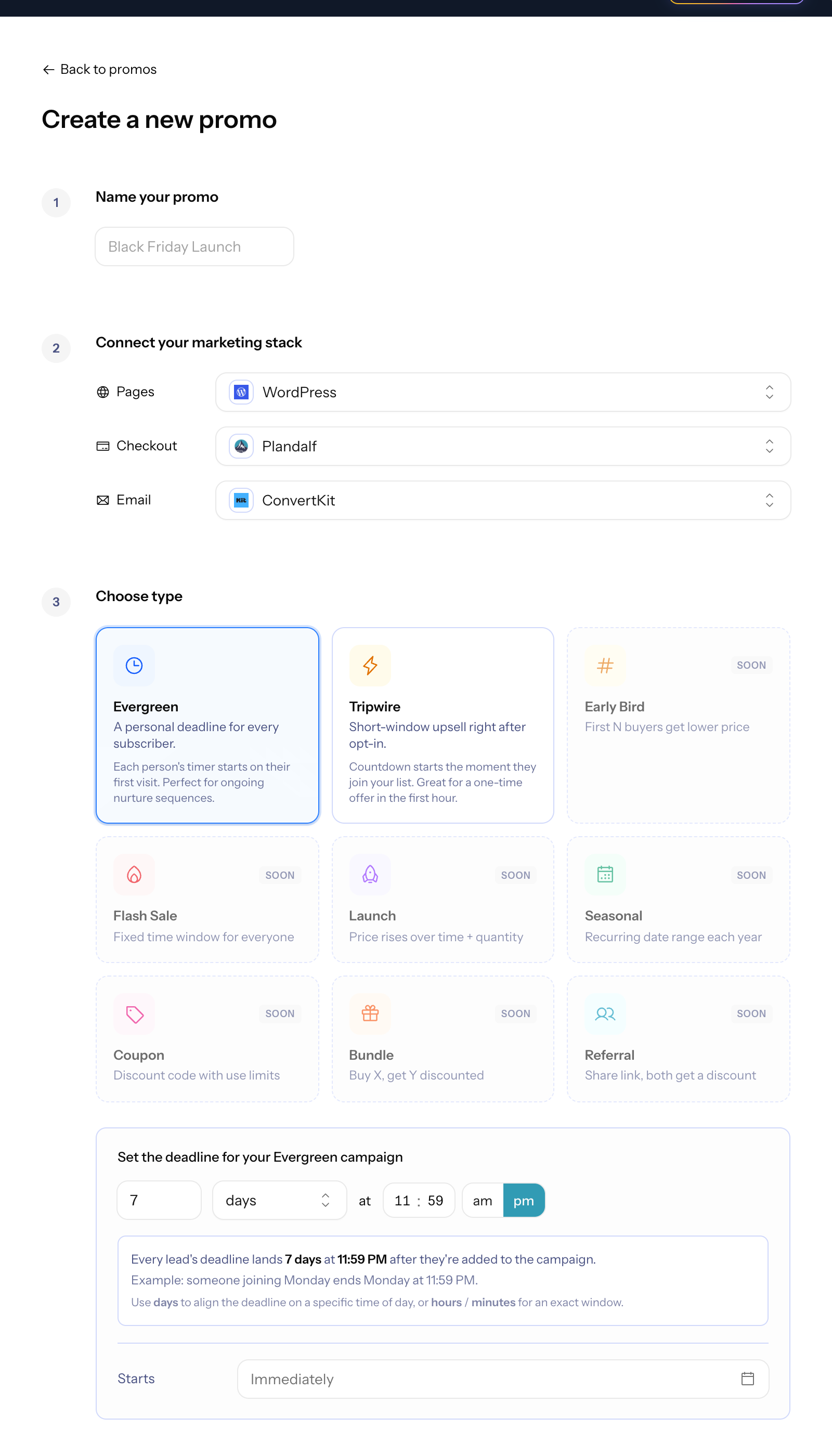
Creating a deadline timer takes a minute. You'll name it, tell Plandalf which tools you use and set the deadline. Then you set up its tiers.
Create it
Open the form
Go to Deadline timers and click Create deadline timer.
Name your deadline timer
Use a name you'll recognise, such as "Black Friday Launch". Plandalf makes its slug from the name, for example
black-friday-launch. The slug goes in your countdown and link snippets.Connect your marketing stack
Pick where your Pages live, which Checkout you sell with and which Email platform you send from. Plandalf fills these in from Settings → Platforms. The email platform decides which instructions you see on the deadline timer's Emails tab. Plandalf can only change the price on its own checkout, so with another checkout each tier sends buyers to a page you choose.
Choose type
Pick Evergreen or Tripwire, then set how long each person's deadline lasts in days, hours or minutes. Every lead's deadline lands that long after they're added to the deadline timer.
Create it
Click Create deadline timer. Plandalf opens it on its Tiers tab, with one tier that lasts as long as you chose.
Finish setting it up
A new deadline timer is live straight away, so set it up before you share the link:
- Pick the checkout and add your tiers. See Tiers and timing.
- Add the countdown to your site or emails. See Countdowns on your site and Countdowns in emails.
- Put the deadline timer link in your emails. See Deadline timer links.
Test it as a buyer
Open the deadline timer's Testing tab and click Test as me. Plandalf opens the link with your account email as the ref, so you start on tier 1 like a new lead. Click Clear my identity to delete your lead and start again.
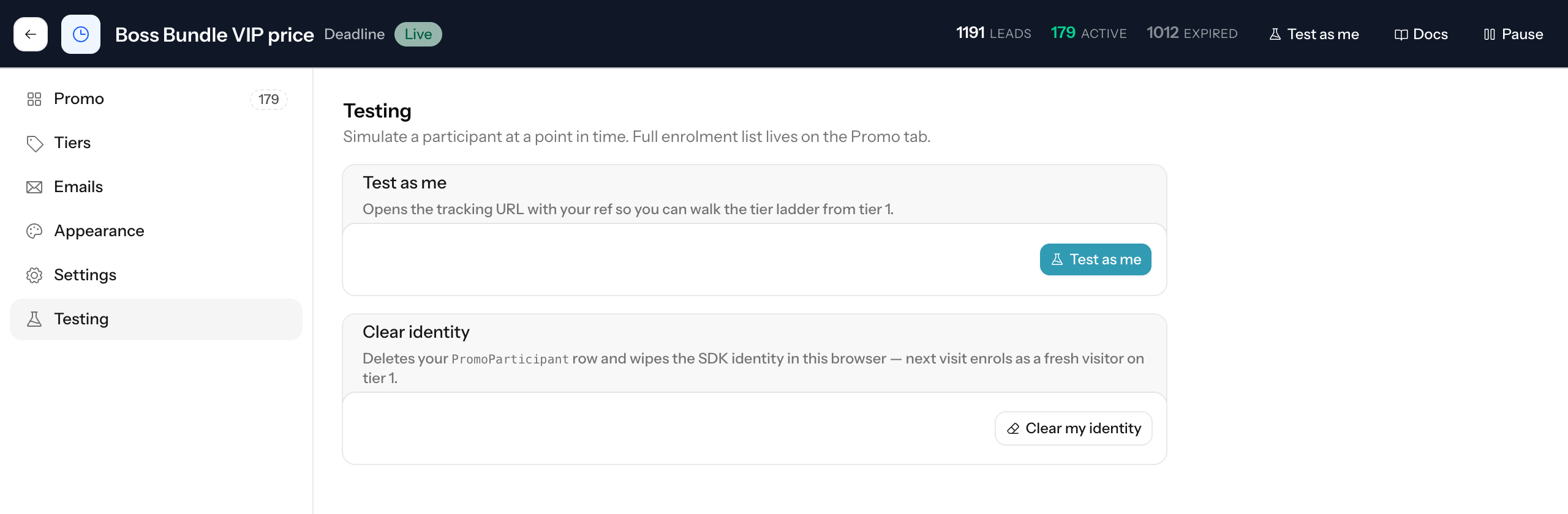
To reach a later tier sooner, give tier 1 a time limit of a few minutes while you test, then set it back.
Pause or copy a deadline timer
- Click Pause in the header to stop Plandalf enrolling new people. The leads you have keep their records. Click Resume to start again.
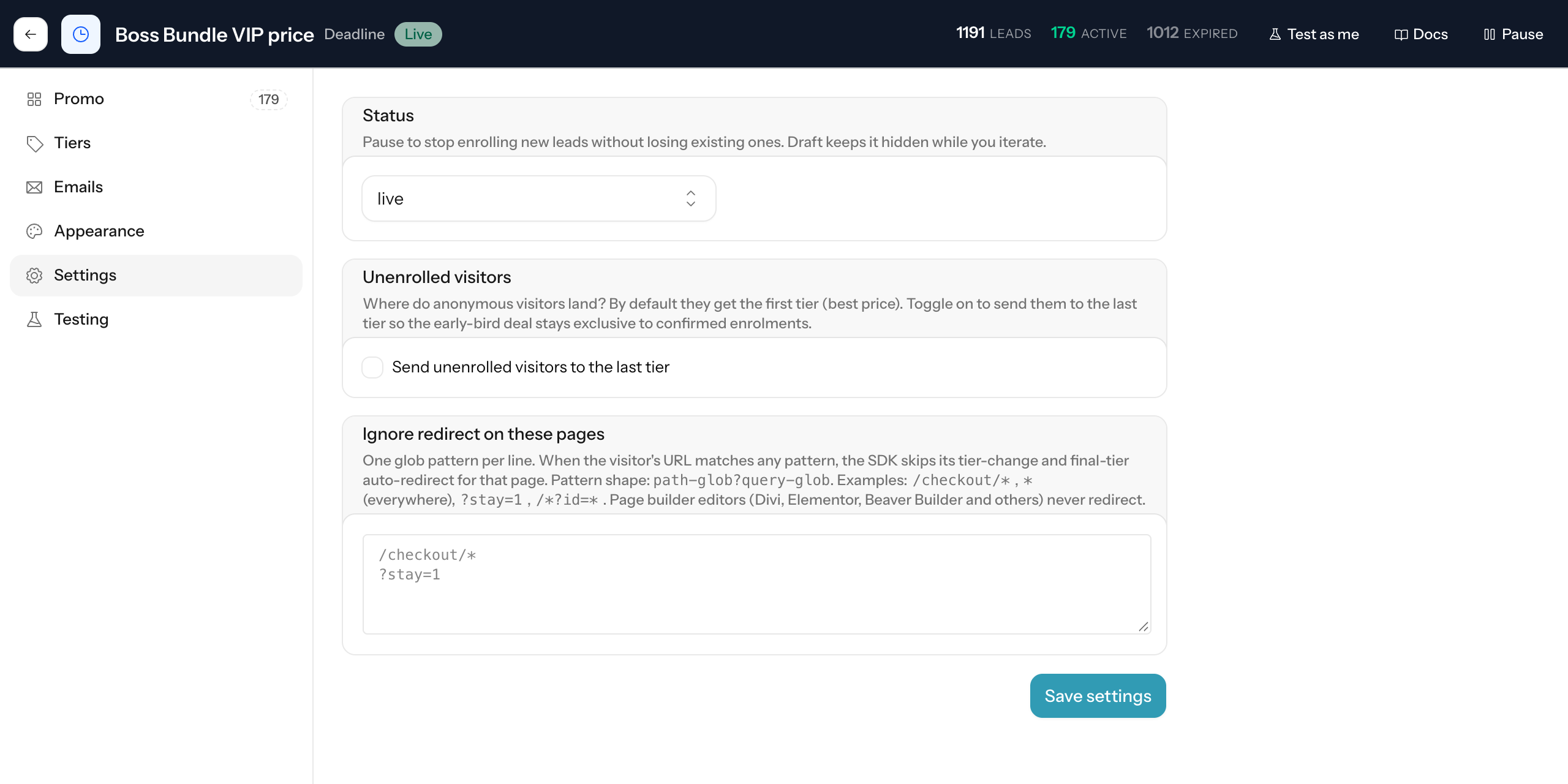
- On the Settings tab, Status also has Draft, for a deadline timer you're still building.
- To reuse a deadline timer's setup, open its ⋮ menu on the Deadline timers list and click Duplicate. The copy has no leads and starts paused.