Deadline timers
Tiers and timing
Tiers are the steps of your offer, such as "VIP price for 3 days, then full price". This page covers how to set them up and how Plandalf decides which tier each person sees.
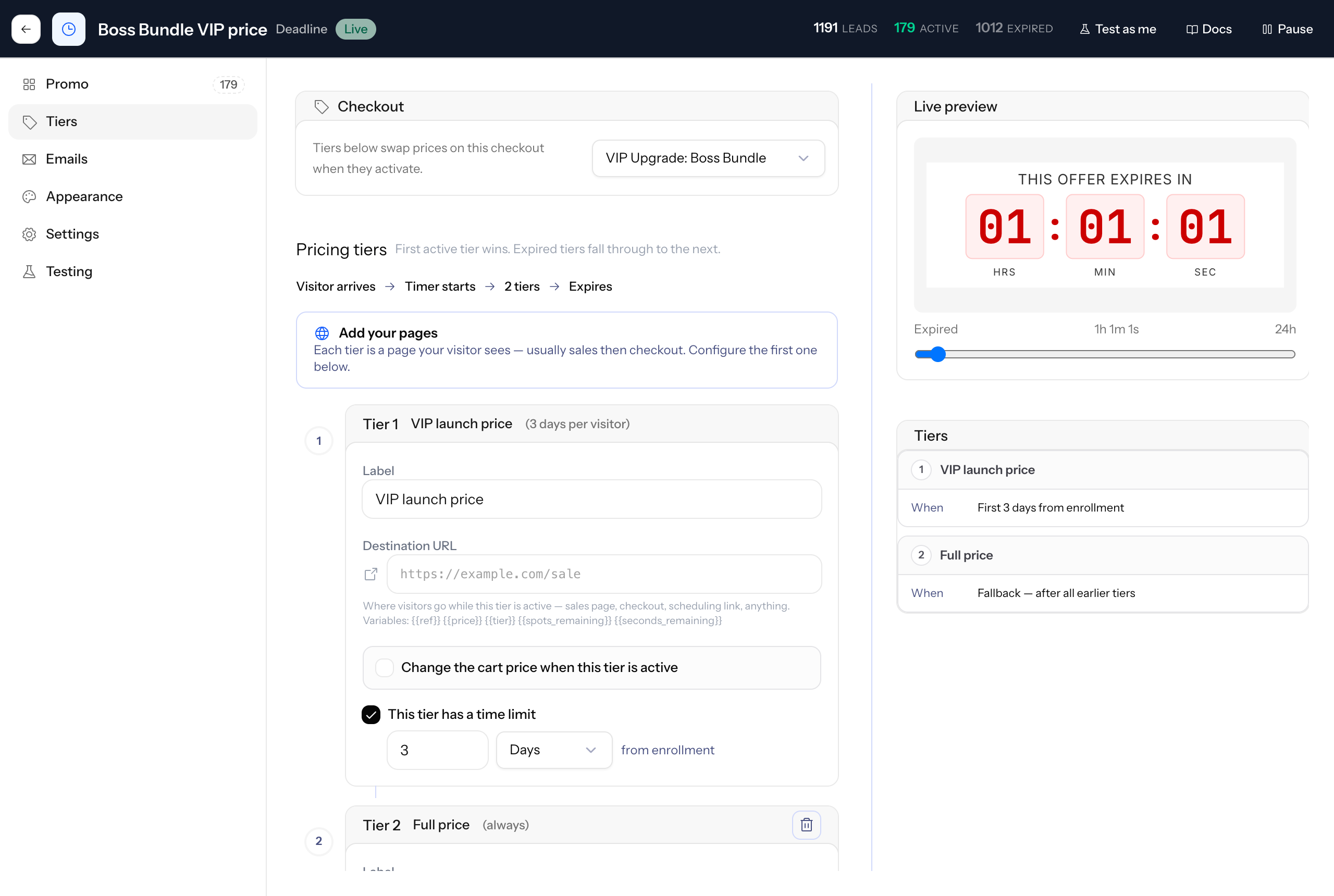
Pick the checkout
Open the deadline timer's Tiers tab. Under Checkout, choose the Plandalf checkout this deadline timer sells. Each tier can then pick one of that checkout's prices. If you sell somewhere else, you can leave the price alone and give each tier a destination instead.
Set up each tier
| Field | What it does |
|---|---|
| Label | The tier's name, such as "Launch price". You'll see it on each lead and in reports. |
| Destination URL | Optional. Where your deadline timer link sends people while this tier is active: a sales page, a checkout, a booking link. See Deadline timer links. |
| Change the cart price when this tier is active | Tick it, then pick the Checkout item and the Price this tier sells it at. Leave it off and the checkout keeps its usual price. |
| This tier has a time limit | How long the tier lasts, in seconds, minutes, hours or days from enrollment. Turn it off for a tier that never ends. |
Click Add tier for another step, and Save deadline timer when you're done. The Live preview beside the form shows the countdown, and its slider shows how it looks with more or less time left.
How Plandalf picks a tier
For each person, Plandalf checks the tiers from the top and uses the first one that hasn't run out. Every time limit counts from the moment that person was enrolled, not from the end of the tier before.
| Tier | Time limit | Active for |
|---|---|---|
| 1. VIP price | 3 days | Days 0 to 3 |
| 2. Early price | 7 days | Days 3 to 7 |
| 3. Full price | None | From day 7 onwards |
So give each tier a longer limit than the one above it. A tier with a shorter limit than the tier above it never shows.
Add a fallback tier
Finish with a tier that has This tier has a time limit turned off. It stays active forever after the timed tiers expire, with whatever price and destination you give it. Without one, a person whose last tier has expired gets the checkout at its usual price, and your sales page sends them to the last tier's page.
What starts the clock
A person's clock starts the first time Plandalf sees their ref, which is usually their email address. Any of these enrols someone:
- Clicking your deadline timer link with their ref in it. See Deadline timer links.
- An automation with the Enroll in Promo step, usually started by your email platform when they opt in. See Enrol people when they opt in.
- Opening an email with the countdown image in it.
- Opening a Plandalf checkout that has a Timer for the deadline timer.
- You adding them on the Timer tab with Enroll or Import. See Deadline timer results.
Enrolling people from your email platform is the most accurate, because their clock starts when they join your list and not when they first open an email.
Visitors without a ref
Someone with no ref, such as a visitor from social media, gets the first tier. If you'd rather keep the best price for people on your list, open Settings, tick Send unenrolled visitors to the last tier and click Save settings.
When a tier ends mid-visit
When the Timer in a Plandalf checkout reaches zero, the checkout reloads and moves the cart to the next tier's price. A buyer can't wait out the countdown and still pay the old price.