Checkouts
Coupons
A coupon is a code buyers type at checkout to get money off. You make coupons once, in Settings, and they work on every checkout that has a place to enter a code.
Create a coupon
Open Coupons
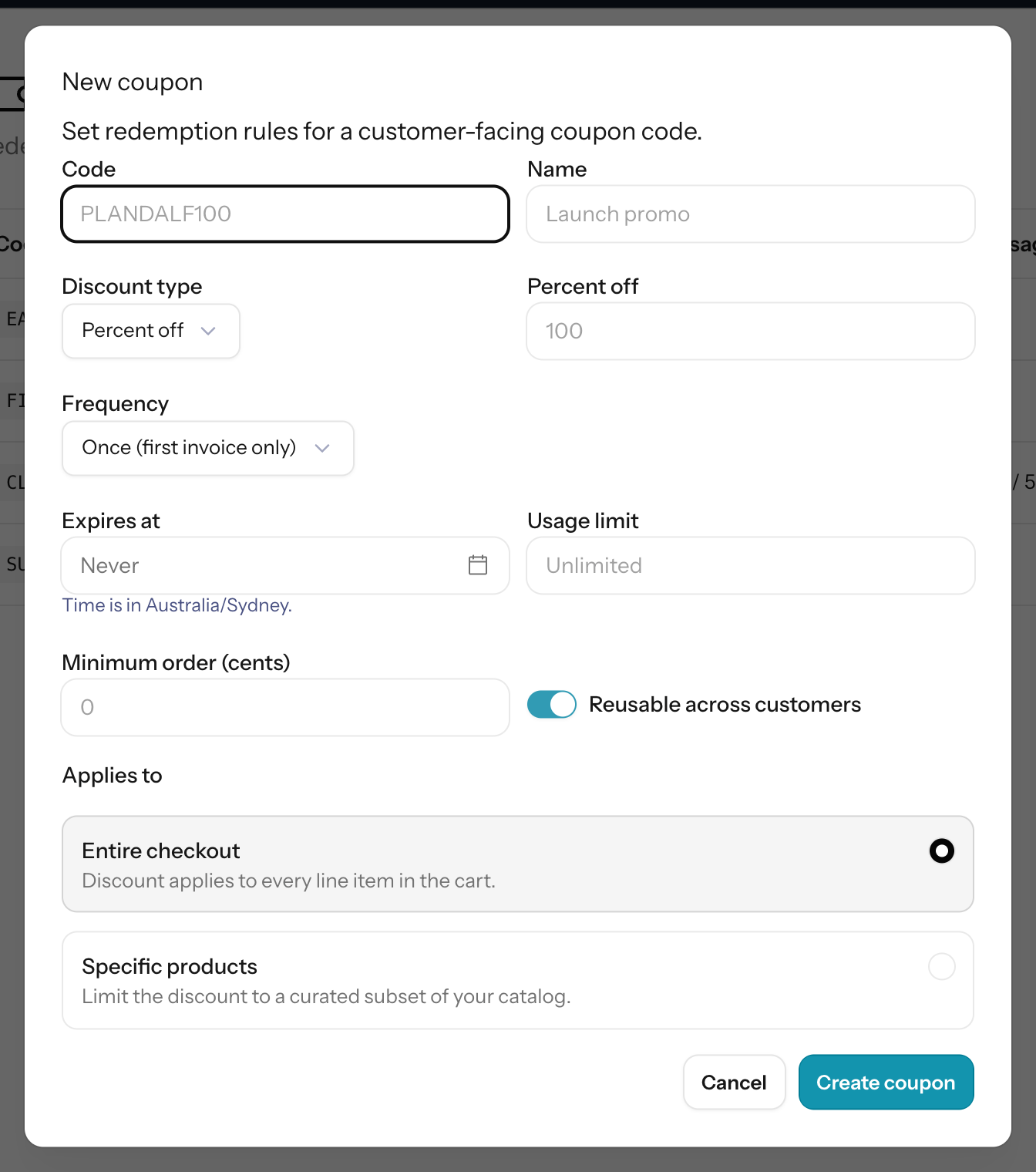
Go to Settings → Coupons and click New coupon.
Name the code
Enter the Code buyers will type and a Name for your own reference. Codes are saved in capitals and match whatever case the buyer types. Each code must be unique in your organization.
Set the discount
Choose a Discount type: Percent off (0 to 100) or Fixed amount off, with the Amount off (cents) and its Currency.
Set the rules
Fill in the limits you need (see below) and click Create coupon.
Rules you can set
| Field | What it does |
|---|---|
| Frequency | For subscriptions: Once (first invoice only), Recurring for a number of Cycles, or Forever. |
| Expires at | After this date and time the code is rejected. Leave it at Never for no end. The time is in your organization's timezone. |
| Usage limit | How many times the code can be used in total. Leave it empty for unlimited. |
| Minimum order (cents) | The order must be at least this much before the code applies. |
| Reusable across customers | On by default. Turn it off to allow each customer to use the code once. |
| Applies to | Entire checkout takes the discount off every line in the cart. Specific products limits it to the Eligible products you pick. |
Plandalf checks these rules when the buyer applies the code, and shows them why a code didn't work, for example "This discount code has expired."
Where buyers enter a code
A checkout needs a place to type the code. Use either:
- the Order Summary block, which has a discount field built in. In its settings, Show discount form turns the field on or off, and Allow stacking discounts lets buyers use more than one code;
- or the Discount Code block, a field on its own. Its label, placeholder and messages are all editable.
The total updates as soon as a code is applied.
Manage coupons
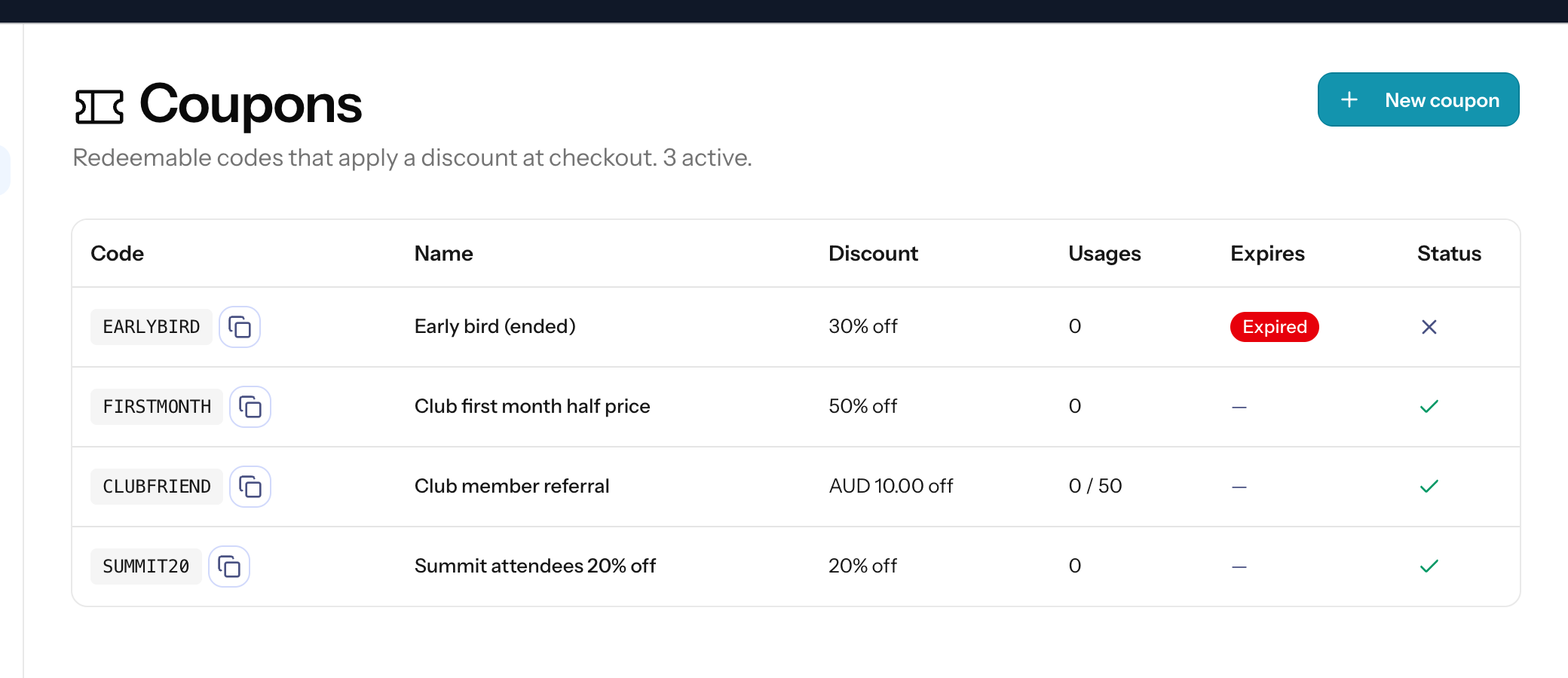
The Coupons list shows each code with its discount, Usages (used, and the limit if there is one), when it Expires, and whether it's active. Click a coupon to edit it, or to Terminate it so it can't be used. Reactivate turns it back on. Delete removes it; invoices that already used it keep their discount.
Coupons from Stripe
If your Stripe account has coupons or promotion codes, buyers can already use those codes on your checkouts. To manage one in Plandalf, click Import existing and Import it. Plandalf makes its own copy and leaves the Stripe coupon as it was. When you have 25 or fewer active Stripe coupons, Import all brings them all over at once.
Coupons can also be made through the API. See Discounts.