Deadline timers
Deadline timer results
Plandalf counts who joined each deadline timer, who's still in time and who bought. This page covers where to read those numbers and how to manage a deadline timer's leads.
All your deadline timers
The Deadline timers page totals every deadline timer for the period you choose:
| Stat | What it counts |
|---|---|
| Deadline timers | Your deadline timers, and how many are live |
| Enrolled | People who joined a deadline timer |
| Active | People whose deadline hasn't passed yet |
| Converted | People who bought, and the share of enrolled people that is |
| Revenue | What those buyers paid |
Narrow it with Any status, All deadline timers and the date range, which starts on Month to date. Test sales are left out until you turn on Include test data. Test data includes anything from before a checkout's go-live date, and anything you've marked as test in Customers or Invoices.
How Plandalf counts a sale
When a Plandalf invoice is paid, Plandalf looks for a lead in your deadline timers whose ref or email matches the customer's email, who is still enrolled and hasn't bought yet. If someone is in several deadline timers, the one they joined most recently gets the sale. You don't need any tracking code. Sales on checkouts outside Plandalf aren't counted.
One deadline timer
Open a deadline timer to see its Timer tab. Performance shows Leads (with how many joined in the last 24 hours), Active, Expired and the number of Tiers.
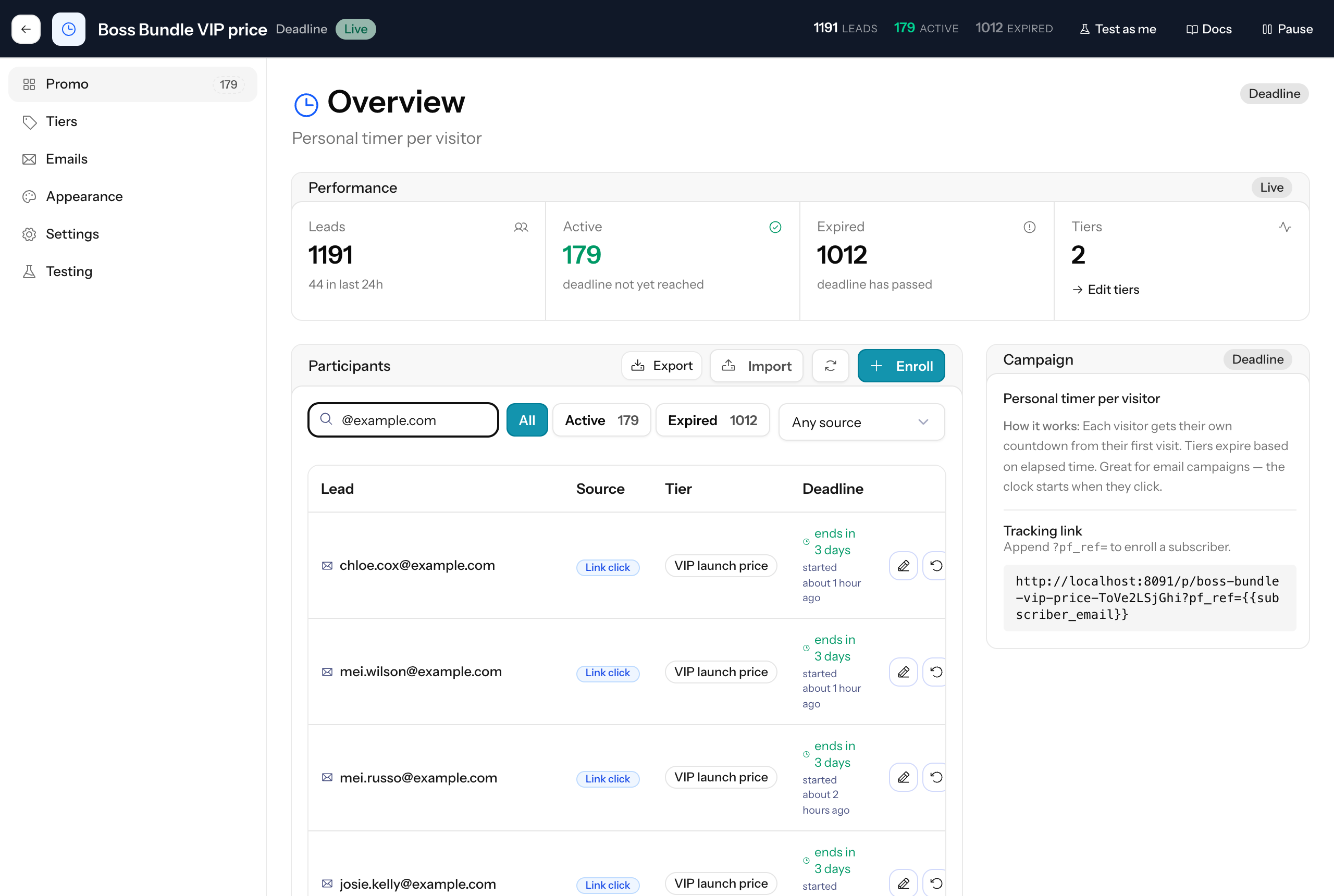
Below it, Participants lists every lead with their current tier and deadline. Search by ref, email or tier, filter by Active or Expired, and filter by how they joined:
| Source | How they joined |
|---|---|
| Link click | Clicked your deadline timer link |
| Automations | An Enroll in Promo automation step |
| Manual | You added them with Enroll |
| CSV import | You added them with Import |
Click Export to download every lead as a CSV file.
Manage leads
- Click Enroll to add one person and start their clock now. Enter their Ref, the ID you'll put in their links as
?pf_ref=, and an email if the ref isn't one. - Click Import to add many at once. Paste one ref or email per line; Plandalf skips duplicates.
- The reset button gives a lead a fresh window that starts on their next click. Use it to give someone more time.
- The pencil button changes a lead's email.
- The remove button deletes a lead and their deadline. If they come back, they start again on tier 1.