Checkouts
Create a checkout
Every checkout starts from a template or from a blank layout. You can change everything afterwards, so pick whichever is closest to what you want.
Start from a template
Open the template picker
Go to Checkouts and click Create New Checkout.
Pick a template
Browse by category on the left, or type what you want to sell in the search box. Click a template to preview its pages.
Use it
Click Use this template. Plandalf makes a new checkout from it and opens the editor.
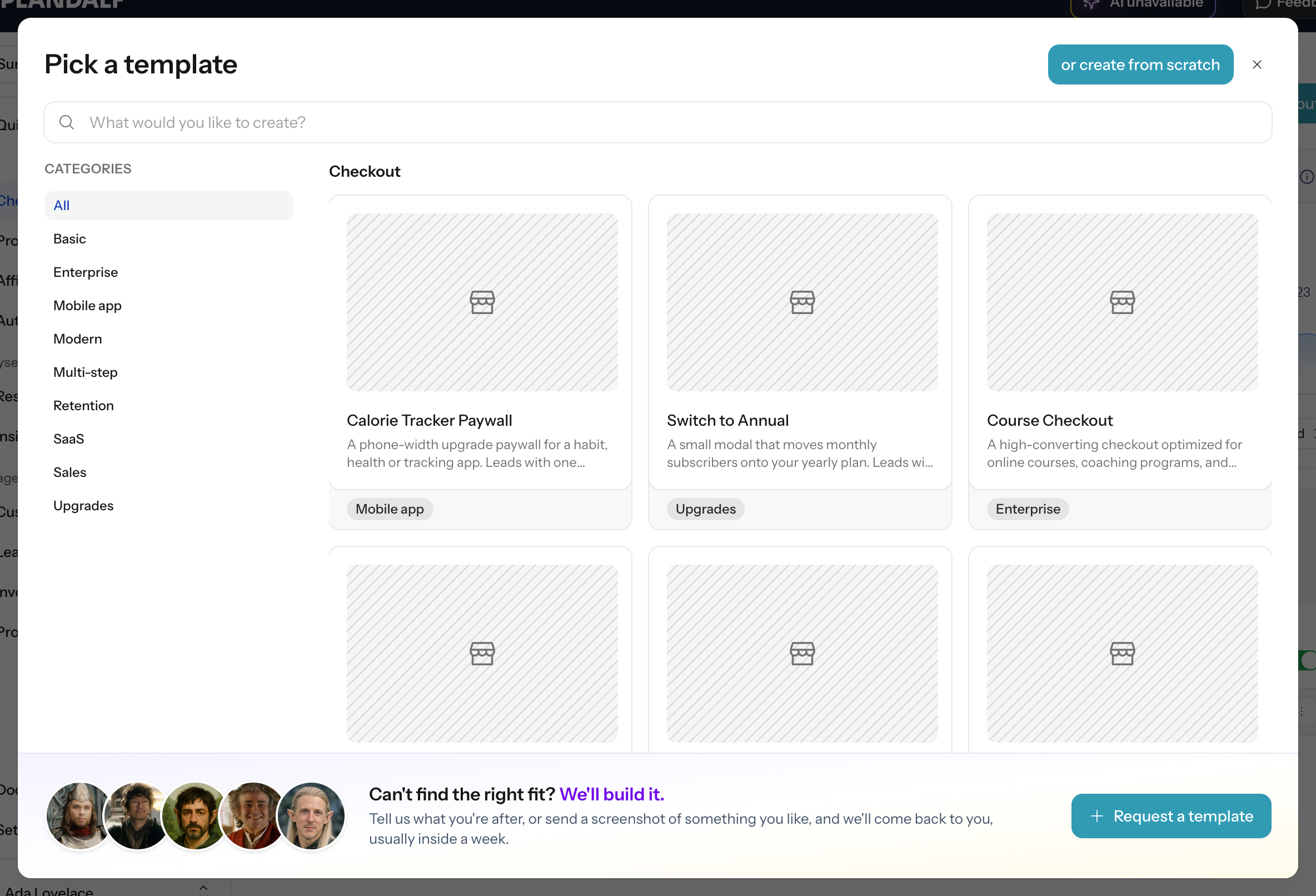
Templates come with their pages, blocks and theme in place. Next, add your products and change the words.
Can't find a fit? Click Request a template at the bottom of the picker, tell the Plandalf team what you're after, and they'll build it for you, usually within a week.
Start from scratch
In the template picker, click or create from scratch. Choose how the checkout opens:
| Modal | A fixed-size card that opens over your page. |
| Full page | Fills the window. |
| Hosted | Its own page and URL. |
Then pick a page structure under Start from a layout, or Start blank, and click Create. You can change how it opens later, in the editor's Layout panel.
Manage your checkouts
The Checkouts list shows a card for each checkout. Filter it with All statuses and sort it by Last edited, Date created or Name. The stats at the top cover sessions, visitors, orders, revenue and average order; turn on Include test data to count test purchases too.
On each card:
- The switch makes a checkout Active (published) or puts it back to Draft.
- Click Preview to open the checkout as a buyer sees it.
- The ⋮ menu has View live, Copy checkout link, Duplicate and Delete.
Duplicate copies a checkout with its pages, products and theme. Use it to try a variation without touching the original.
Deleting a checkout removes it and its data. Buttons and links that point to it stop working.