Deadline timers
What a deadline timer is
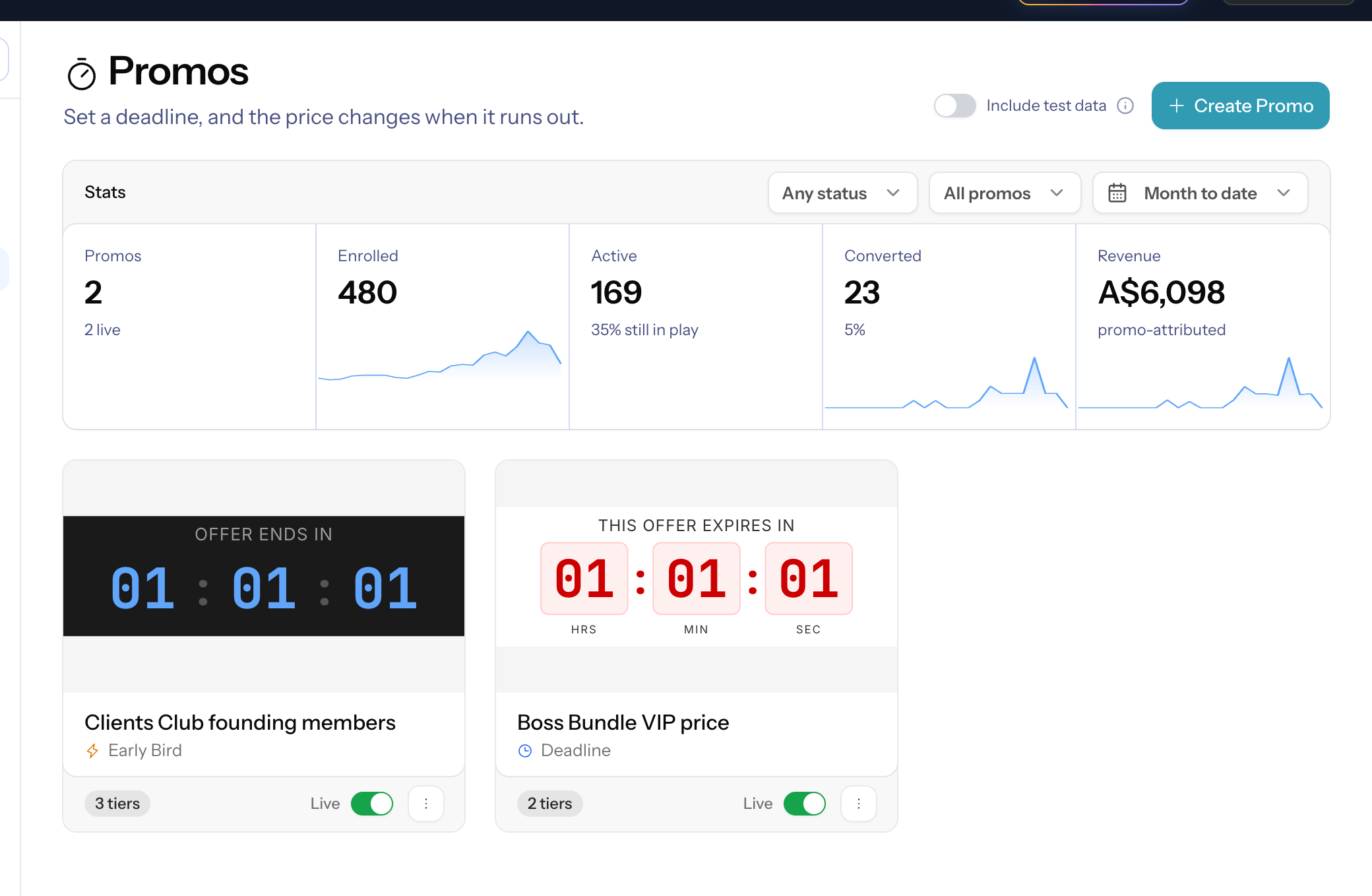
A deadline timer is a deadline offer that Plandalf runs for you. Each person gets their own deadline, and the countdown on your site, the countdown in your emails, the link they click and the price at checkout all follow it.
How a deadline timer works
Someone joins
A person is enrolled when they click your deadline timer link, when your email platform tells Plandalf they opted in, or when you add them by hand. Plandalf starts their clock at that moment and keeps it, so it doesn't restart when they come back tomorrow.
Their tier decides what they see
A deadline timer is a ladder of tiers, such as "Launch price for 3 days, then full price". The first tier that hasn't run out for that person is the one they get: its price, its page and its countdown.
The deadline passes
The countdown reaches zero and the person moves to the next tier. A checkout that's already open switches to the new price, and a sales page sends them on to the next tier's page.
Where the deadline shows
| Where | What the person sees |
|---|---|
| Your site | A live countdown, and the page for their tier. See Countdowns on your site. |
| Your emails | A countdown image with their own time left. See Countdowns in emails. |
| Your links | One link that opens the right page for their tier. See Deadline timer links. |
| Checkout | The tier's price on a Plandalf checkout, or a destination you choose per tier, such as a Stripe payment link with a coupon code filled in. |
Deadline timer types
Every deadline timer you create today is a personal deadline. You pick one of two starting points:
| Type | Use it for |
|---|---|
| Evergreen | A deadline of a few days for everyone who joins your list, for example a nurture sequence that ends with an offer. |
| Tripwire | A short offer straight after someone opts in. It starts at 15 minutes. |
The other types on the create screen are marked Soon and can't be picked yet.
In this section
- OverviewA deadline timer gives each person one deadline and keeps the countdown, the price, the checkout and your emails in step with it.
- Create a deadline timerCreate a deadline timer under Deadline timers: name it, pick your page, checkout and email tools, choose Evergreen or Tripwire and set each deadline's length.
- Tiers and timingSet up a deadline timer's tiers, choose each tier's price and page, and see how Plandalf works out which tier each person is on.
- CountdownsShow a deadline timer's live countdown on your site, send visitors to their tier's page, and apply the tier's price to a Plandalf checkout.
- Email countdownsAdd a countdown image that shows each email recipient their own time left, and enrol people from your email platform when they opt in.
- Links and landing pagesUse one deadline timer link in every email. Plandalf sends each person to the page for their tier, or to your hosted checkout at the tier's price.
- ResultsSee how many people each deadline timer enrolled and converted, the revenue it brought in, and manage its leads.