Checkouts
After the sale
When a buyer pays, Plandalf shows them your thank-you page or sends them to your own URL, records the sale, and runs any automations you've linked. This page covers each step and where to set it up.
Where buyers go after paying
Plandalf goes through these in order and uses the first one that applies:
- A Purchase & Redirect to URL button sends the buyer to that button's Redirect URL.
- If the payment page has a page after it, the buyer goes there: your upsell or thank-you page. See Upsells and multi-page checkouts.
- Otherwise Plandalf sends the buyer to a URL: the link's
redirect_urlif it has one, then the checkout's Send buyers here, then your organization's Success URL. Plandalf addscheckout_idto the URL so your page can tell which purchase it was. - With none of those, the buyer sees Plandalf's own confirmation.
Send buyers to your own page
In the editor, open Share and find After purchase. Enter your page's address in Send buyers here and click Save. Leave it blank to show the thank-you page you built.
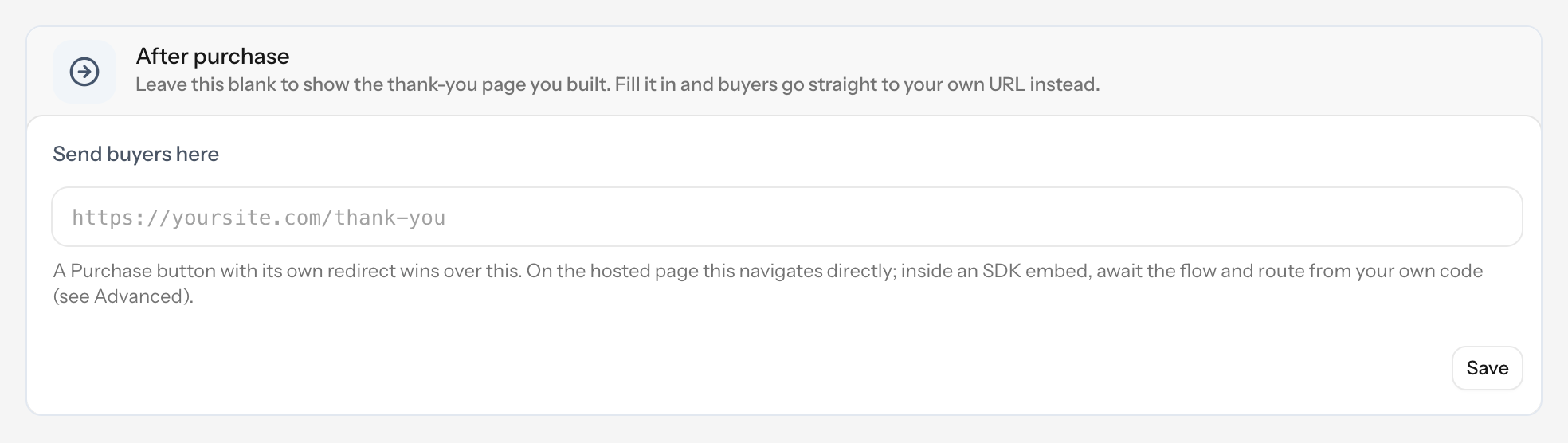
On a hosted checkout, Plandalf takes the buyer straight to the URL. When the checkout opened over your own page, Plandalf closes it and hands the URL to your code instead, so you decide what happens next. See Open a checkout from code.
To set one URL for every checkout, use Success URL under Checkout redirects in Settings → Organization. A checkout's own Send buyers here overrides it.
Receipts
Plandalf doesn't email buyers a receipt unless you turn it on. In the editor's Automations view, add Send customer receipt. It emails the buyer a receipt when they buy from this checkout, with a link to a receipt page. If the checkout has an upsell, the sequence waits 15 minutes first, so one receipt covers everything the buyer bought.
The logo, button colour and reply-to address on receipts are set in Settings → Customer invoices.
Automations
The Automations view lists the sequences that run when someone buys from this checkout. Under Suggested, click Add on a ready-made sequence, such as recovering abandoned carts or removing access on a refund. Link attaches a sequence you already have, and New starts one. Each linked sequence has an On/Off switch.
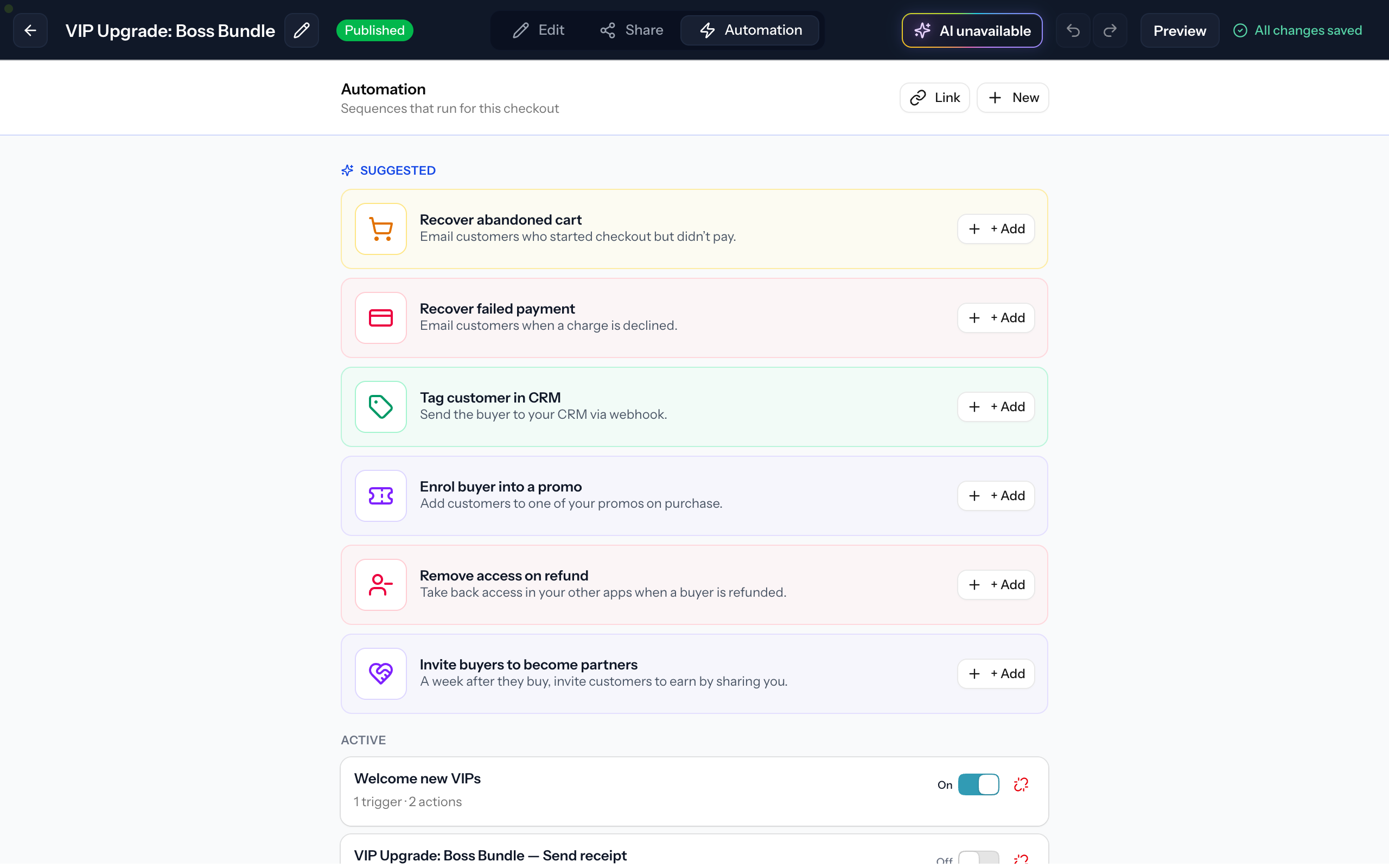
Test purchases skip a sequence unless Run on test purchases is on in its settings. See Automations.
Invoices, customers and saved cards
- An invoice, marked paid, in Invoices and in the checkout's own Invoices panel.
- The buyer in Customers: a new customer, or the one they already are.
- The card they paid with, saved to the customer so a one-click upsell can charge it.
You get an email for each new order if New order notifications is on in Settings → Notifications.
Webhooks
If you've set up webhook endpoints, Plandalf sends checkout.completed and invoice.paid for each sale. See Webhooks.