Checkouts
Checkout settings
Each checkout's own settings live in the editor. Click Settings at the bottom of the rail on the left.
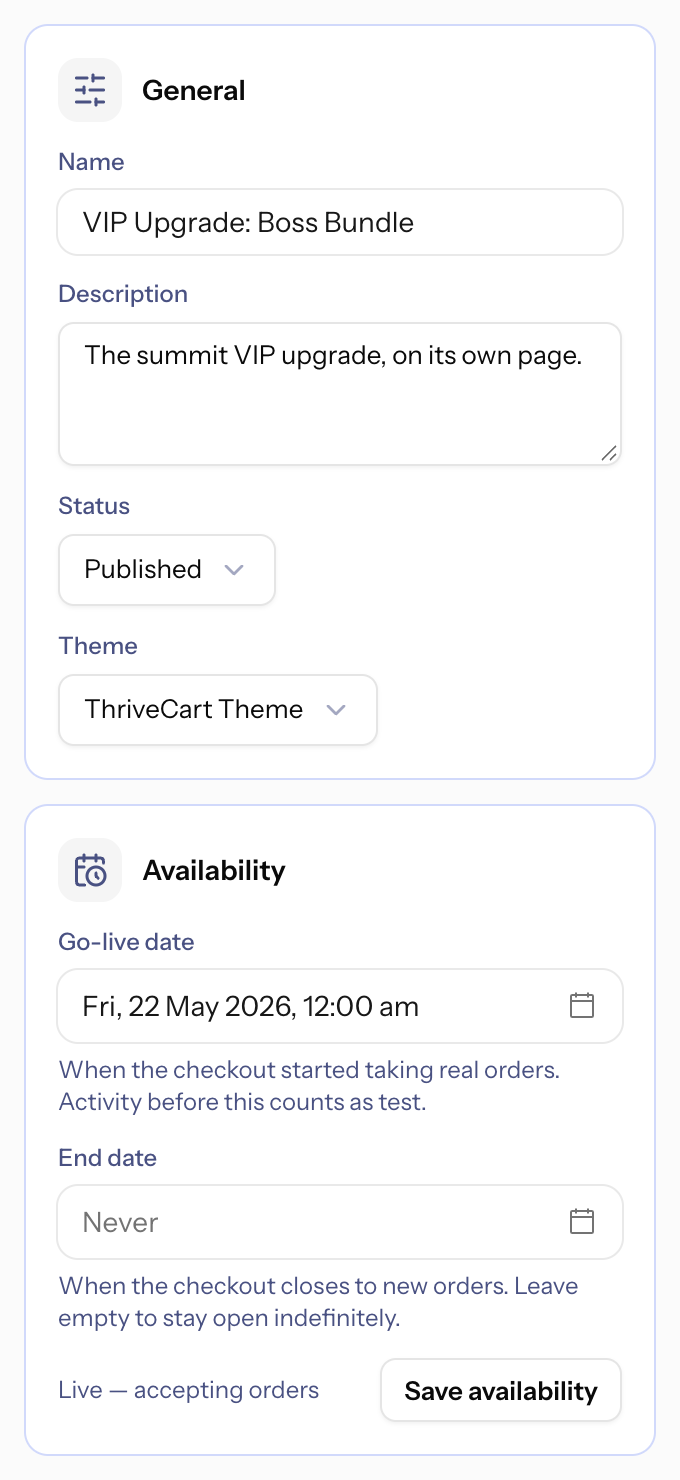
General
| Name | What you and your team see in Plandalf. You can also rename a checkout with the pencil beside its name at the top of the editor. |
| Description | A note for your team. |
| Status | Draft, Published or Archived. See Draft and published. |
| Theme | Which theme the checkout uses. Edit the theme itself in the Themes panel; see Theme and fonts. |
Click Save changes at the bottom of the panel.
Availability
Go-live date is when the checkout started taking real orders. Sales before it count as test in your results, so if you sold before you published, move this date back. End date is when the checkout closed; leave it empty to stay open. Click Save availability, and Plandalf sorts past sales into test and real again for the new dates.
Archiving a checkout or giving it an end date changes its status and your stats. Remove its buttons and links from your site as well, so buyers stop reaching it.
Billing
Shown on checkouts that sell a subscription. When your site signs a customer in, this checkout changes their current plan instead of starting a second one. See Returning customers.
Layout
Switch to mobile layout when screen ≤ sets the width, in pixels, at which buyers get your mobile layout. The default is 1023. The quick presets are 767 (phones only), 1023 (phones and iPad portrait) and 1279 (phones and tablets).
Requirements
A checklist of what the checkout's flow needs, such as a payment block on the page that takes money. A green tick means it's covered.
Delete a checkout
Click Delete checkout at the bottom of the panel, then Delete anyway. This permanently removes the checkout and its data, and its buttons and links stop working. To keep a copy, duplicate it first.
Settings for every checkout
Some settings apply to all your checkouts and live in Settings in the main sidebar: new order emails in Notifications, your default currency and Success URL in Organization, and the logo and colours on receipts in Customer invoices.