Settings
Organization and team
Your organization holds your checkouts, customers and settings. Set its details once under Settings → Organization, then bring in the people you work with under Settings → Team.
Organization
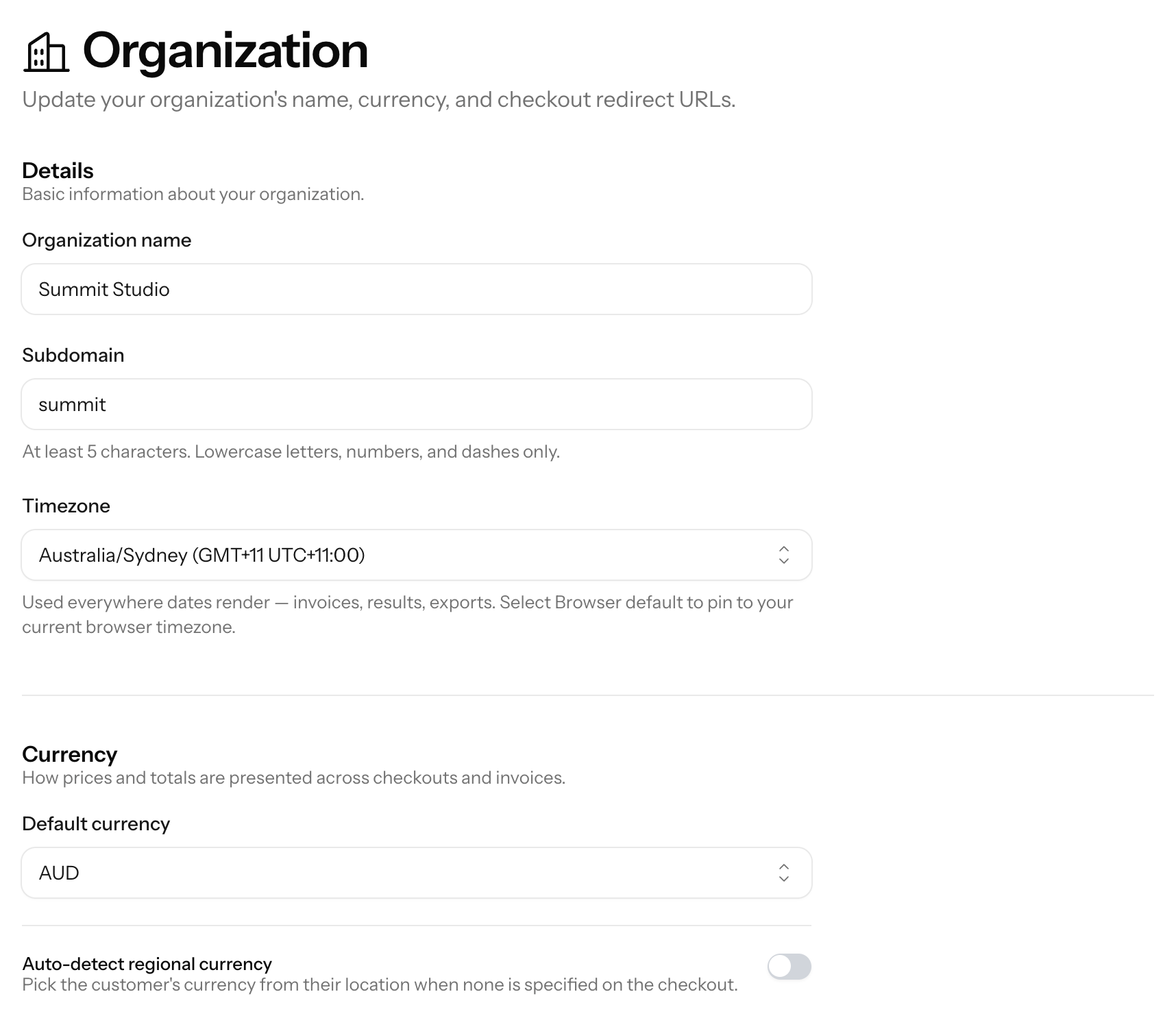
| Setting | What it does |
|---|---|
| Organization name | Shown to buyers on receipts and to your team in the dashboard. |
| Subdomain | Your Plandalf host, YOUR-ORG.plandalf.dev. At least 5 characters: lowercase letters, numbers and dashes. |
| Timezone | Used for every date on invoices, results and exports. Browser default uses your browser's timezone. |
| Default currency | The currency for prices and totals when a checkout doesn't set one. |
| Auto-detect regional currency | Shows buyers their local currency, from where they are, when the checkout doesn't set one. |
| Business details | Your country, address and tax ID (ABN, VAT number and so on), printed on receipts and invoices. Leave them blank to leave them off. |
| Checkout redirects | A Success URL and Cancel URL: where buyers land after they finish or leave a checkout. |
Click Save changes at the bottom.
Your script, hosted checkouts and receipt links all load from your subdomain, and Plandalf doesn't keep the old one. If you change it, update the script on your site and any checkout links you've shared. See Your Plandalf host and API keys.
Team
Everyone you add can use the whole dashboard. Each person shows as a member; there are no separate roles yet, so only invite people you'd trust with your sales and settings.
Invite by email
Send the invite
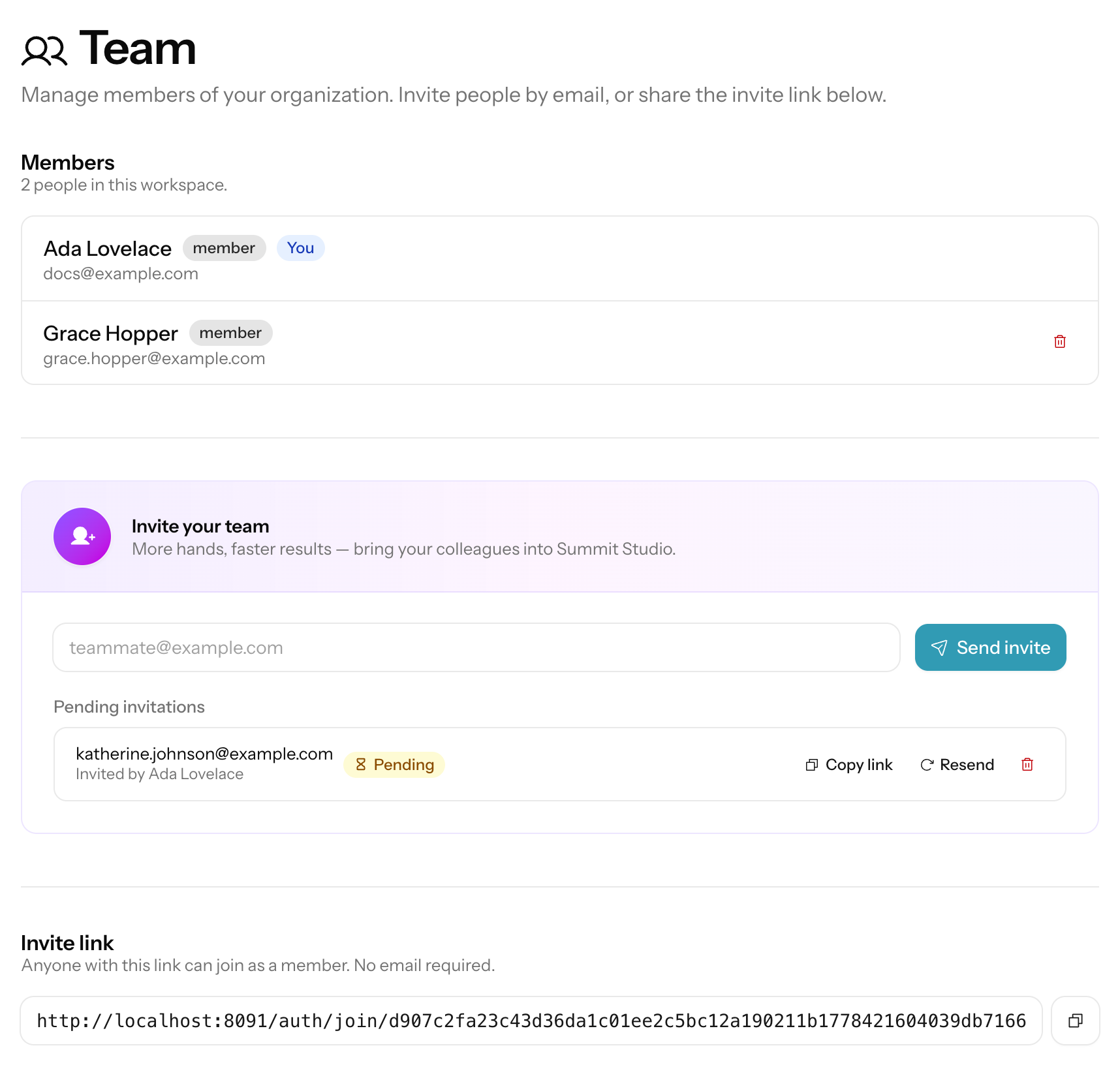
Type their email under Invite your team and click Send invite. Plandalf emails them a link to join.
Follow up if needed
The invite shows under Pending invitations until they accept. Copy link gives you the link to send yourself, Resend emails it again, and the bin cancels it. An invite expires after 14 days; resending starts the 14 days again.
Share the invite link
Under Invite link, copy your organization's link and share it. Anyone who opens it can join as a member, with no email invite, so share it only with people you mean to add.
Remove someone
Click the bin next to a member and confirm. They lose access to this organization straight away.
New members are added to your order and automation alerts automatically. To stop that, remove them under Notifications.