Customers and sales
Products
A product is something you sell, and a price is what it costs: $236 once, or $37 a month. The Products screen holds them all. Every checkout, the API and your Stripe imports use the same products and prices, so one product can sit in many checkouts.
The product list
Each product opens to show its prices, with their type, amount, where they exist in Stripe (Bindings), units sold and revenue. Search by product or price name, or use Collapse all to see products only.
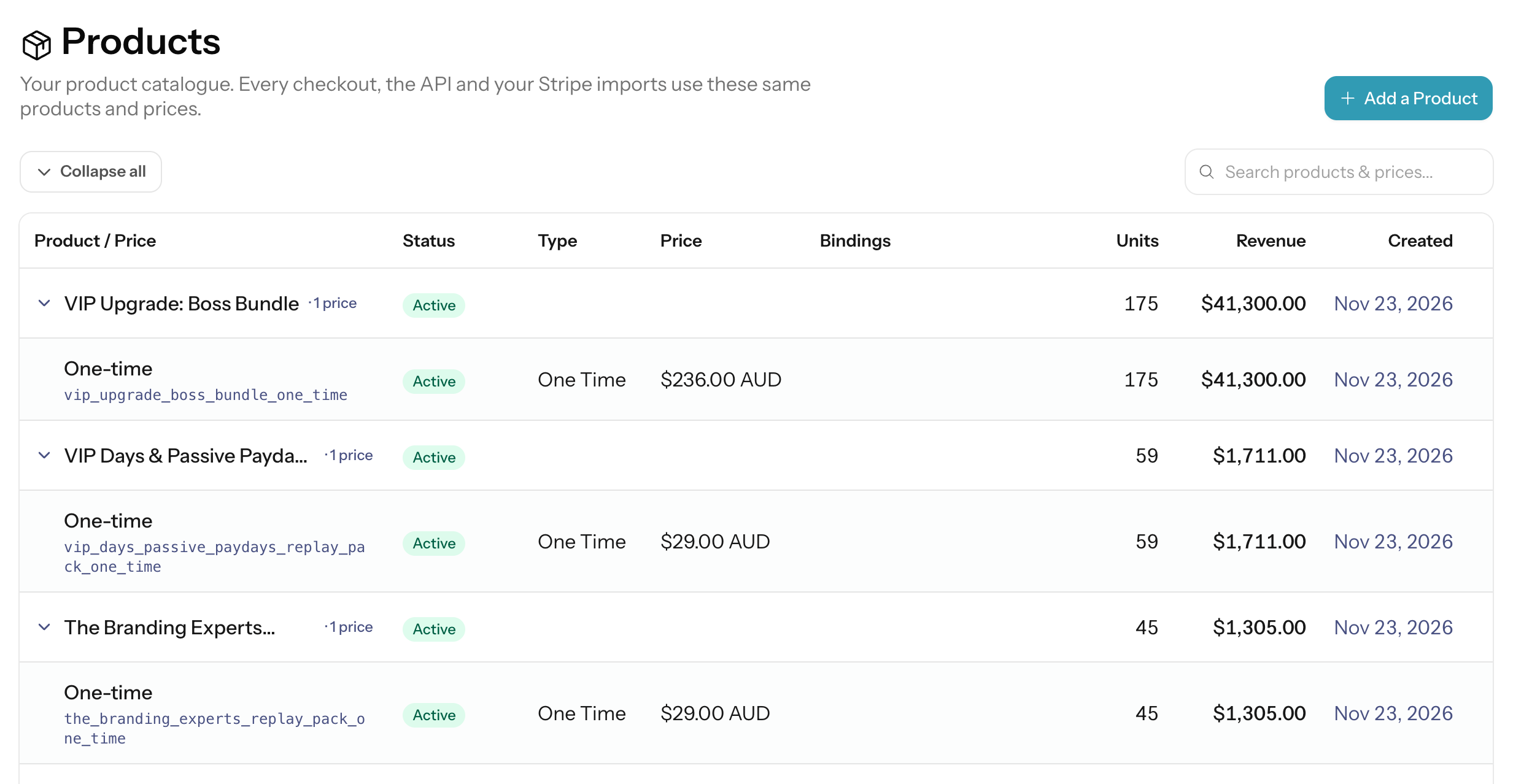
Add a product
Click Add a Product and choose how to start:
| Create a new product | Give it a name and, if you like, an image that can show on checkouts. Plandalf fills in a lookup key from the name. |
| Import from Stripe | Pick products you already sell in Stripe. This needs Stripe connected under Payments. |
You can also add a product while you build a checkout. It lands here either way. See Products and prices.
Lookup keys
The lookup key is a stable ID for the product, such as pro_plan. It must be unique in your organization, and it stays the same when you rename the product, so code, links and integrations that use it keep working. Use it to refer to the product from the API or your own code.
Prices
Open a product and click Add Price:
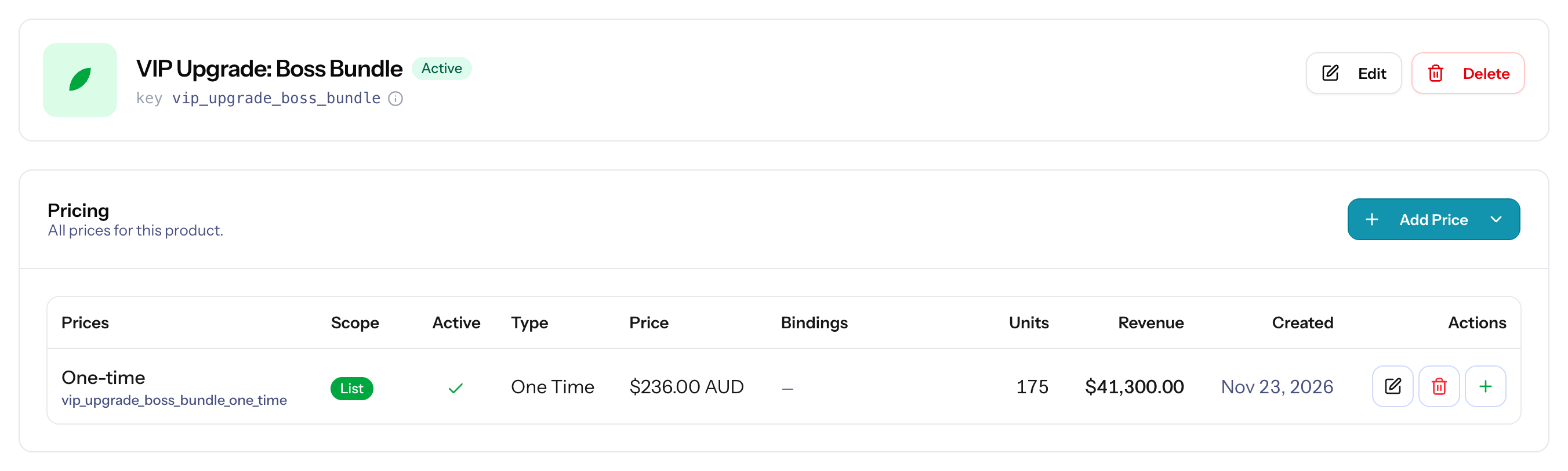
| Option | Use it for |
|---|---|
| List Price | The normal price everyone sees. Add this first. |
| Custom Price | A one-off price for particular customers. |
| Variant Price | Another version of a list price. |
| Import from Stripe | Prices that already exist in Stripe, on a product that came from Stripe. |
One-time, recurring and other pricing models are covered in Pricing.
Products in Stripe
You don't need to create anything in Stripe first. Plandalf creates the product and price in your Stripe account when a checkout first charges it, and updates Stripe when you save a product you made in Plandalf. A matching copy goes into your Stripe test account for test mode.
The Bindings column lists each Stripe account where a price exists, live or test, with a link to it. A dash means Stripe hasn't needed it yet.
Delete or archive
Click Delete on a product, or the bin on a price. Plandalf first checks your checkouts, orders and invoices:
- If it has been sold, it can't be deleted. Click Archive price to stop selling it and keep the record.
- If checkouts still use it, Plandalf lists them. Open them to swap in another price, or take it off all of them at once with Remove from 2 checkouts and delete (the button shows your number).
- If nothing uses it, Delete permanently removes it. This can't be undone.
Deleting in Plandalf leaves the Stripe copy as it is.