Affiliates
Campaigns
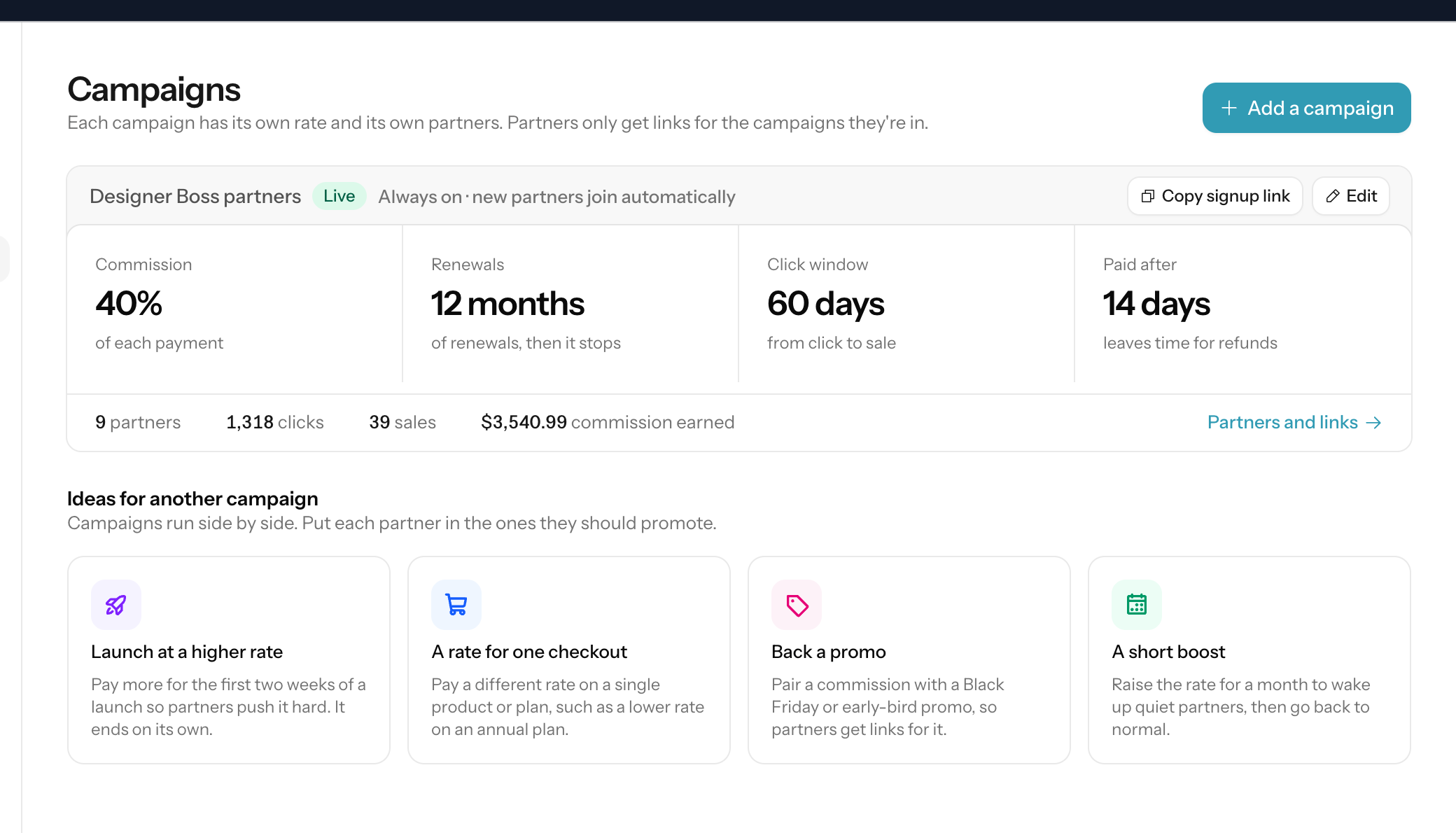
A campaign is a set of earning rules with its own partners. Use one to pay more during a launch, reward a few top partners, or send partner links to a single checkout or deadline timer.
How campaigns work
- Your program starts with one campaign. Its rules are your program's standard terms, so editing it changes those.
- A partner gets one link for each campaign they're in. A sale earns at the rate of the campaign whose link they clicked.
- A partner's own rate, if you set one, wins over the campaign's.
Add a campaign
Start it
Go to Affiliates → Campaigns and click Add a campaign, or pick one of the ideas: Launch at a higher rate, A rate for one checkout, Back a deadline timer or A short boost.
Name it
Give it a Name and a Link name. The link name goes on the end of each partner's campaign link code, for example
jane-launch. You can't change it once partners have links.Set the rules
Set What partners earn, Pay on renewals?, How long a click counts and Wait before paying, the same as for your program. See What partners earn.
Choose when it runs
Under When it runs, pick Always on or Between dates. Set the Status to Active when it's ready; a draft campaign doesn't record clicks yet.
Point it somewhere (optional)
Under Run it for one checkout or deadline timer, pick an Offer, a Deadline timer or a Destination URL for this campaign's links.
Turn on New partners join this campaign automatically when approved if everyone should get it.
Add partners
Open the campaign and click Add partners. Search for partners, or filter to those Not in another campaign. Tick Move them to take them out of the campaign they're in now. Each partner you add gets a link for the campaign.
Partners can also apply to a campaign through its Signup link (Copy signup link on the campaign). People who apply that way always wait for your review.
Campaign dates
Plandalf records every click on a campaign link, but only clicks between the campaign's dates earn. A sale from a click outside them shows as "Click was outside the campaign dates". If you change the dates on a campaign that already has clicks, Plandalf shows how many clicks and sales gain or lose credit before you click Save dates.
Click End campaign on the campaign to stop it. Its join link then tells visitors it has ended.
Campaigns with deadline timers
When a campaign has a deadline timer, Plandalf ties it to every partner link in the campaign. The referral badge then shows a ring that runs down with the deadline timer's deadline, and your page can read the deadline timer from the visitor's referral in code. Partners get the deadline timer's email countdown on their portal Home. A buyer who only opens that email doesn't credit the partner; they have to click through. See Referral links and What a deadline timer is.