Affiliates
Commissions and payouts
Plandalf works out a commission for every referred sale, holds it while refunds can happen, then adds it to the partner's balance for you to pay. You pay partners yourself and mark them paid in Plandalf.
How a commission is worked out
A commission is a percentage of the sale. Plandalf uses the first rate that applies:
- The partner's own rate, if you gave them one.
- The rate of the campaign whose link the buyer clicked.
- Your program's standard rate.
The percentage is taken from the sale before tax, unless you choose The total the customer paid under Settings → Payouts → What commission is worked out on. Renewals earn for as long as the rules say: first payment only, a set number of months from the first sale, or every renewal.
Some sales earn nothing. They show as No commission with the reason, such as "Partner bought through their own link", "Click was outside the click window" or "The commission duration ended".
Who gets the sale
When two partners sent the same customer, Settings → General → Who gets the sale decides: Most recent partner (the default) or First partner. A returning customer stays with the partner who first brought them, unless you turn on New partner takes over returning customers.
The hold period
A new commission starts In hold period, for the number of days set in Wait before paying (30 by default). When the hold ends, Plandalf approves it and it's ready to pay.
- A refund reduces the commission in proportion to what was refunded.
- A dispute holds the commission until it's settled. If you win, it comes back; if you lose, it's reversed.
- If a sale is refunded after you've paid the partner, their balance goes below zero and the difference comes off their next payout.
Review sales
Affiliates → Sales lists every referred sale with its commission. Filter by In hold period, Held for review, Approved, Rejected or No commission, and click Export CSV for a spreadsheet.
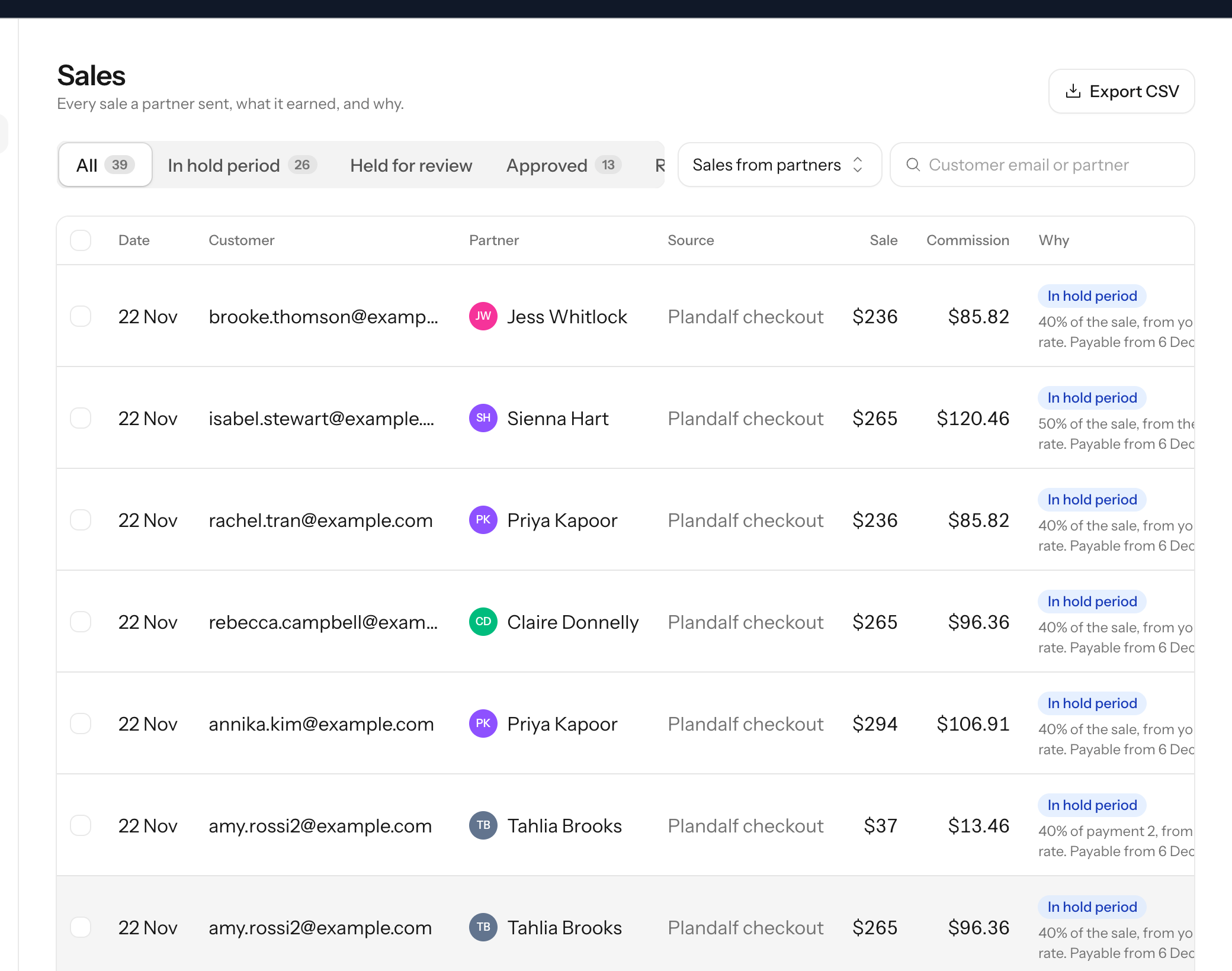
Open a sale to see How we worked it out and its history. On a sale still in the hold period you can:
| Approve now | Makes it ready to pay early. |
| Hold | Stops it being paid while you look into it. |
| Reject | For a sale that shouldn't earn. |
Hold and reject need a reason, which the partner sees. To review several at once, tick them on the Sales list and choose Approve or Reject.
A sale with no partner can be credited to one. Choose Sales with no partner, open the sale and click Credit a partner. Plandalf shows the commission before you confirm.
Set up payouts
Click Payout settings on the Payouts screen, or open Settings → Payouts:
| Setting | What it does |
|---|---|
| Payout currency | The currency you pay partners in. |
| Minimum payout | Balances under this carry over to the next payout. It starts at 50. |
| How partners get paid | Turn on PayPal, Wise and Bank transfer. Each has a wait after a partner changes their details, an optional fee note for partners and the currencies it pays in. |
Australian organizations also get GST for partners in Australia: pay commission with GST included, or pay GST on top for partners registered for GST. Results → Commissions splits what you paid by GST for your accounts.
Pay partners
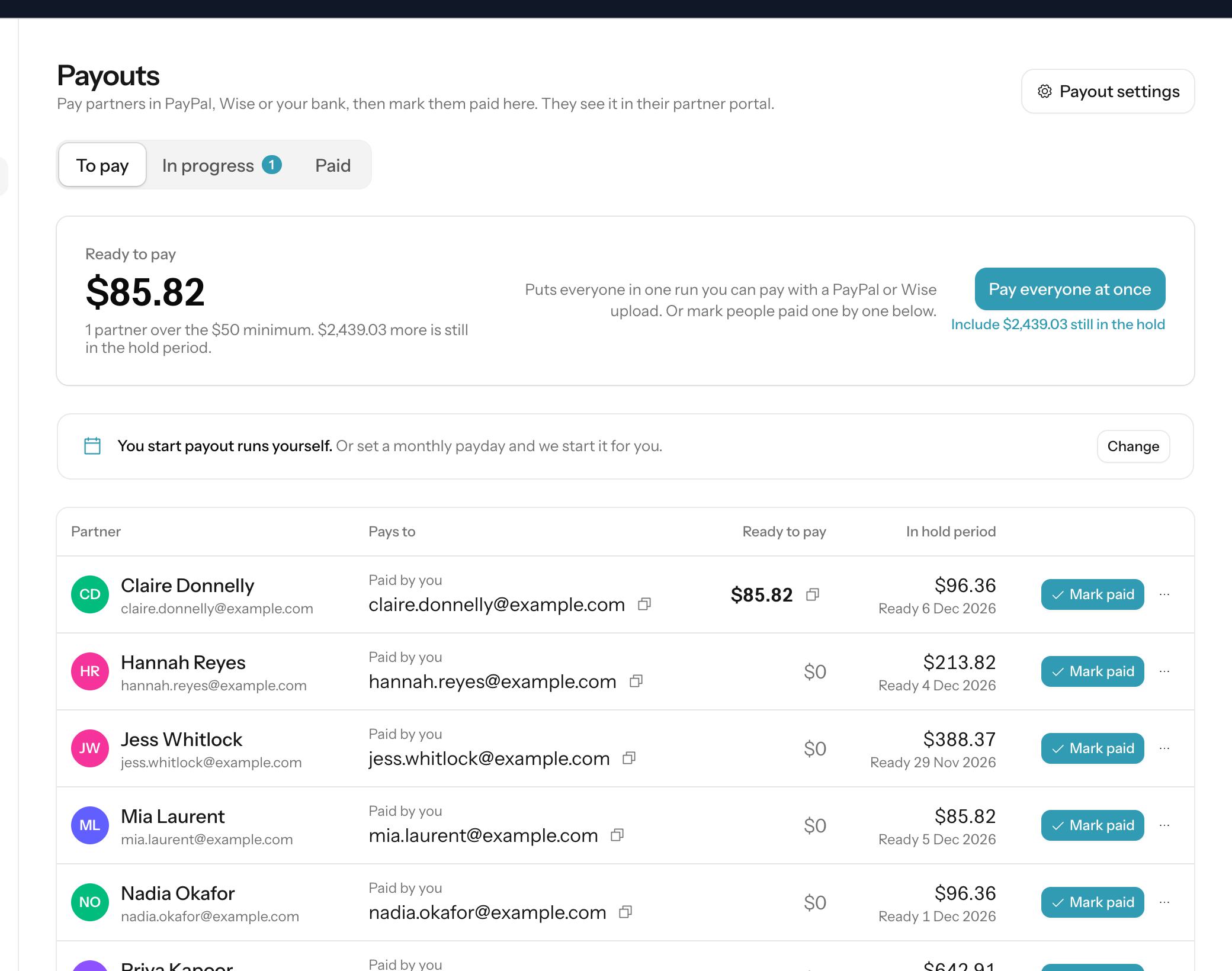
Affiliates → Payouts shows who's ready to pay under To pay.
Start a payout run
Click Pay everyone at once. To pay commissions still in the hold period too, click Include … still in the hold first. To pay one partner, open their row's menu and pick Start a payout run for just them.
Pay them
Click Download CSV and upload the file to PayPal, Wise or your bank.
Mark them paid
Back in Plandalf, click Mark all paid, or Mark paid on each payout with an optional payment reference. Partners see the payout in their portal.
A run in progress shows under In progress. If you didn't pay some of it, use I didn't pay these or Take out of this run, and those balances go back to To pay. Paid runs move to Paid, where you can download each partner's statement.
To pay someone outside a run, click Mark paid on their row under To pay. Partners with no payout email show Add their payout email.
Pay on a schedule
Payout runs start when you choose, unless you set a payday. Click Change under To pay and pick Monthly, then 15, 30 or 60 days after each month ends. Plandalf starts the run on that day and emails you.
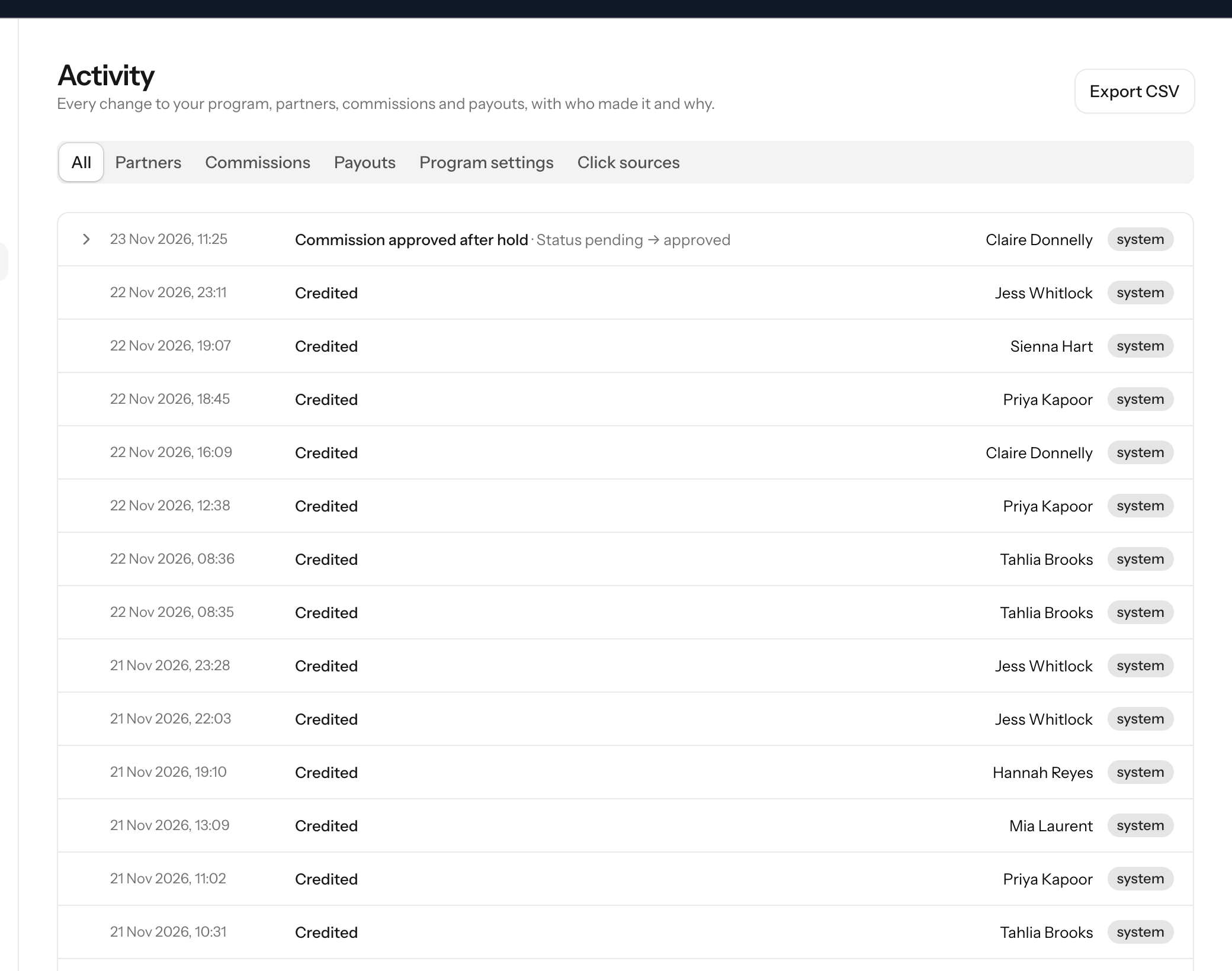
Activity
Affiliates → Activity lists every change to your program, partners, commissions and payouts, with who made it and why. The Click sources tab shows which websites partner clicks come from and the latest 50 clicks.