Affiliates
Partners
Partners are the people who send you customers. You can add them yourself or let them apply on your join page, and each one gets a link for every campaign they're in.
Add a partner
Open the form
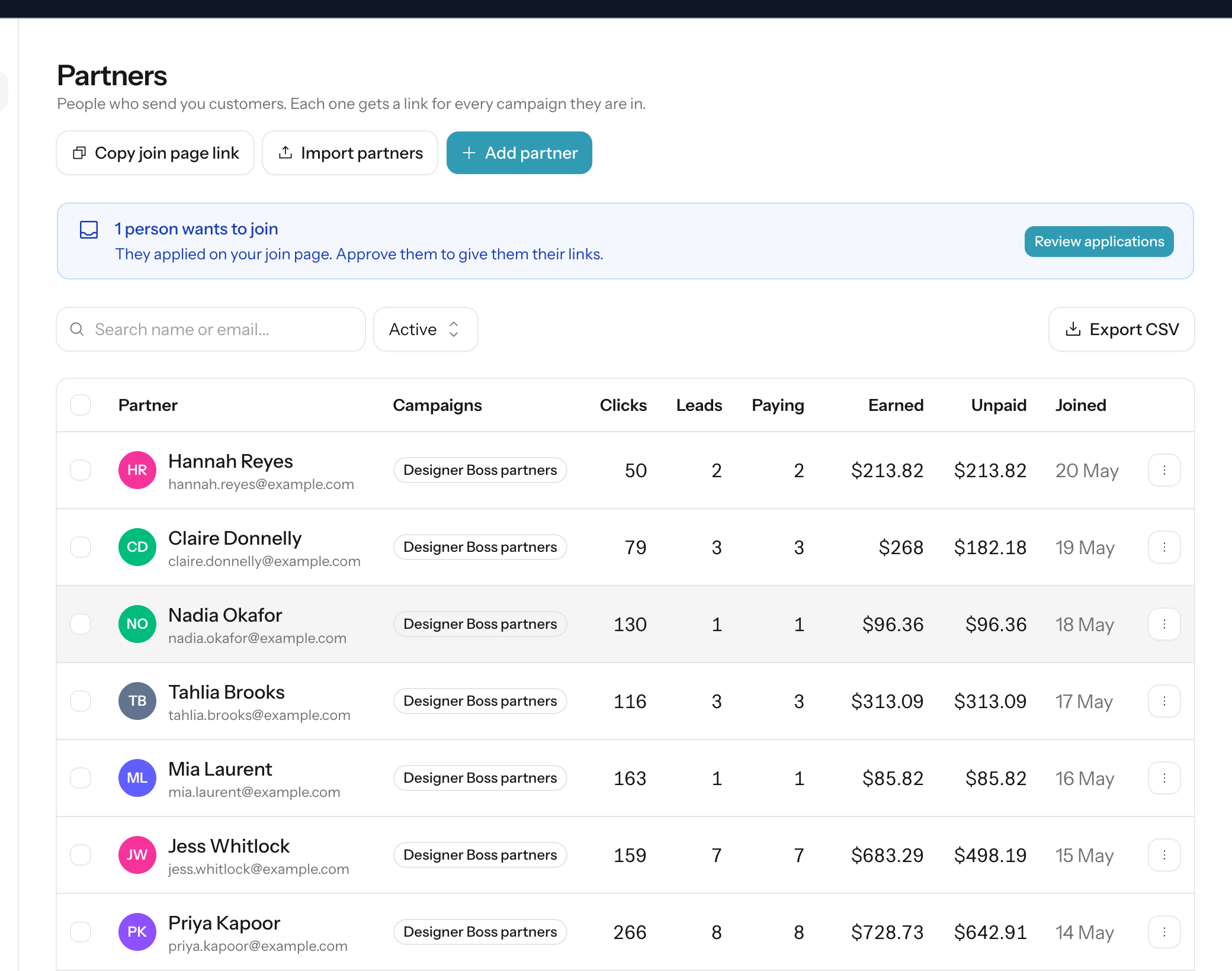
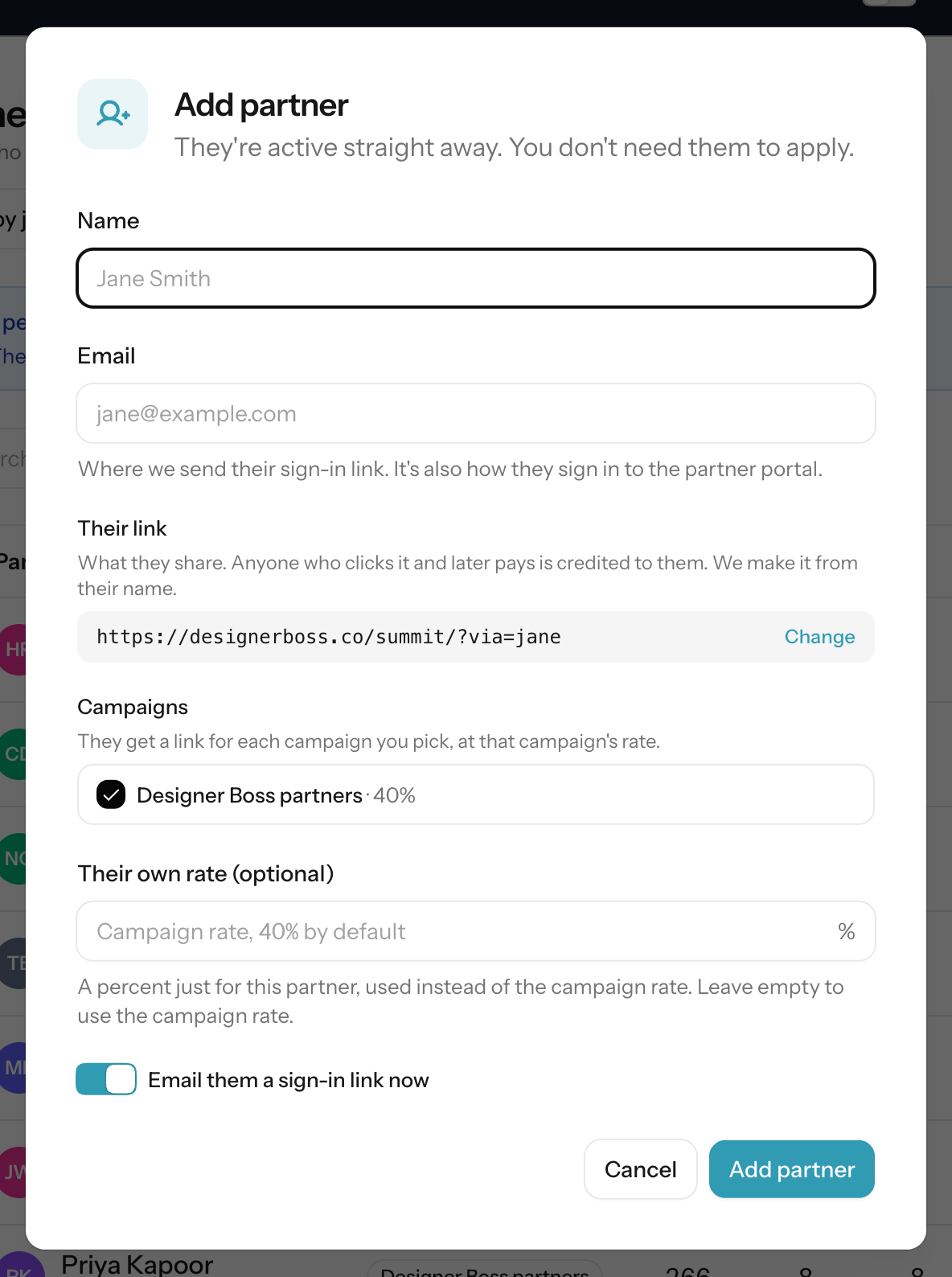
Go to Affiliates → Partners and click Add partner. Partners you add are active straight away; they don't need to apply.
Fill it in
Enter their Name and Email. The email is where Plandalf sends their sign-in link and how they sign in to the partner portal. Under Their link, click Change to pick their link code.
Pick campaigns and a rate
Choose the Campaigns they join; they get a link for each, at that campaign's rate. Owners and admins can give them Their own rate (optional) instead.
Send the invite
Leave Email them a sign-in link now on, and click Add partner.
To add a list of partners, or bring them from another tool, click Import partners. See Import from another tool.
Let people apply
Your join page is at YOUR-ORG.plandalf.dev/partners/join. Click Copy join page link to share it. What happens next depends on Settings → Joining:
- With Review applications on, applicants wait for you. Plandalf shows "N people want to join" on Partners and the overview.
- With it off, people who join from your join page are active straight away. People who apply through a campaign's signup link always wait for review.
- With the public join page off, nobody can apply and you add every partner yourself.
Applicants give their name, email and answers to your join questions, and agree to your partner terms if you've linked them. Edit the questions under Partner experience → Signup; you can have up to 10.
Review applications
Click Review applications. For each person you'll see their answers, their links and their message to you. Click Approve to give them their links for the campaigns shown, or Decline. When declining, add a reason and pick Decline and email, or pick Decline without emailing for spam.
Find and manage partners
Filter the list by Active, Applications, Paused, Declined, Archived or All partners, search by name or email, and click Export CSV for a spreadsheet. Each row shows the partner's clicks, leads and paying customers, what they've earned, and how much of that you haven't paid yet.
Tick partners to pause or reactivate several at once. Plandalf asks whether to email them, with an optional reason. Sales a paused partner sends you earn no commission; they show as "Partner was not active".
A partner's page
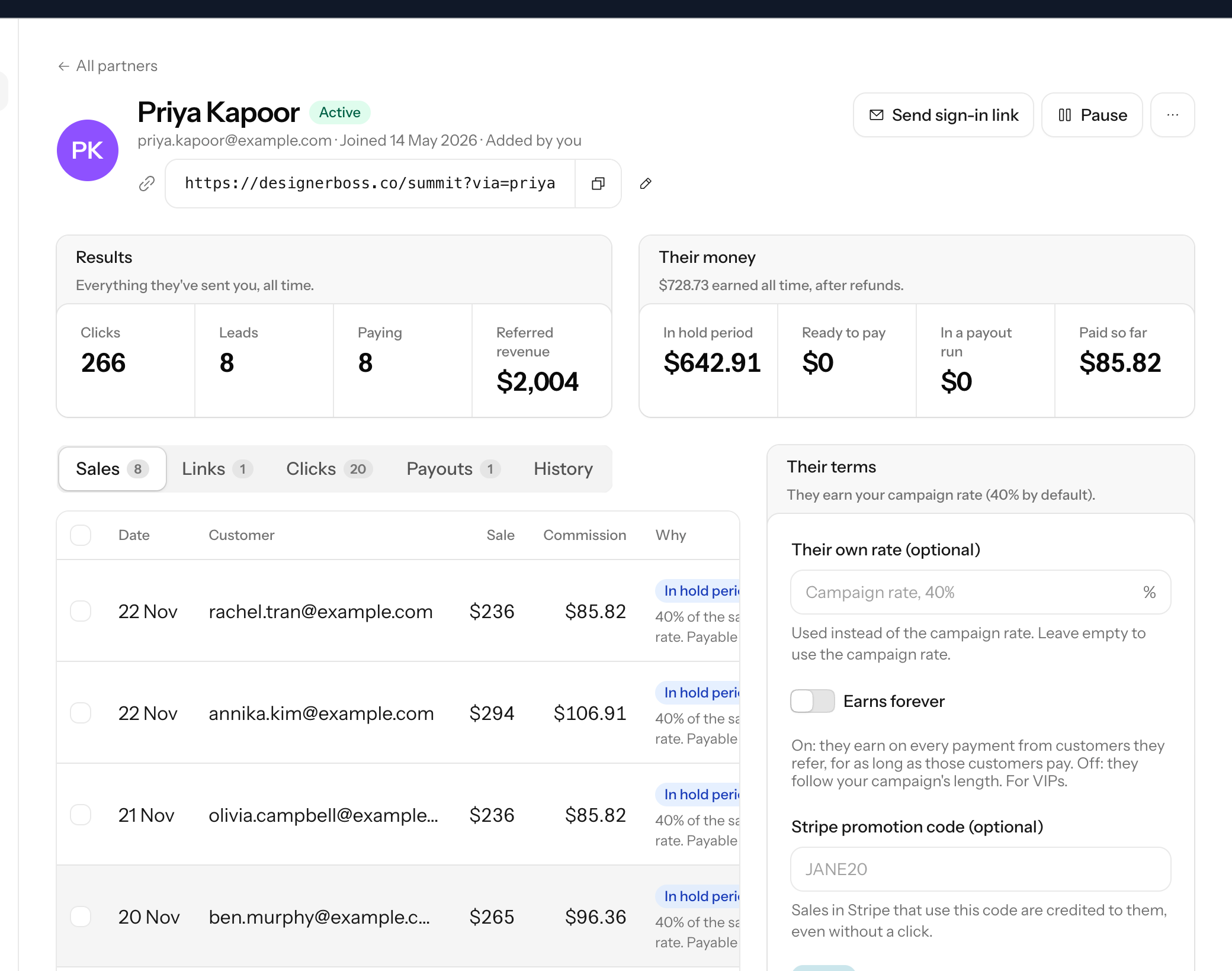
Click a partner to open their page. It shows their Results and Their money: what's in the hold period, ready to pay, in a payout run and paid so far.
| Where | What you can do |
|---|---|
| Sales, Clicks, Payouts | See everything they've sent you and been paid. |
| Links | See their main link and campaign links, and pick a deadline timer for their main link. See Referral links. |
| History | Rate changes and everything that happened to them. |
| Their terms | Give them their own rate, let them earn forever, or tie a Stripe promotion code to them. See Stripe. |
| Campaigns | Add them to campaigns or take them out. |
Click Send sign-in link to email them a fresh link to their portal. A partner who has never signed in gets their full invite again. The ⋯ menu has Edit name and link, Archive partner and Delete partner.
When you change a partner's link code, links they've already shared keep working.