Automations
Automations
Automations let Plandalf act for you after something happens: a checkout is paid, a buyer is refunded, a card is declined, a visitor leaves without paying. Each automation is a sequence: one trigger, then the steps Plandalf runs in order.
Triggers and steps
The trigger is the event that starts it, such as Checkout Completed or Invoice Refunded. The steps are what Plandalf does next: send an email, wait, tag the buyer in Kit, enrol them in a Teachable course, post to Slack, or send a webhook anywhere.
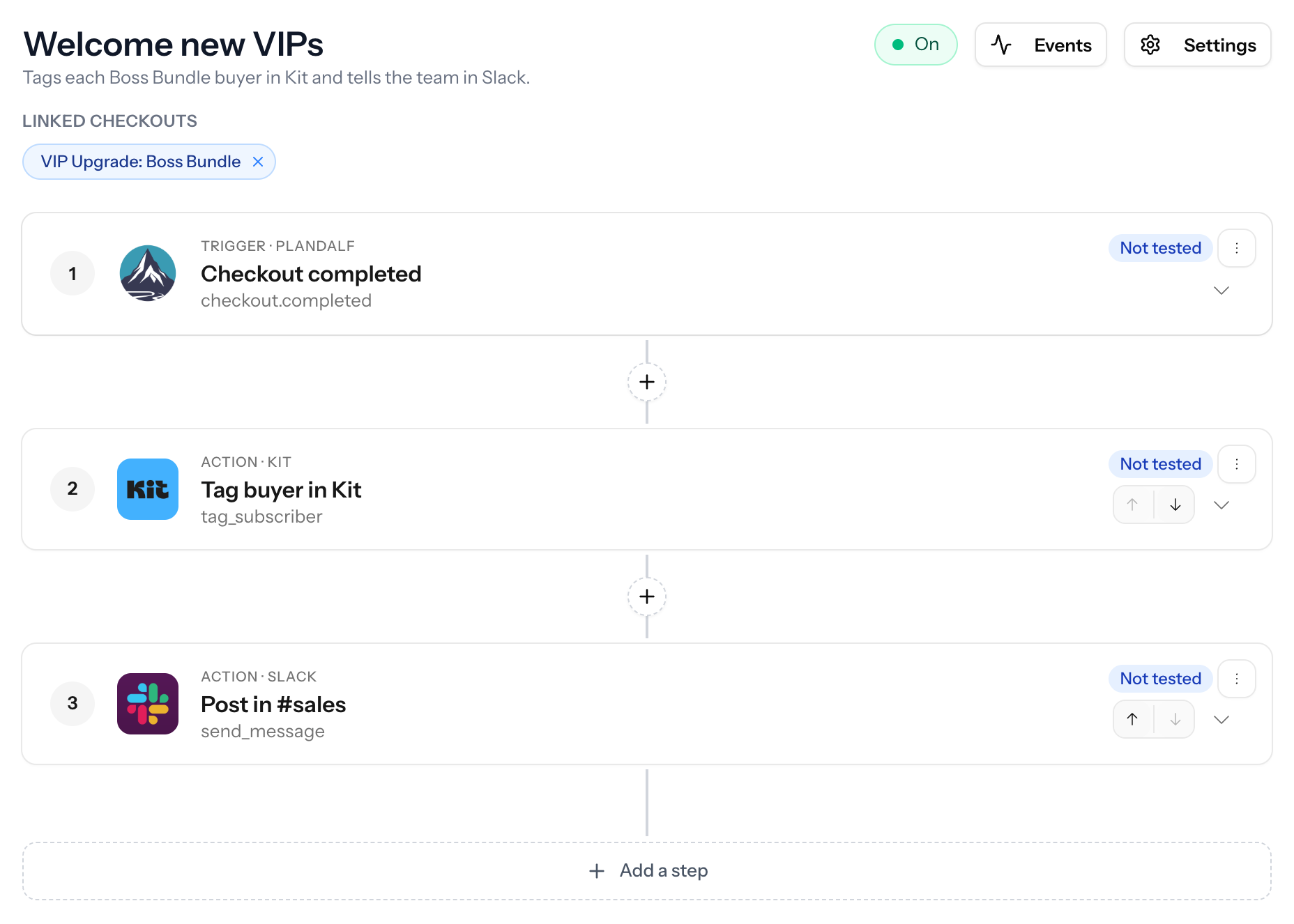
The built-in Plandalf app gives you the triggers and the core steps, and needs no connection. Connected apps add their own steps, and some add triggers of their own, so a Kit tag or a new Circle member can start a sequence too.
Where to find it
Open Automations in the sidebar. It has four tabs:
| Tab | What it's for |
|---|---|
| Marketplace | Every app you can connect. Click Connect on one to add your account. |
| Templates | Ready-made sequences you add to a checkout, and the Slack notifications recipe. See Templates. |
| My Sequences | The sequences in your organization, with their apps, runs and an on/off switch. |
| My apps | The accounts you've connected. Test, edit, reconnect or remove them here. |
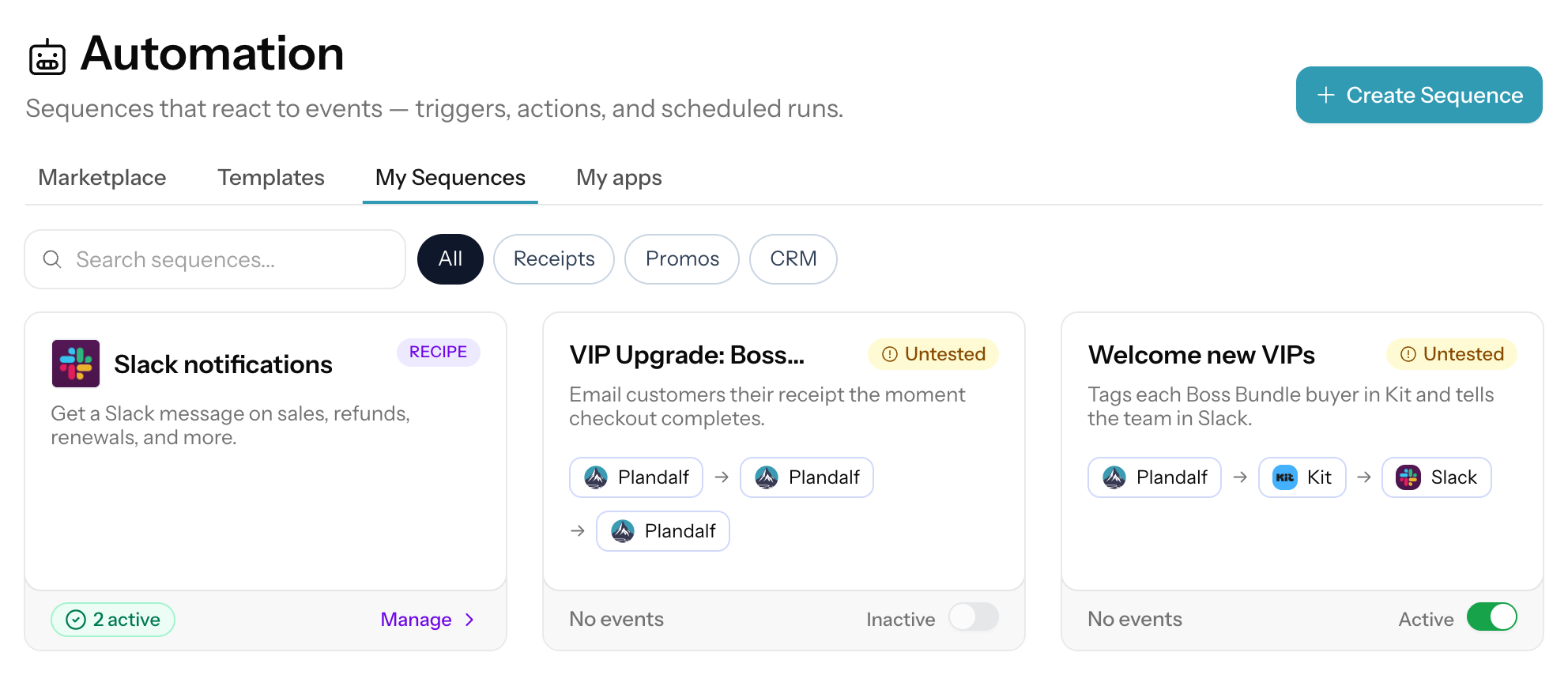
Each checkout also has an Automations view in the editor. It lists the sequences that run for that checkout, suggests templates, and has Link to attach an existing sequence and New to start one already limited to that checkout.
Test purchases
Test purchases skip automations, so a test card doesn't email a customer or pays a commission. To try a sequence end to end, open it, click Settings and turn on Run on test purchases. Turn it off again when you're done. See Test mode.
When a run fails
Each sequence has an Events view listing every run, the steps that ran and each step's output or error. You can rerun a failed run from there.
Plandalf also emails your notification recipients when a run fails, at most once every 15 minutes per sequence. Turn this on or off with Failed automation notifications under Settings → Notifications. The Slack app can post the same alerts to a channel.
Apps you can connect
| App | What it does in a sequence |
|---|---|
| Circle | Add buyers to your community and its spaces, remove them on refund |
| Drip | Add and tag subscribers, record purchase events for Drip workflows |
| Kajabi | Grant an offer on purchase, revoke it on refund, tag contacts |
| Kit | Tag subscribers, add them to forms and sequences, update fields |
| Mailchimp | Add buyers to an audience, tag them, record events for Customer Journeys |
| MailerLite | Add subscribers to groups, remove them on refund |
| Slack | Post sales, refunds and failure alerts to a channel |
| Teachable | Enrol buyers in courses, remove them on refund |
| Thinkific | Enrol buyers in courses and bundles, end access on refund |
| Tolt | Record affiliate commissions on paid invoices |
For any other tool, use a webhook. See Webhooks and Zapier.
- OverviewRun steps after a purchase, refund, failed payment or abandoned cart. Email the buyer, tag them in Kit, post to Slack or call a webhook.
- Build a sequenceCreate a sequence, choose its trigger, add and test each step, then turn it on.
- TriggersEvery event that can start a sequence, from Checkout Completed and Invoice Refunded to Cart Abandoned and your own webhook.
- TemplatesReady-made sequences for receipts, abandoned carts, failed payments, deadline timers, Tolt commissions, refunds and partner invites.
 Brilliant DirectoriesConnect Brilliant Directories to put buyers on a membership plan, move members between plans, cancel after a refund and start sequences from a webhook.
 CircleConnect Circle to add buyers to your community and its spaces, remove them from a space on refund, and start a sequence when someone joins.
 GoHighLevelConnect a GoHighLevel sub-account to add buyers as contacts, tag them, start HighLevel workflows and open opportunities when they pay.
 ActiveCampaignConnect ActiveCampaign with your API URL and key to tag buyers, add them to lists, start automations and start deadline timers from an automation.
 KitConnect Kit (formerly ConvertKit) to tag buyers, add them to forms and sequences, update their fields, and start sequences from Kit events.
 DripConnect Drip to add buyers as subscribers, tag and untag them, record purchase events that start Drip workflows, and start sequences from Drip events.
 KajabiConnect Kajabi with Public API credentials to grant buyers a Kajabi offer when they pay, revoke it on refund, and tag them as contacts.
 MailchimpConnect Mailchimp to add buyers to an audience, tag and untag them, record events that start Customer Journeys, and start sequences when contacts subscribe.
 MailerLiteConnect MailerLite to add buyers to groups, remove them on refund, update subscriber fields, and start a sequence when a subscriber is created.
 SlackConnect Slack to post new purchases, renewals, upsells and refunds to a channel, send your own messages from any sequence, and get failed-automation alerts.
 TeachableConnect Teachable to enrol buyers in a course when they pay and remove them from it on refund.

 ThinkificConnect Thinkific to enrol buyers in courses and bundles when they pay and end their access on refund.
 ToltConnect Tolt to record affiliate commissions in Tolt every time a Plandalf invoice is paid, one transaction per line item.
 Webhooks and ZapierReach tools Plandalf has no app for, such as Klaviyo, HubSpot or ActiveCampaign, with webhooks, Zapier, Make or n8n.