Checkouts
Products and prices
A checkout sells products from your catalogue. This page shows how to add them in the editor and how the pieces fit together.
Products, prices and items
- A product is what you sell, such as a course or a membership. It lives in your catalogue under Products, and one product can appear in many checkouts.
- A price is how a product is charged: an amount, a currency, and one-off or recurring. A product can have several prices. See Pricing.
- An item is a slot on one checkout. It holds one product and the prices buyers can get it at. Items are numbered Primary item, Secondary item and so on.
The editor and the Products screen share one catalogue. Anything you add or edit in the editor's Products panel changes the catalogue too; Open catalogue takes you there.
Add your first product
Open the Products panel in the editor. With no products yet, you can:
| Create a new product | Enter the Product name, an optional Product image and a Lookup key, click Create product, then fill in Add a price and click Create price. |
| Add an existing product | Pick a product from your catalogue, or from your Stripe account if it's connected. A Stripe product is imported into your catalogue when you pick it. |
The lookup key is a stable ID for the product, used by the API, your code and embedded checkouts. Plandalf suggests one from the name.
Add more products
Click Add another product to add a second item, such as an order bump or a second plan. In Select product and prices, pick the product on the Product tab, choose one or more prices on the Pricing tab (or click Create new price) and click Save.
If you pick a product that's already on the checkout, its prices join the existing item.
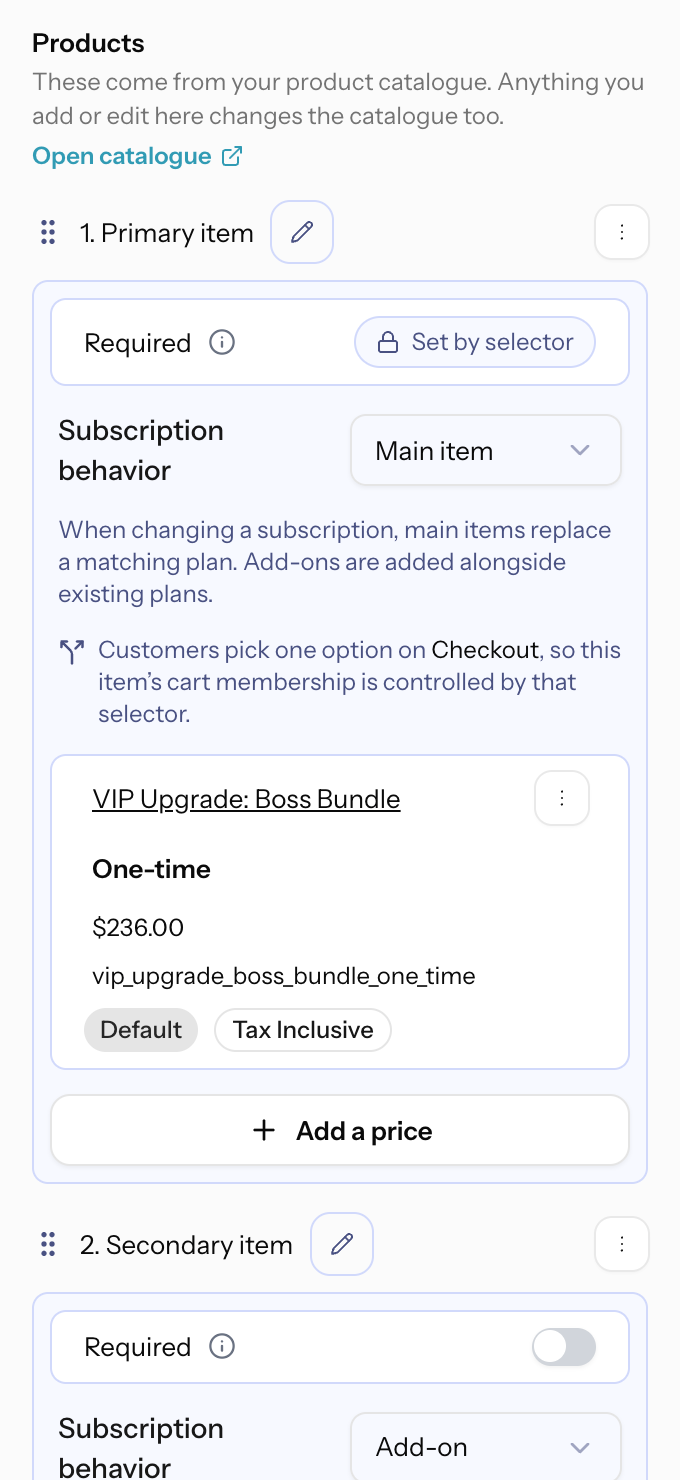
Set up each item
- With Required on, the item is always in the cart. With it off, buyers choose whether to add it, for example with an order bump. The first item is required by default. When a Product options or Product Cards block chooses between items, the switch shows Set by selector instead.
- The Subscription behavior setting applies when a signed-in customer uses this checkout to change their subscription. A Main item replaces their matching plan and an Add-on is added alongside it.
- Drag the handle beside an item to reorder items. The pencil renames an item; the ⋮ menu edits or deletes it.
Give an item more than one price
Click Add a price under an item to attach another price of the same product, for example monthly and yearly. The first price is the Default: the one in the cart when the checkout opens. Buyers switch prices with a block such as Product options, Product Cards or Option Slide.
Each price's ⋮ menu has:
| Option | What it does |
|---|---|
| Edit price | Change the amount, billing or trial. |
| Edit product | Change the name, image or lookup key. |
| Change price on this item | Swap in a different price. |
| Make default | Make this the price in the cart when the checkout opens. |
| Remove from this checkout | Takes the price off this checkout. It stays in your catalogue. |
| Delete price permanently | Deletes the price from your catalogue. |
| Delete product permanently | Deletes the product and its prices from your catalogue. |
All products on one checkout must use the same currency. The panel shows an error if they don't.
Stripe products
Products you create in Plandalf are marked Created in Plandalf. Plandalf creates them in your Stripe account the first time someone pays for them, so you don't need to set anything up in Stripe. Products imported from Stripe are marked Synced from stripe. Once a price is linked to Stripe, its amount can't be changed; create a new price instead.