Settings
 Payments
Plandalf takes payments through your own Stripe account. Buyers pay you directly; Plandalf runs the checkout around the payment. Connect Stripe under Settings → Payments & Tax Integrations before your first sale.
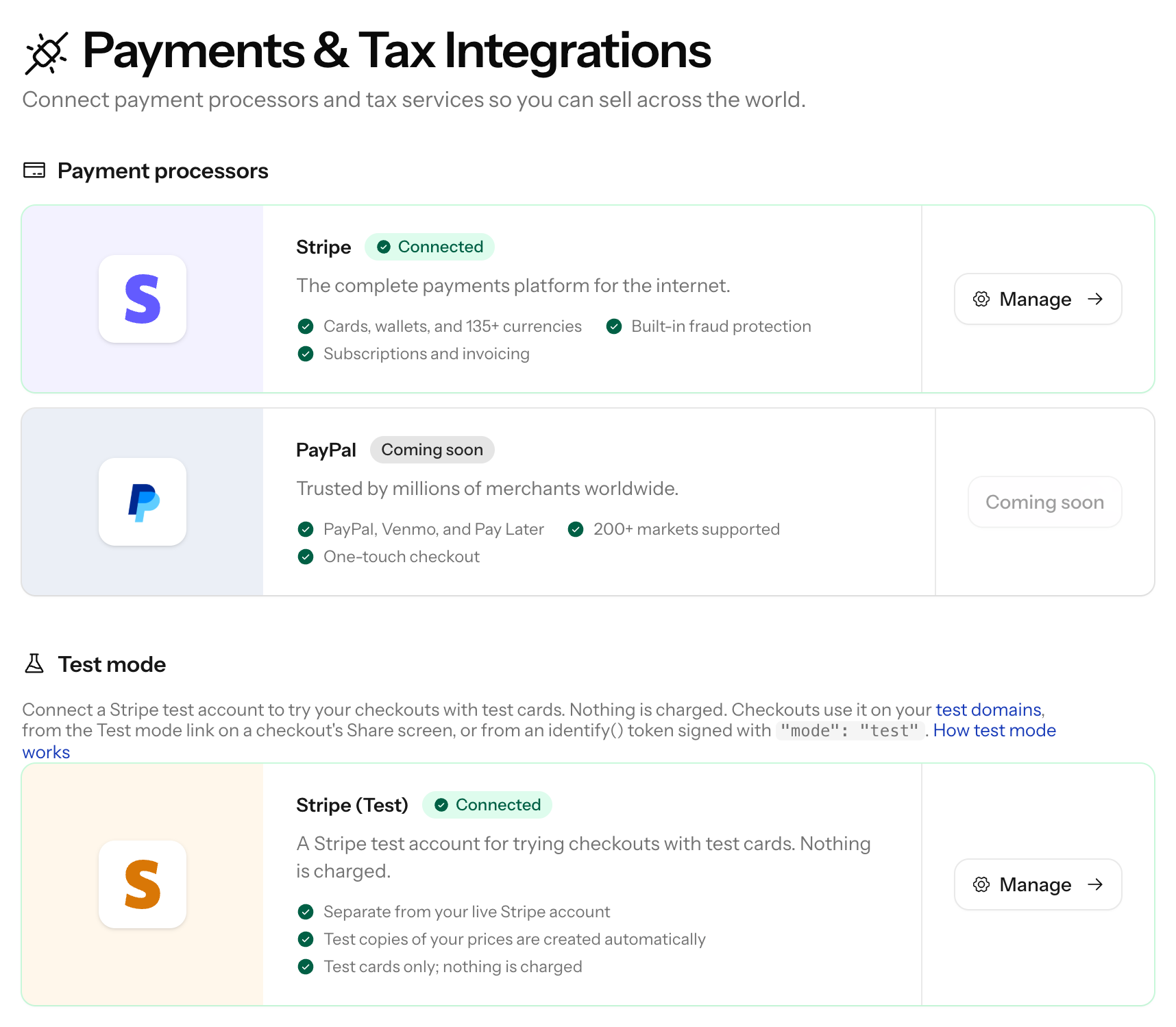
Connect Stripe
Start the connection
Under Payment processors, click Connect next to Stripe.
Approve it in Stripe
Sign in to Stripe, pick the account that should receive payments and approve the connection. Stripe sends you back to Plandalf.
Check it's connected
Stripe now shows Connected. Live checkouts take real payments from here on.
Your Stripe account stays the account of record: payments, payouts and disputes live there, and Plandalf creates the customers, products and prices it needs in it. See Products.
Add a Stripe test account
Under Test mode, click Connect next to Stripe (Test) and approve a Stripe account in test mode. It's separate from your live account, Plandalf copies your prices into it for you, and only test cards work. Checkouts use it on your test domains, from a checkout's test link, or for a buyer whose signed token says "mode": "test". See Test mode.
Choose payment methods
Click Manage next to a connected Stripe account. Under Payment Methods, tick the ones your checkouts should offer and click Save Changes.
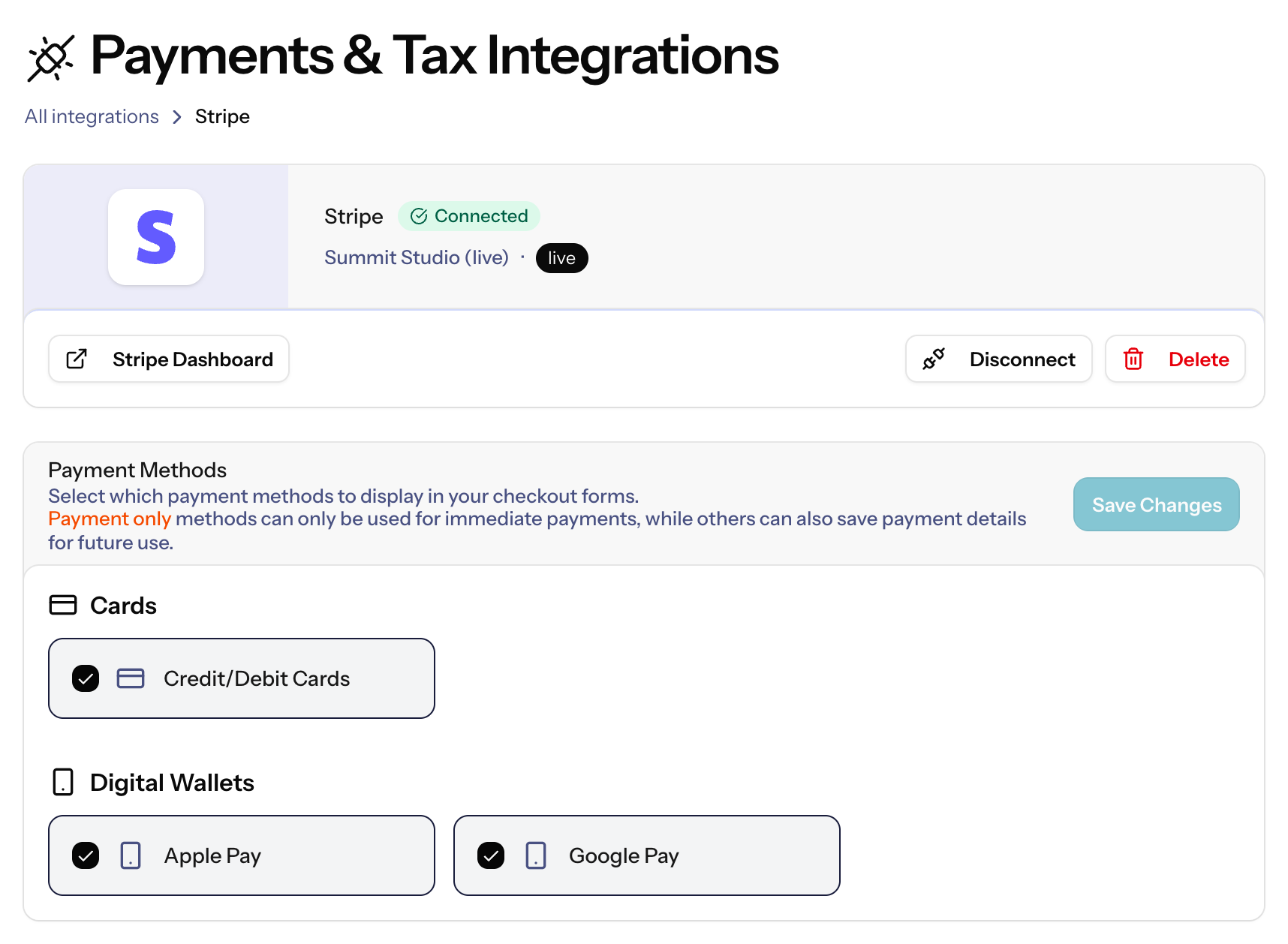
Methods are grouped into Cards, Digital Wallets such as Apple Pay and Google Pay, Bank Transfers & Direct Debit and Buy Now, Pay Later. Ones marked Payment only work for a one-off payment but can't save the buyer's details for later charges, such as subscription renewals.
A method also has to be turned on in your Stripe dashboard's payment method settings. If one you ticked is off in Stripe, Plandalf warns you and buyers won't see it.
Pause or remove Stripe
On the same page:
- Click Stripe Dashboard to open the connected account in Stripe.
- Click Disconnect to pause the account. New checkouts stop using it, while orders, subscriptions and saved details stay. Reconnect turns it back on without signing in to Stripe again.
- Click Delete to remove the account from Plandalf. Plandalf keeps orders, subscriptions and customer data; use Disconnect if you only want a pause.
- If Stripe stops accepting the connection, because it expired or was revoked, the page says Re-authorization required. Click Re-authorize and approve it in Stripe again.
PayPal
PayPal shows as Coming soon. For now, take payments with Stripe.
Tax services
The same screen lists Tax automation: Plandalf tax, Stripe Tax, TaxJar and Avalara. See Tax for how to set them up and choose one.