
MemberPress
Availability and requirements
Plandalf for MemberPress is available as an early-access plugin ZIP.
Hosted setup is not ready: on 4 October 2026, the default hosted Plandalf connection route returned 404. Version 0.1.0 can be evaluated with a compatible development server, but an ordinary hosted account cannot yet complete connection. Keep your live MemberPress signup flow in place until the required server support is deployed and your buyer checks pass.
You need:
- WordPress 6.4 or later, PHP 8.2 or later, and an active MemberPress installation.
- A compatible Plandalf server with site-connection, catalog-link, subscription and signed purchase-event APIs.
- A published Plandalf checkout design and a verified Stripe test connection for test purchases.
- A WordPress staging site you administer, with an HTTPS address reachable by Plandalf.
- A test membership, a protected test page, working WordPress email and a buyer inbox you control.
The plugin’s Test mode label alone does not prove the payment provider uses test keys. Verify the actual Stripe connection, offer mode and price before attempting payment. Local .test addresses shown in development captures are not public webhook destinations.
OAuth requirement
The supported connection uses OAuth to establish the authorized account and host/domain. The 0.2.0 development build implements authorization-code OAuth with PKCE, encrypted token storage and no manual API-key or host fields. It remains in draft review and requires the matching server changes. Hosted deployment and the complete browser replay are still pending.
The downloadable 0.1.0 release still uses the legacy API-key exchange. Its installation and membership controls are documented below for development evaluation. It is not the supported production connection; wait for the OAuth release before replacing a live signup flow.
Install the plugin
- Download
plandalf-memberpress-0.1.0.zipfrom the GitHub release. Use the installation asset rather than GitHub’s source-code archive. - In WordPress, open Plugins → Add New → Upload Plugin.
- Select the ZIP, install it, and activate Plandalf for MemberPress.
- Open MemberPress → Plandalf.
Install and license MemberPress separately. This plugin does not bundle MemberPress.
Connect a compatible Plandalf server
Once the required server support is available, click Connect with Plandalf, choose the intended Plandalf account and select Test for staging. Confirm the connection and return to WordPress.
Step 1 should show the correct account, Test mode, and the purchase-event address. The connection flow registers that address so you do not need to copy a webhook secret manually. Allow Plandalf to reach the event route through your site’s security and caching configuration.
If the connection screen returns 404, the server is missing the connection route. Reinstalling the WordPress plugin will not fix it. Use a compatible development server or wait for hosted availability.
Choose the checkout design
Under Choose your checkout design, select the published Plandalf checkout to use on membership pages. Enable Use Plandalf checkout in place of the MemberPress signup form and save.
Each linked membership uses that design with its own price. For version 0.1.0, use a flow that ends at payment: the plugin skips post-payment upsell pages.
Link the membership prices
Start with one staging membership. Under Link your memberships to Plandalf prices, create a Plandalf price from the membership’s terms, or open the membership’s Plandalf tab to link an existing price.
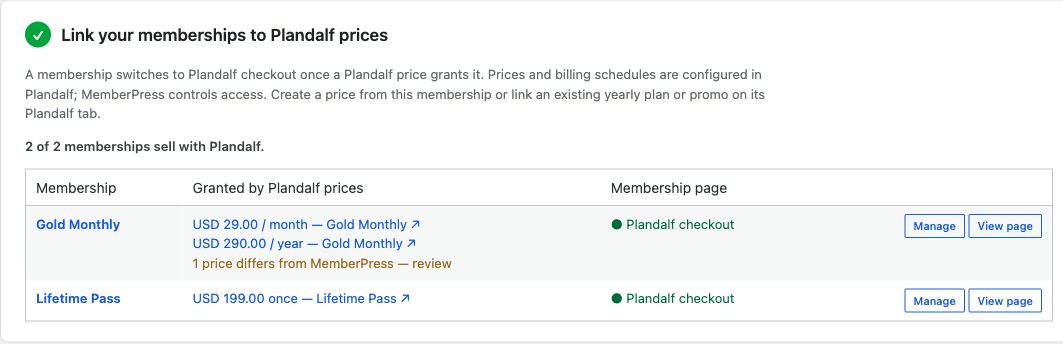
Real local plugin capture, 4 October 2026. The rows contain demonstration memberships.
Check the amount, currency and billing interval. Review any price differs from MemberPress warning. Plandalf controls the linked price and billing schedule; MemberPress controls access.
Use View page to check the membership’s signup page. It should show the intended Plandalf checkout and membership price. Multiple prices can grant the same membership. Fixed-expiry memberships and paid trials require an existing-price link and separate access verification; do not assume automatic price creation supports them.
Prepare content protection
Before paying, create a harmless staging page and a MemberPress rule that grants access only to the test membership. Set the membership’s access URL to that page.
Check it while signed out: the protected content must be hidden. An administrator can bypass membership rules, so the after-purchase check must use a normal buyer account.
Verify the complete buyer journey
Use a new buyer email on the staging site and the processor’s test environment. Keep the invoice and membership transaction identifiers together.
- Open the membership page signed out. Confirm the membership, price, currency and billing interval.
- Complete a test payment and verify its status in the connected processor and Plandalf invoice.
- Open MemberPress → Plandalf → Events. Find the matching
invoice.paidevent and check that it says Applied. - In MemberPress transactions, confirm the correct buyer, membership and paid period. A checkout success page alone is insufficient.
- Follow the new-buyer password handoff, verify the email reaches the controlled inbox, and sign in as that buyer.
- Open the protected page as the buyer, then signed out. Access should be granted only to the member.
- Check an existing member, a declined payment, duplicate event delivery, renewal, cancellation and refund before using the integration on a live site.
Local testing has verified a Stripe test payment, invoice, automatic signed-event delivery and membership transaction. Password submission, actual inbox delivery and normal-buyer protected-content access remain unverified. This guide is not a completed production sign-off.
Troubleshooting
Payment completed but membership is pending: match the invoice to the plugin’s event log. Check delivery attempts and the endpoint response. Resolve delivery for the existing payment rather than charging the buyer again.
Event says Ignored: verify that the purchased price is linked to a membership on this WordPress site.
Wrong price or billing interval: inspect the linked Plandalf price and refresh the membership mapping. A WordPress membership label does not override the payment price.
Password email did not arrive: inspect WordPress mail delivery and your SMTP provider. Reaching the password form does not prove email delivery.
Countdown expiry did not change the price: campaign-driven membership pricing is unavailable in this release. A visual countdown does not change an explicitly linked price.
Updates and support
Existing MemberPress subscribers keep their original gateway. This plugin does not migrate subscriptions. Keep a backup before updating a production WordPress plugin, and test the new version on staging first.
Read the release notes, inspect the source and tests, or report a reproducible issue with credentials and customer data removed. Learn more about Plandalf checkouts and the MemberPress launch.