---
description: "Prepare a Plandalf checkout for a Circle community, configure member actions, and verify paid access, promos and referrals."
---
# Circle

Use [Plandalf with Circle](https://plandalf.com/platforms/circle) when you sell community access through a Plandalf checkout. Circle holds the community and its spaces. A Plandalf sequence is intended to find the paid buyer and assign the chosen space.

> [!WARNING]
> **Setup under verification**
> The screenshots show the real setup forms. The connection and member-to-space journey have not passed a Circle account replay. The local adapter now targets Circle Admin API v2 and has automated request/response tests; release and real provider acceptance remain pending. Keep the sequence off until the connection, member lookup and space assignment have each been verified.

## Choose the journey

| Product | Setup | Required outcome |
| --- | --- | --- |
| Checkouts | [Prepare the buying link](#prepare-the-buying-link) | The intended offer, actual sandbox payment and matching paid invoice |
| Automations | [Configure member and space actions](#configure-member-and-space-actions) | One matching Circle member who can open the promised space |
| Timers / Promos | [Add a launch deadline](#add-a-launch-deadline) | The same participant deadline and correct checkout price across expiry |
| Affiliates | [Track the referring partner](#track-the-referring-partner) | Paid sale and commission decision attributed to the intended partner |

## Prepare the test account

-   Use an approved Circle community with Admin API access, a dedicated test space and a buyer inbox you control. Confirm current access with [Circle’s developer overview](https://api.circle.so/).
-   Decide which space the product grants. Check default access, existing memberships and other access groups so a buyer cannot appear to pass this test through an unrelated grant.
-   Prepare a published Plandalf offer, price and verified processor sandbox. A Plandalf test setting does not isolate Circle: actions still use the connected community.
-   Keep the approved Circle token in your password manager. Enter it only in the connection form. Do not put it in checkout code, screenshots, shared guides or replay logs.
-   Review invitation and community notification behavior before testing member creation. Use only the controlled inbox for the replay.

## Connect Circle

1.  Open **Automation** in the intended Plandalf organization and choose the Circle integration setup.
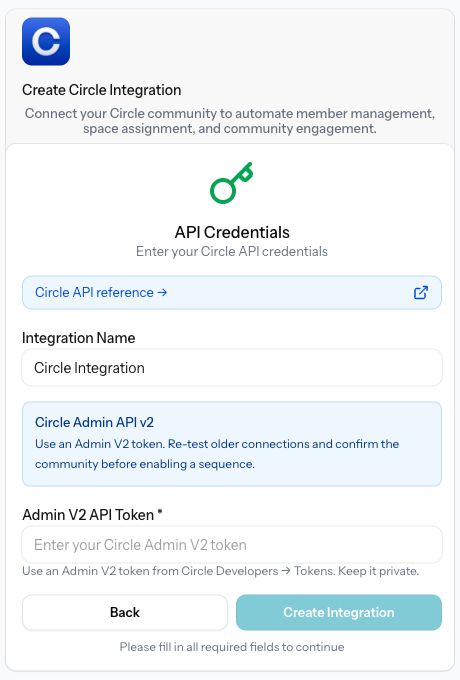
2.  Enter an **Integration Name** that identifies the intended test connection.
3.  Use an **Admin V2** token from Circle’s **Developers → Tokens** page. See [Circle’s Admin API setup](https://api.circle.so/apis/admin-api/quick-start). Keep token creation and entry with the approved account owner.
4.  Enter the approved token in **Admin V2 API Token** and choose **Create Integration**.
5.  Open the saved connection from the integrations directory and choose **Test Connection**. The result identifies the community by name and ID. Confirm both before selecting this connection in a sequence.
6.  If you already have a Circle connection, re-test it against v2 before enabling its sequences. Keep older sequences paused while reviewing their token, member mappings and profile fields.

<figure data-docs-annotated-screenshot="" style="margin:1.5rem 0"><div style="position:relative;line-height:0"><img src="/images/integrations/circle/connection-v2-form.png" alt="Actual Create Circle Integration form with its API reference link, integration name, empty Admin V2 token and disabled Create Integration button." width="460" height="680" loading="lazy" style="display:block;width:100%;height:auto;margin:0;border-radius:0"><svg xmlns="http://www.w3.org/2000/svg" viewBox="0 0 460 680" aria-hidden="true" focusable="false" style="position:absolute;inset:0;width:100%;height:100%;pointer-events:none"><g><line x1="380" y1="353" x2="200" y2="292" stroke="white" stroke-width="12"></line><line x1="380" y1="353" x2="200" y2="292" stroke="#b5264d" stroke-width="6"></line><polygon points="200,292 212.19097181834667,305.24311919920217 217.73051073870724,288.8969387784661" fill="#b5264d"></polygon><circle cx="380" cy="353" r="27" fill="#b5264d" stroke="white" stroke-width="4"></circle><text x="380" y="363" text-anchor="middle" fill="white" font-size="29" font-weight="700" font-family="system-ui,sans-serif">1</text></g><g><line x1="385" y1="515" x2="230" y2="545" stroke="white" stroke-width="12"></line><line x1="385" y1="515" x2="230" y2="545" stroke="#b5264d" stroke-width="6"></line><polygon points="230,545 247.14849616511543,550.4707475974515 243.86884738864575,533.5258955856915" fill="#b5264d"></polygon><circle cx="385" cy="515" r="27" fill="#b5264d" stroke="white" stroke-width="4"></circle><text x="385" y="525" text-anchor="middle" fill="white" font-size="29" font-weight="700" font-family="system-ui,sans-serif">2</text></g></svg></div><figcaption style="line-height:1.6;margin-top:1rem"><p>The real connection form before token entry. This capture does not prove account authentication.</p><ol style="list-style-type:decimal;padding-left:1.5rem"><li>Check Circle's current API instructions.</li><li>Enter the approved token only in this field.</li></ol></figcaption></figure>

### Verify this version before continuing

The local adapter uses Circle **Admin API v2**. It checks the community, searches by email, reads the created `community_member`, and resolves a Member ID to its email before assigning a space. Space lists follow pagination. These paths have automated tests against the documented contract; they still need a real account replay and release. [Circle Admin API reference](https://api-headless.circle.so/?urls.primaryName=Admin%20API%20V2), [API versions](https://api.circle.so/apis/admin-api).

Member creation proceeds only after Circle’s explicit missing-community-member response. Authentication errors, unrelated not-found responses, rate limits and malformed results stop the action. Resolve the failure before retrying. A saved connection or an action sample does not prove successful delivery to a buyer.

## Prepare the buying link

1.  [Create the checkout](https://plandalf.com/docs/product-guides/checkouts/create), configure the product and price, then open **Share** and copy its actual hosted checkout link.
2.  Place the link on the sales page or in the Circle content where buyers should start. A normal link opens the buying surface outside the community; this guide does not require JavaScript inside Circle.
3.  Open that destination as the controlled buyer. Check the offer, amount, currency and actual processor sandbox before submitting payment.
4.  Match the processor result to the paid Plandalf invoice. Continue to the membership checks below; a receipt alone does not prove community access.

If your sales page uses Webflow, WordPress or a custom site, follow that platform’s embed guide. Circle remains the destination for the promised community access.

## Configure member and space actions

### Choose the paid event

In **Automation → My Sequences**, create a named test sequence and leave it **Off**. Choose Plandalf’s **Invoice Paid** trigger and set its offer filter to the intended offer. This event includes paid checkouts, upsells, renewals and admin invoices. **Checkout Completed** is the narrower alternative for the main checkout conversion.

Inspect the trigger sample before testing any action. It must contain the controlled buyer’s email and belong to the intended organization and purchase. An unrelated sample can change a real member even while a sequence is paused.

### Find or create the member

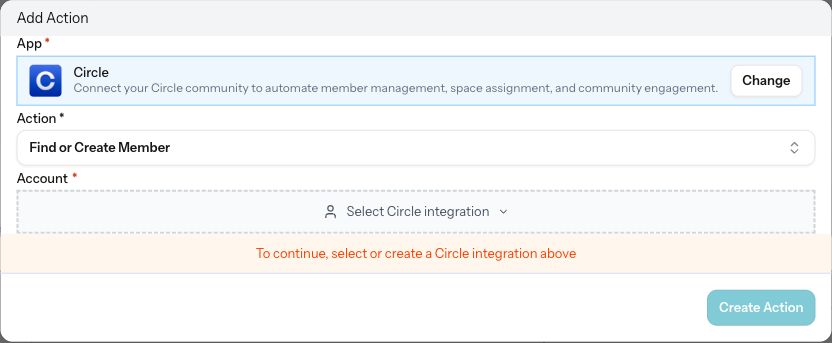
Choose **Add Action → Circle → Find or Create Member**. Select the verified Circle connection. Without an account, **Create Action** stays disabled.

<figure data-docs-annotated-screenshot="" style="margin:1.5rem 0"><div style="position:relative;line-height:0"><img src="/images/integrations/circle/member-action.png" alt="Actual Add Action dialog with Circle, Find or Create Member and an empty account selector. Create Action is disabled." width="832" height="343" loading="lazy" style="display:block;width:100%;height:auto;margin:0;border-radius:0"><svg xmlns="http://www.w3.org/2000/svg" viewBox="0 0 832 343" aria-hidden="true" focusable="false" style="position:absolute;inset:0;width:100%;height:100%;pointer-events:none"><g><line x1="604" y1="112" x2="325" y2="146" stroke="white" stroke-width="12"></line><line x1="604" y1="112" x2="325" y2="146" stroke="#b5264d" stroke-width="6"></line><polygon points="325,146 341.7244016495923,152.65540302784999 339.636561315678,135.5228308760239" fill="#b5264d"></polygon><circle cx="604" cy="112" r="27" fill="#b5264d" stroke="white" stroke-width="4"></circle><text x="604" y="122" text-anchor="middle" fill="white" font-size="29" font-weight="700" font-family="system-ui,sans-serif">1</text></g><g><line x1="164" y1="287" x2="404" y2="211" stroke="white" stroke-width="12"></line><line x1="164" y1="287" x2="404" y2="211" stroke="#b5264d" stroke-width="6"></line><polygon points="404,211 386.33532009911306,207.5418091436126 391.54576545155027,223.99584709867736" fill="#b5264d"></polygon><circle cx="164" cy="287" r="27" fill="#b5264d" stroke="white" stroke-width="4"></circle><text x="164" y="297" text-anchor="middle" fill="white" font-size="29" font-weight="700" font-family="system-ui,sans-serif">2</text></g></svg></div><figcaption style="line-height:1.6;margin-top:1rem"><p>The builder requires a connection before the member action can be created. No member was created during this capture.</p><ol style="list-style-type:decimal;padding-left:1.5rem"><li>Choose Find or Create Member.</li><li>Select the approved community connection.</li></ol></figcaption></figure>

After the v2 connection is verified, configure the action from the paid trigger:

| Field | Value |
| --- | --- |
| Email Address | `{{trigger.customer_email}}` |
| Name | `{{trigger.customer_name}}` |
| First Name | `{{trigger.customer_first_name}}` |
| Last Name | `{{trigger.customer_last_name}}` |
| Skip Invitation Email | Leave off for the intended invitation flow; enable only when you will arrange access separately |

Only Email Address is required. Name takes precedence; if it is empty, First Name and Last Name are combined into Circle’s name field. Review the invitation choice before running: skipping the email can leave a new buyer without onboarding instructions. Check the resolved values before running the action. Its output must contain the actual Circle `member_id` for that email. Test both a new buyer and an existing member; retain the existing member’s ID on the second path.

### Assign the promised space

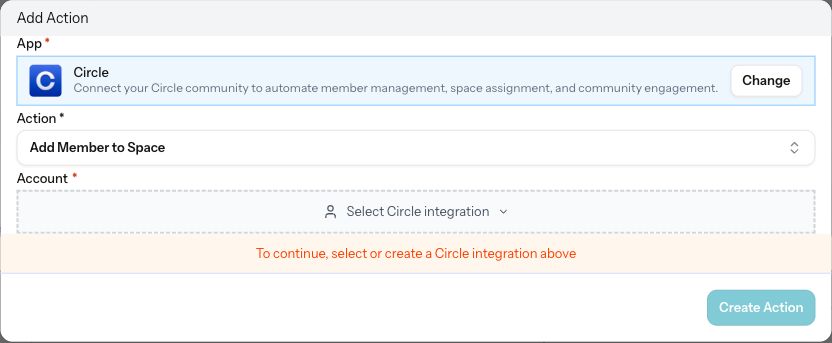
Add **Circle → Add Member to Space** with the same connection. Set **Member ID** from the preceding action’s `member_id` output using the variable picker. Select the dedicated **Space**. The action looks up that member and sends the verified email to Circle with the chosen space ID. Keep both actions on the same community connection.

<figure data-docs-annotated-screenshot="" style="margin:1.5rem 0"><div style="position:relative;line-height:0"><img src="/images/integrations/circle/space-action.png" alt="Actual Add Action dialog with Circle Add Member to Space selected and account connection still required." width="832" height="343" loading="lazy" style="display:block;width:100%;height:auto;margin:0;border-radius:0"><svg xmlns="http://www.w3.org/2000/svg" viewBox="0 0 832 343" aria-hidden="true" focusable="false" style="position:absolute;inset:0;width:100%;height:100%;pointer-events:none"><g><line x1="608" y1="111" x2="334" y2="147" stroke="white" stroke-width="12"></line><line x1="608" y1="111" x2="334" y2="147" stroke="#b5264d" stroke-width="6"></line><polygon points="334,147 350.7860453289305,153.49835996349003 348.5377203557424,136.38610877866972" fill="#b5264d"></polygon><circle cx="608" cy="111" r="27" fill="#b5264d" stroke="white" stroke-width="4"></circle><text x="608" y="121" text-anchor="middle" fill="white" font-size="29" font-weight="700" font-family="system-ui,sans-serif">1</text></g><g><line x1="162" y1="286" x2="400" y2="210" stroke="white" stroke-width="12"></line><line x1="162" y1="286" x2="400" y2="210" stroke="#b5264d" stroke-width="6"></line><polygon points="400,210 382.327014339636,206.58450913504836 387.57720863439755,223.0259070581174" fill="#b5264d"></polygon><circle cx="162" cy="286" r="27" fill="#b5264d" stroke="white" stroke-width="4"></circle><text x="162" y="296" text-anchor="middle" fill="white" font-size="29" font-weight="700" font-family="system-ui,sans-serif">2</text></g></svg></div><figcaption style="line-height:1.6;margin-top:1rem"><p>Space assignment is a separate action. This screen does not show a successful access grant.</p><ol style="list-style-type:decimal;padding-left:1.5rem"><li>Choose the space assignment action.</li><li>Use the same verified Circle connection.</li></ol></figcaption></figure>

Run only after approving the test destination. Open Circle and confirm the exact member and space. Then sign in as the controlled buyer and open the restricted content. Compare with a fresh nonbuyer who cannot open it. A successful HTTP response or membership row is insufficient without this access check.

### Update profile fields when needed

**Update Member Fields** takes **Member ID** and a nonempty **Fields** map. Use Admin V2 fields such as `name`, `headline` or `community_member_profile_fields`, then check the resulting profile in Circle. Separate `first_name` and `last_name` update fields are not accepted; use `name`. The current action set has no space-removal action. Define and verify cancellation and refund handling separately before selling recurring access.

## Add a launch deadline

Keep the promo on the buying surface you control. Use [Create a promo](https://plandalf.com/docs/product-guides/promos/create-promo) and [CTA links and redirects](https://plandalf.com/docs/product-guides/promos/cta-links) to connect the deadline to this checkout.

1.  Choose a fixed launch deadline or an enrollment-based promo. For enrollment-based timing, prepare the participant before testing.
2.  On your external sales page, add the countdown through the relevant platform guide, such as [HTML](https://plandalf.com/docs/product-guides/platforms/custom-html).
3.  Use the same promo and stable participant reference when opening checkout. A display countdown does not itself change the charged price.
4.  Replay before and after expiry. Check the countdown, persisted participant deadline and actual checkout total.
5.  Complete a sandbox purchase in each intended tier and reconcile the paid invoice with the Circle member and space outcome.

The builder lists a Circle **Member Created** trigger, but automatic enrollment from an actual Circle webhook has not been verified. Do not advertise that path until its registration, authenticity checks, payload mapping and duplicate behavior pass replay. No native Circle countdown or automatic enrollment is established by the screenshots here.

## Track the referring partner

Prepare a test partner through the [affiliate quickstart](https://plandalf.com/docs/product-guides/affiliates/quickstart). Give the partner a link to the external sales page or hosted checkout.

1.  Use a fresh visitor session and follow the actual partner link. If it opens a sales page, load the organization’s SDK there before checkout.
2.  Confirm the intended partner is captured and survives redirects into checkout.
3.  Complete a verified sandbox payment. Match its invoice to the partner sale and commission decision in Plandalf.
4.  Verify the matching Circle member and space as a separate delivery check.
5.  Replay a duplicate event, decline and refund. For recurring products, check a paid renewal without requiring a second partner click.

The default `via` parameter identifies the affiliate partner; `pf_ref` identifies a promo participant. Keep them separate. A Circle member or space assignment does not establish attribution. Test commissions may be skipped with `test_or_preview`; they are not payable earnings. Do not report the same native Plandalf payment again through the affiliate sales API.

## Replay and sign off

| Case | Evidence required |
| --- | --- |
| Connection | Correct account and API version, successful real authentication |
| New buyer | Sandbox payment, paid invoice, completed sequence, one Circle member and correct space |
| Existing member | Same member ID; no duplicate member or unexpected invitation |
| Buyer access | Buyer can open promised content; a nonbuyer cannot |
| Duplicate paid event | No duplicate member, access grant or unintended notification |
| Failed lookup or action | Visible failure, no unintended member creation, verified recovery |
| Decline | No paid-trigger access grant |
| Cancellation or refund | Explicitly implemented access policy and matching affiliate adjustment |
| Promo | Expected deadline and charged amount before and after expiry |
| Affiliate renewal | Correct partner and commission decision on the new paid invoice |

Record expected and actual results for each step, plus sanitized captures of the provider member, space access, invoice and attribution records. Replay this guide from a fresh sequence before checking it complete. The current screenshots cover setup; provider outcomes and clean replay remain pending.

## Related guides

-   [Circle integration overview](https://plandalf.com/platforms/circle)
-   [Hosted checkout](https://plandalf.com/docs/product-guides/checkouts/hosted-checkout)
-   [HTML setup](https://plandalf.com/docs/product-guides/platforms/custom-html)
-   [Affiliate subscription tracking](https://plandalf.com/docs/product-guides/affiliates/subscriptions)

Source: https://plandalf.com/docs/product-guides/platforms/circle