> Put a button on your site that opens your checkout in a centred box, a side panel, a bottom sheet or a full overlay, or show the checkout inline.
Source: https://plandalf.com/docs/checkouts/buy-buttons
Checkouts
# Buy buttons
A buy button opens your checkout over the page the buyer is on. This page covers how the checkout opens and the options you can set on the button.
## Get the snippet
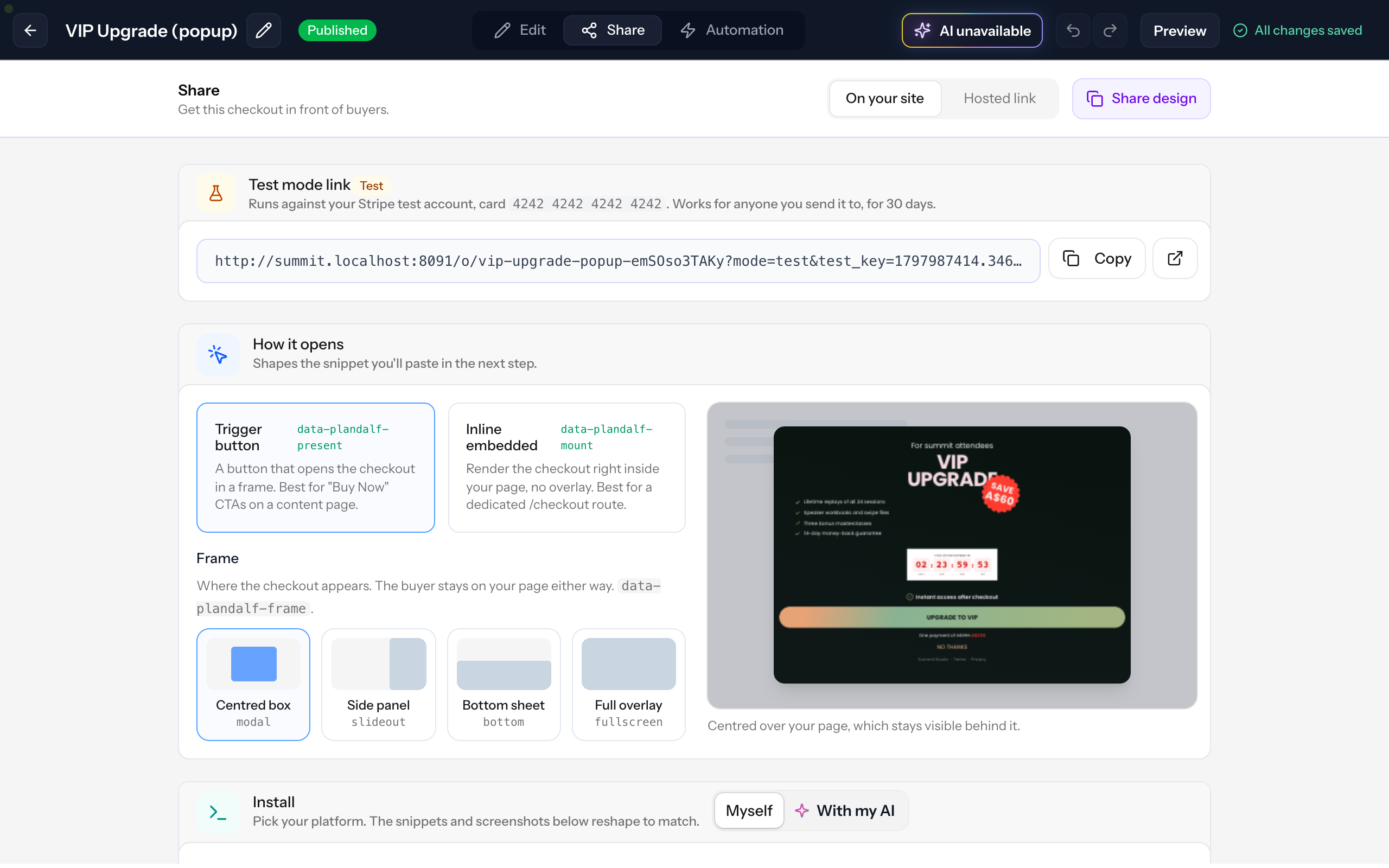
In the editor, open **Share** and choose **On your site**. Under **How it opens**, pick **Trigger button**, then choose a frame. The **Install** section below gives you the script and the button for your platform, with your checkout's slug filled in.
[](https://plandalf.com/docs/shots/checkouts/share.webp)
Choose how the checkout opens on your site.
Add the script once to every page that sells something, then put the button where you want it:
```html
Buy Now
```
Any element works as the button: a ``, a link or an image. Plandalf opens the checkout when it's clicked. Buttons your site adds after the page loads work too. For step-by-step instructions for your site builder, see [Add Plandalf to your site](https://plandalf.com/docs/get-started/add-to-your-site).
## How it opens
The **Frame** choice sets `data-plandalf-frame` on the button:
On the Share screen
Value
What the buyer sees
Centred box
`modal`
The checkout in a box over your page, which stays visible behind it. The default.
Side panel
`slideout`
A panel that slides in from the side.
Bottom sheet
`bottom`
A sheet that slides up from the bottom. Good on phones.
Full overlay
`fullscreen`
The checkout fills the window.
```html
Buy Now
```
## Sizes
`data-plandalf-size` sets the width of a centred box or side panel:
Value
Centred box
Side panel
`compact`
700px
480px
`standard`
1050px (the default)
700px
`wide`
1400px
1400px
`fullscreen`
Fills the window
Fills the window
A side panel with no size is 500px wide. On the Share screen, **Width** appears when you pick **Side panel**.
## Show the checkout in the page
Choose **Inline embedded** instead of **Trigger button** to render the checkout inside your page, with no overlay. It suits a page that's only for checking out. Put this where the checkout should go, and size it with your own CSS:
```html
```
## All button attributes
Attribute
Values
What it does
`data-plandalf-frame`
`modal` `slideout` `bottom` `fullscreen` `embedded`
How a `data-plandalf-present` element opens its offer: in a modal, a side slideout, a bottom sheet or full screen on click, or `embedded` to render it inline in the element on page load. Default `modal`.
`data-plandalf-initialized`
Set to `"true"` by the SDK once it has bound a present/mount element, so later scans skip it. Canonical attributes: Buy → click trigger
→ inline mount
→ live countdown / promo widget data-plandalf-apply-promo="" → on a present/mount, apply tier pricing Deprecated (still scanned for one release, with a console warning): data-plandalf-mount="checkout"+template → use data-plandalf-mount=""
`data-plandalf-mode`
`test` `live` `preview`
Environment for the checkout a present/mount element opens, passed as `mode`. With `test`, the checkout runs in test mode on the organization's test domains, for people signed in to the organization, with an identify() token carrying `"mode": "test"`, or from a signed test link; anywhere else it runs live. Test mode also needs the organization's Stripe test account. `preview` is for the dashboard editor; on a page it runs live.
`data-plandalf-mount`
Offer slug. The SDK renders that offer inline inside the element when the page loads.
`data-plandalf-present`
Offer slug. Clicking the element opens that offer (see `data-plandalf-frame`).
`data-plandalf-size`
`compact` `standard` `wide` `fullscreen`
Modal size preset for a `data-plandalf-present` element. Default `standard`.
`data-plandalf-template`
Deprecated. Offer slug read when `data-plandalf-mount` is the old kind token `checkout`, `portal` or `widget`; put the offer slug in `data-plandalf-mount` instead.
`data-plandalf-test-banner`
Set by the SDK on the "test mode" strip it draws above a checkout that uses test payments.
To open a checkout from your own JavaScript, see [Open a checkout from code](https://plandalf.com/docs/developers/open-a-checkout).
## The styled buy button
If you'd rather not style a button yourself, the script also gives you ``. It opens the checkout like any other buy button, and its styles are kept apart from your page's CSS.
```html
Buy now
```
Attribute
Values
What it does
`offer`
Your checkout's slug
Required. The checkout to open.
`variant`
`solid` (default), `outline`, `pill`, `brand`
The button's style.
`size`
`sm`, `md` (default), `lg`
The button's height: 32px, 40px or 52px.
`color`
Any CSS colour, default `#0a0a0a`
The accent colour.
`label`
Text
The button text. Without it, the text inside the tag is used, then "Buy now".
`frame`
`modal`, `slideout`, `bottom`, `fullscreen`
How the checkout opens.
`frame-size`
`compact`, `standard`, `wide`, `fullscreen`
The checkout's size.
`mode`
`test`, `live`
Asks for a test or live checkout, like `mode` in code. See [Test mode](https://plandalf.com/docs/get-started/test-mode).
`disabled`
Turns the button off.
While the checkout is open, the button shows a spinner and can't be clicked again. If your code changes `variant`, `size`, `color`, `label` or `disabled`, the SDK redraws the button straight away; `offer`, `frame` and `mode` are read when it's clicked. To restyle it from your own CSS, use `plandalf-buy-btn::part(button)`.
Something wrong or missing? Email [hello@plandalf.com](mailto:hello@plandalf.com).